Kanban presets
A Kanban preset saves one board's filter, column and row properties, selected values, sorting, appearance, and dimensions. Use separate presets for different kinds of planning without changing the tasks themselves. For everyday board actions, see Kanban overview.
Open the preset editor from the Kanban toolbar or Settings → Operon → Views → Kanban. Changes stay in the draft until Save; Cancel or Escape leaves the preset unchanged. Saving a filter in its own editor or changing a favorite is a separate action.
Preset name & scope
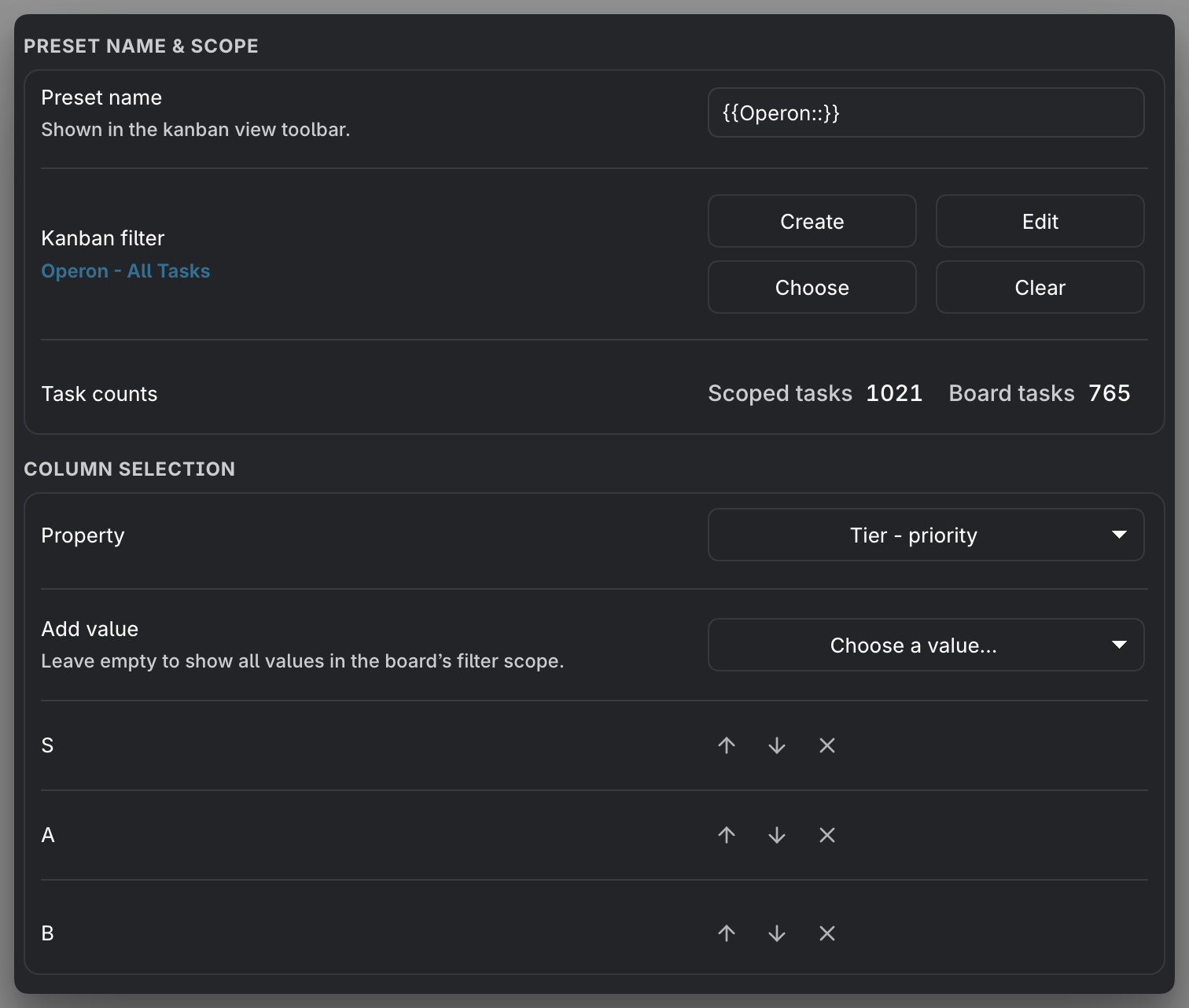
Preset name is the name shown in the toolbar. Kanban filter chooses which tasks are eligible before the board groups them. Create, edit, choose, or clear that filter using its existing controls. Use filter conditions if you want to restrict the board to one or more pipelines; there is no additional Pipeline scope setting.
The Task counts row previews the current draft:
| Count | Meaning |
|---|---|
| Scoped tasks | Unique tasks matching the Kanban filter |
| Board tasks | Unique tasks that also match the column and active swimlane selections |
For example, a filter can include 100 tasks while selected assignees and dates leave 57 on the board. These counts describe the preset, not the toolbar's temporary search. If data is incomplete, the preview indicates that the counts are partial rather than presenting them as final.
MEDIA-DOCS-153-1: Kanban preset settings showing Preset name & scope, the Scoped tasks and Board tasks counts, and the Column selection and Swimlane selection controls.
Column selection and Swimlane selection
Each section has a Property picker. Suitable Operon canonical fields, custom keys, and vault properties are available for Text, Number, Date, Datetime, Checkbox, and List types. Internal and calculated fields, such as duration or progress, are excluded. A renamed canonical field can show both names on one line, such as Tier - priority. Property options are left-aligned and have no usage counts.
You may use the same property and values in both directions. A single-valued property can match only equal intersections; list properties can match several cells. See Kanban swimlanes for counts and cell actions.
Status uses a pipeline
Select Status to show a Pipeline dropdown. Choose the pipeline whose statuses you want as headings. They follow its configured order; Add value and manual heading ordering are not shown for Status. No pipeline is selected automatically when you switch an axis to Status.
Status works in either direction. Status and Priority headings use their configured colors; other property headings use the neutral board style.
Turn swimlanes off
Choose No swimlanes at the top of the swimlane Property picker. The pipeline or value controls beneath it disappear and the board becomes columns-only. The previous swimlane configuration is retained. Choosing that same property again restores its selected values, their order, or its pipeline; choosing a different property starts a new selection.
Select values or show all
For properties other than Status, use Add value to choose headings. Each selected value appears on its own row with ↑, ↓, and × controls. Their order becomes the heading order. The same value cannot be added twice to one axis, but it can be used on both axes.
With no values selected, the board shows all values in its filter scope. Adding the first value switches to the selected subset; removing the last returns to All. Changing the property resets that axis's selections only.
| Axis | All behavior |
|---|---|
| Status | All statuses of its chosen pipeline, in pipeline order |
| Priority | Defined priorities, in their configured order |
| Other properties | Distinct values found on tasks matching the Kanban filter |
Number values sort numerically; Checkbox values use false then true; Text, List, Date, and Datetime use text comparison of their values. Empty values appear as No value at the end when present. Operon does not fill in number ranges, missing dates, or unused checkbox states. Datetime keeps the full value rather than combining everything from the same day.
The other axis's selection and temporary board search do not narrow the All-value pool. They can still reduce the cards and totals shown beneath those headings.
What appears in Add value
The picker offers known values beyond the current filter scope, including values used by inline and file tasks and the shared vault-property value pool. Priority uses the defined priority choices; Checkbox offers false and true. No value is a separate choice. There is no New value input here: create a value through the normal task or property editing flow if it is not yet known.
Each option shows a task count on the right. This is usage within the board's filter scope, not a count across the whole vault. Most-used values come first; equal counts use label order, or numeric order for Number fields. Unused known values follow the used ones. Already selected values are omitted from the picker. Partial data is marked, and a stale count can show a dash while it is refreshed.
Selecting an unused value keeps an empty heading on the board, so you can plan work for an assignee who has no matching task yet. This does not assign the value to any task. The empty-group collapse settings can still fold that heading; expand it to use its cells.
No value, the number 0, and the checkbox value false are different choices. Numerically equal values such as 1 and 1.0 form one Number group.
Board sorting
Board sorting sets the fallback mode and rules. When columns use Status, Pipeline column sorting can override individual status columns. Those overrides do not apply to non-Status columns or to Status rows, and switching axes does not delete them.
In Manual mode, order is saved for the cells you arrange. Other cells still follow their effective sorting rules; tasks newly entering a saved cell appear after its saved cards unless you explicitly place them in that order. See Kanban manual order.
Appearance
Choose the task color source, card image source, and light/dark appearance for this preset. Card images can use Task Image or a gallery item without changing the task's stored media. See Task images and galleries.
Board layout
This section sits between Appearance and Visibility. Its dimensions belong to this preset only.
| Setting | Default | Available sizes in px |
|---|---|---|
| Column width | 325 px | 250, 275, 300, 325, 350, 375, 400, 425, 450, 475, 500, 550, 600, 700, 800 |
| Cell height | 450 px | 250, 300, 350, 400, 450, 500, 550, 600, 650, 700, 750 |
Column width controls expanded columns. Cell height is the outer height of expanded swimlane cells, including their padding and borders; column headings and gaps are separate. Long cards or images scroll inside the cell instead of stretching the row.
With No swimlanes selected, Cell height is disabled but its value is retained. Classic boards fill the available pane height. New presets, and older presets without their own sizes, start at 325 × 450 px; old global dimensions are not copied into them. Duplicating a preset keeps its dimensions.
MEDIA-DOCS-153-2: A Kanban board showing the floating −/+ controls for cell height on the right and column width along the bottom.
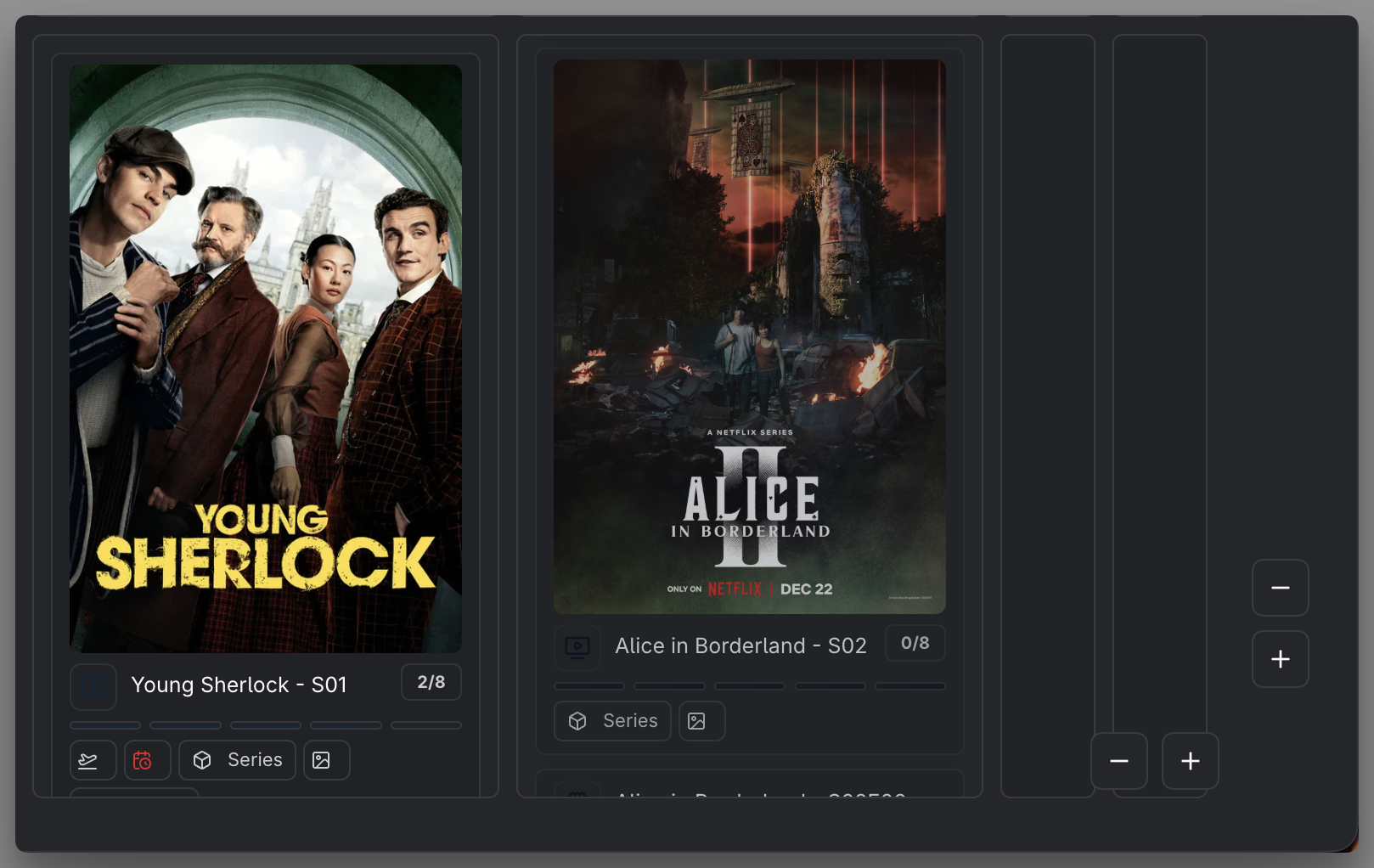
The board's floating +/− buttons move through these same choices and save immediately to the active preset. Width decreases on the left and increases on the right; height decreases above and increases below. Height controls appear only with swimlanes; width controls also work on classic boards. Another preset's sizes are not changed.
Visibility
- Collapse empty columns folds columns with no matching tasks.
- Collapse empty swimlanes folds rows with no matching tasks outside the automatically collapsed columns.
- Collapse finished status groups applies wherever Status is used: columns, rows, or both.
Collapsing a group preserves its heading and does not remove tasks from totals. Explicitly selected empty headings can also collapse. Incomplete data is not used to treat an unreadable group as empty.
Save and reuse
Save the preset to apply its draft. Duplicate it when you want a starting point with the same selections, appearance, and dimensions. Favorite presets appear as toolbar shortcuts; the preset picker can open any saved preset.
If an open preset has changed elsewhere, Operon prevents the stale draft from silently overwriting it. A failed save is reported and leaves the draft available. If a property or pipeline becomes unavailable, the saved selection is retained for inspection rather than silently changed to another field. See Calendar or Kanban rendering issues.