Custom keys
A custom key is a task field you define yourself. Operon's built-in fields cover the common task model, but your work may need something they do not have: a client, an effort estimate, a review flag, a department. A custom key adds that field as a real canonical key, not just a loose YAML property, so Operon can expose it through the controls supported for its type and your chosen surfaces. For renaming the built-in fields instead, see Key mappings.
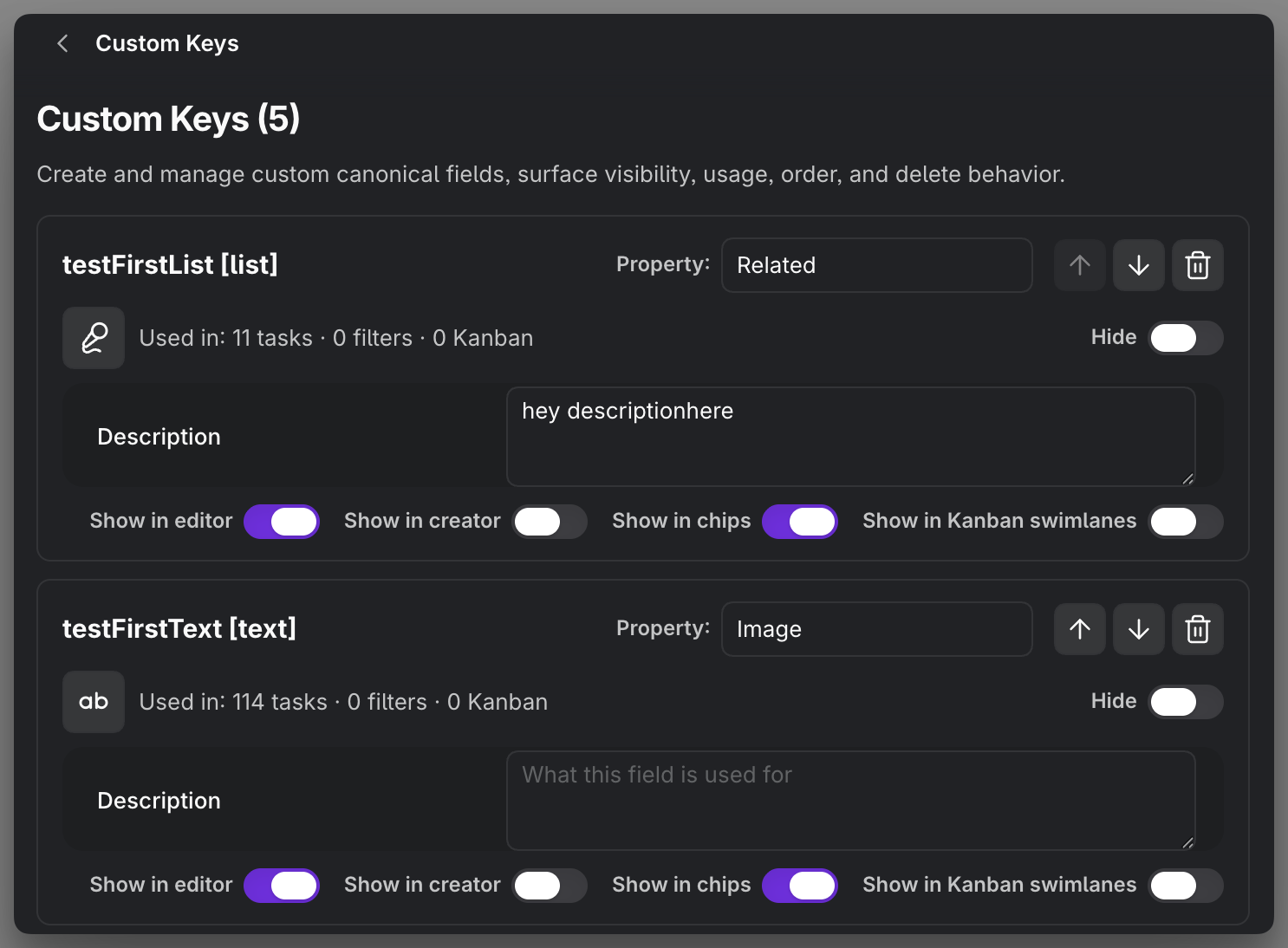
MEDIA-DOCS-040-1: The Custom Keys settings listing user-defined fields with their types and surfaces.

What you define
When you add a custom field, you give it:
- A canonical key, the stable identifier used in inline metadata. It cannot be changed after creation. Start with a letter and use letters, numbers, underscores, or hyphens; built-in and existing canonical keys are reserved.
- A visible property name, which must be unique across fields. Leave it empty to use the canonical key. Name checks ignore letter case, so changing capitalization does not create a distinct field.
- A type: Text, List, Number, Date, or Date & time. These are the choices in Add custom field. Native Checkbox properties remain supported through their existing controls, but Checkbox is not offered as a new custom field type here. The type decides how the value is stored and validated. See Task properties.
- An optional icon from Lucide, used in the field's controls and its compact chip. Supported surfaces use it as the field icon; value-dependent indicators can differ, such as checked and unchecked Checkbox values.
The field now has a defined identity and type. It is written as {{your-key:: value}} on an inline task and as frontmatter on a file task, and Operon reads it consistently across both.
When you save a new custom key, Operon also assigns its chosen type in Obsidian if no explicit type exists. Existing custom keys receive missing type assignments automatically when Operon starts; no extra action is needed. A separately assigned, incompatible Obsidian type is preserved. Reusing a deleted custom key with a different type has the narrower checks described below. Property types apply across the vault, while existing note values stay unchanged.
For example, with two custom keys client (Text) and effort (Number), an inline task carries them alongside the built-in fields:
- [ ] Send the proposal {{operonId:: {{operonId}}}} {{status:: Project.InProgress}} {{client:: Acme}} {{effort:: 3}}
The same task as a file task writes those keys in frontmatter:
---
operonId: {{operonId}}
Status: Project.InProgress
client: Acme
effort: 3
---
Operon uses the definitions of client and effort to validate and display their values on supported surfaces.
MEDIA-DOCS-040-2: The Add custom field dialog with a name, type, and surface choices.
Saving the definition
Add waits for the settings save before closing the form or making the new definition available. Its surface preferences are saved with it. While that save is pending, repeated clicks do not create the field twice.
If validation or saving fails, the form keeps your entries and shows the explanation directly below the Add/Cancel controls. Correct the issue there and retry; a failed settings save does not leave a partially added field that falsely claims the name is already taken. Other settings changed while the save was pending are preserved.
Where a custom field shows up
A custom key is not forced into every surface. You choose where it appears with per-field toggles:
- Show in editor: as a control in the Task Editor and the Live Preview field menus.
- Show in creator: as a field in the Task Creator.
- Show in chips: as a compact chip on the task. See Task chips.
- Show in Kanban swimlanes remains a legacy surface preference. The current Kanban Property pickers offer technically eligible custom fields for either axis independently of this toggle. See Kanban presets.
The general Custom Key surface selector does not offer Checkbox fields as ordinary custom picker controls. This is separate from native Checkbox editing in Additional, prepared template fields, and Tables. Existing Checkbox value chips in Task Editor use checked/unchecked icons where that rendering path is already available; this does not add new chip surfaces. See Custom field pickers and Vault Properties.
Property lists and icons
Task Editor's Additional section and Creator's property selection keep eligible active custom keys available even before they appear in a note. Supported normal Obsidian properties used in the vault also remain available. Fields present on the current task, supplied by its template, or already in an open draft are not removed just because a custom definition was deleted. Surface visibility and type restrictions still apply.
An unused field with only an old type declaration, and no active custom definition, is not offered solely because of that declaration. Restarting Operon or refreshing the index does not turn that stale declaration back into a custom field. This rule does not remove used normal Obsidian properties or change Table's own column catalog rules.
Creator, Task Editor, and native Table property controls use the active custom field's configured icon, whether the property is identified by its canonical key or visible name. The type icon is the fallback when no custom icon is configured. Checkbox true/false indicators and genuine read-only warning icons take priority over a decorative field icon.
Reusing existing values
Text and List values already used for a custom field are available through the shared suggestion pool in Task Creator, Task Editor, task-chip pickers, and Tables. This includes values used only on Inline Tasks as well as compatible frontmatter values under the field's canonical or mapped name. You do not need to enter those values again just because you opened a different editing surface.
Defining an unused field makes its control available where supported; it does not invent suggestions. Empty values are not suggested, and incompatible types or ambiguous mappings are not treated as valid choices. See Custom field pickers for searching and editing.
Description for shared context
A custom field can carry an optional description: a short note on what the field is used for, edited in its own card on Core → Custom Keys. Like a pipeline or priority description, it is never required, but it earns its place. It reminds you what you meant when you created the field, and it gives an agent working in your vault the context to use the field correctly instead of guessing from its name. See Pipelines and statuses and Task priorities for the same idea on those fields.
Usage and order
The settings show where each custom field is actually used: how many tasks carry a value, which filters and Kanban presets reference it, and which surfaces it is on. This makes it safe to see a field's reach before you change or remove it. You can also reorder your custom fields, which sets the order they appear in.
Renaming a custom field later
You can rename a custom field's visible property name at any time, with the same caveat as any key mapping: the rename changes how Operon writes and reads the field from that point on, but it does not rewrite the property name in tasks you already created. Those tasks keep the old name until you update them yourself. The field's canonical key is fixed when you create it, so name the field well up front and prefer renaming early over renaming after many tasks exist.
Deleting a custom key
Deleting a custom field removes its Operon definition after the settings save succeeds. If that save fails, the definition remains available. The values already written in your files stay exactly where they are, and Obsidian's shared type declarations and stored inline interpretation are retained. Removing the definition does not erase source values; recreating it is a separate settings action.
Creator and Editor do not show an empty field solely because the deleted key was previously configured there or has an old type declaration. A normal property still used in notes, supplied by a template, or present in the task or draft can still appear.
Values left in the source may be exposed through Vault Properties, subject to their names, type declarations, and compatibility. Deleting a Custom Key does not guarantee that every former value becomes editable: Operon preserves stored inline interpretation and refuses incompatible types.
Reusing a deleted name
You can add the same name again with the same type, reusing the retained interpretation, provided no active name or type conflict exists. Deletion does not permanently reserve the name.
Using a different type requires proving that the old canonical key and visible property name are unused. Operon checks normal notes, inline fields, templates, dependent filters and presets, and open unsaved sources or editor drafts. An existing property with an empty value still counts as usage. Sorting, grouping, summaries, and Base property or formula references can also depend on the old interpretation.
Merely displaying the field as a column in an Operon Table does not block reuse, including a saved Table preset or .table file. That exemption is only for column display: a filter, sort, group, or summary using the field still counts as a dependency. A blank-looking Table cell may represent an existing empty property, so it is not proof that the name is unused. This exemption does not extend to native Base definitions.
If the name is unused and the old declarations still match the deleted Operon definition, the explicit Add operation can replace that retained type information. Existing note values are never converted automatically. A separately assigned Obsidian type, an unreadable or ambiguous source, or a source change during verification prevents the type change.
An unrelated open tab does not by itself block reuse. Deferred tabs without a live editor buffer are checked through their saved sources, while actual unsaved property content remains part of verification. Unexpanded template values do not automatically block reuse when their property names can be safely identified; a matching property still counts as usage, even with an empty value. Incomplete or ambiguous frontmatter can still prevent verification.
This deeper check runs when reusing a name with a different type, not each time you open an editor. If it reports a remaining reference, review that reference or recreate the field with its original compatible type.
Choosing between a Custom Key and a Vault Property
Both participate in the persistent task index. Choose a Custom Key for its explicit field definition and supported surface preferences, such as showing a Text field in selected chip surfaces. Choose a Vault Property when its native Task Editor, template, and Table controls are sufficient. A Vault Property no longer needs to become a Custom Key just to appear in Task Editor.
A shared index is not a promise of identical picker, chip, filter, or swimlane support. The comparison in Task properties explains the model; Vault Properties lists the native surfaces and limits.
FAQ
Is a Custom Key different from adding a source property? Yes. It creates a configured field with a stable identifier, type, and supported surface preferences. A Vault Property can be managed directly in Additional, supported Creator template fields, and Tables without that Custom Key setup.
Can I use a custom key on inline tasks too? Yes. It works as {{key:: value}} inline and as frontmatter in file tasks, the same as any field.
What happens to my data if I delete the field? Nothing is deleted from your files. Values and retained type information remain. Recreating a compatible definition can restore managed access; changing the type requires the usage checks above.
I only added a Table column. Can I reuse the name? Yes, column display alone is not a dependency. Actual properties, even empty ones, and filters, sorting, grouping, or summaries can still prevent a different-type recreation.
Settings
Operon settings for this live in Settings → Operon → Core → Custom Keys, which creates and manages custom fields, their surfaces, usage, order, and delete behavior.
Each custom field has one Settings search result, including its name and description. The result targets that field's card rather than creating a separate result for every control inside it. See Settings search.