Settings search
Operon's Settings pages are organized under Core, Tasks, Views, Interface, and Mobile. Search from Obsidian's Settings window to find a control without remembering its page or section. Operon requires Obsidian 1.13.7 or newer and uses its built-in Settings pages and search.
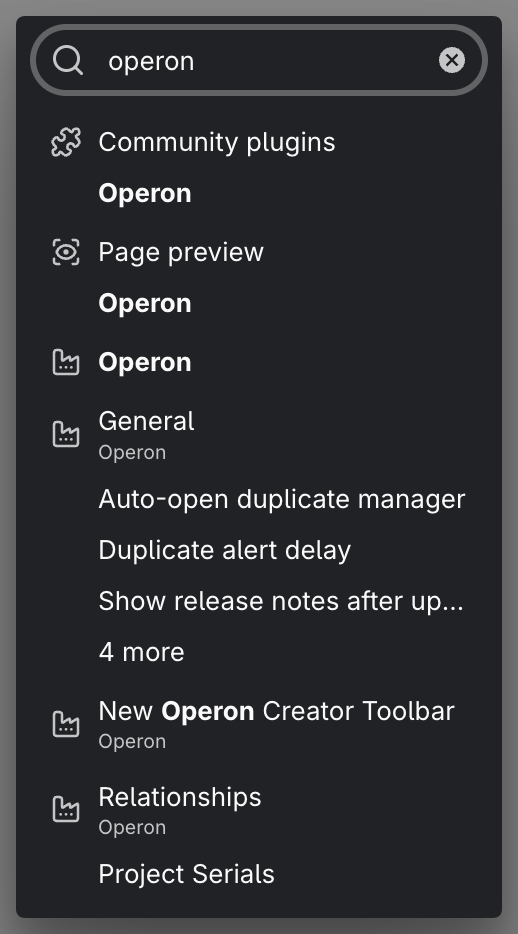
MEDIA-DOCS-043-1: Obsidian's settings search showing matching Operon settings for a typed term.
How to use it
Open Obsidian Settings and type in the search box at the top. Matching Operon settings appear under their page. Selecting a result opens the page and highlights the matching setting or registered section. Search navigation itself does not change or save a setting.
Search by meaning, not just labels
Operon's settings carry search keywords, so you can find a setting by the words you would naturally use, not only its exact label. Searching exclude folder finds the indexing exclusions, and calendar day title finds the right Calendar control, even when the setting's name is worded differently. This matters because the obvious search term and the official label are often not the same.
Find opening and layout preferences
Search for these labels to reach the individual controls:
| Search label | Page and section | What it changes |
|---|---|---|
| Task Editor position | Interface → Task Editor → Layout and opening | Left/right placement for new desktop task workspaces and the control rails on other lightboxes |
| Open source with file task editor | Interface → Task Editor → Layout and opening | Whether normal File task editor openings include the source |
| Open source with inline task editor | Interface → Task Editor → Layout and opening | Whether normal Inline task editor openings include the source |
| File task results | Interface → Task Finder → Result Behavior | Source, editor, or both when selecting a File task result |
| Inline task results | Interface → Task Finder → Result Behavior | The independent opening choice for an Inline task result |
| Lightbox background dimming | Interface → Workspace Tweaks → Workspace Appearance | The shared background darkness preference |
| Use mobile Task Editor on phones | Mobile → Task Editor | The phone editor layout, without changing tablet or desktop layout selection |
Task Finder's two dropdowns are separate from Task Editor's two source-opening toggles. Search and direct page navigation edit the same preferences. Opening choices apply to subsequent openings; dimming can update open surfaces. For defaults and scope, see Task Editor, Task Finder, Workspace Tweaks, and Mobile General.
What a result targets
Ordinary settings have separate results. For example, a match in one checkbox-conversion setting on Tasks → Inline Tasks targets that setting, not every control in the section.
Some configurable lists use one result per item:
- Pipelines: one result per pipeline, not per status.
- Priority: one result per priority level.
- Key Mappings and Custom Keys: one result per property, targeting its row or card.
Some sections intentionally stay together. Action Visibility by Surface on Interface → Context Menu is one searchable matrix, not one result per cell. You can still find it using Contextual Menu Matrix. Its separate menu-action settings each have their own result.
The menu's Start Timer setting covers both its Start and Stop appearances. Only the running task's contextual menu changes to Stop Timer; Settings does not add a separate Stop Timer control. See Time tracking.
When a control is not shown
Some controls depend on another setting. If a parent option is off, its dependent controls may be hidden and absent from the current search results. Open the relevant page and check the parent option. A missing result does not mean the saved value was deleted.
The number of results can change with your pipelines, priorities, custom fields, and enabled options. There is no fixed result count for every vault.
The retired File Body section, Show line numbers in Task Editor, and Highlight active line in Task Editor are no longer offered on the Task Editor page or in Operon's search results. Native Markdown now uses Obsidian's editor preferences and theme styling. The old stored values remain compatible with settings backups, but do not restore those controls or affect the native view.
Deleting a custom key removes its active Custom Keys setting row after the deletion is saved. A retained type declaration alone does not create a search result for it. This does not remove ordinary Obsidian property values from your notes; see Custom keys.
Why it helps
- You stop hunting through pages. Type the idea, land on the setting.
- Discovery. A search can surface a setting you did not know existed.
- Direct access. Registered settings and sections can be found without remembering their position in the page layout.
You can also browse the same Settings pages directly. Settings search is the shortcut, not a replacement: see Essential settings to configure first for the handful worth setting up first.
FAQ
Where is the search box? In Obsidian's Settings window. It searches settings exposed by Obsidian and participating plugins, including Operon. This Operon version requires Obsidian 1.13.7 or newer; it does not provide a separate legacy Settings interface.
Do I search inside the Operon tab? You search from Obsidian's main settings search. Operon's settings are registered there, so they show up alongside everything else.
Why did a setting show up under a word that is not its name? Each setting carries keywords for the terms people actually search, so it can match more than its literal label.