Create tasks from selected text
Plenty of tasks start life as plain lines in a note: a meeting's action items, a rough checklist, a brain dump. You do not have to retype them. Select the text and let Operon turn it into real tasks in place. This is the bridge from writing to tracking, and it keeps the work where you first wrote it.
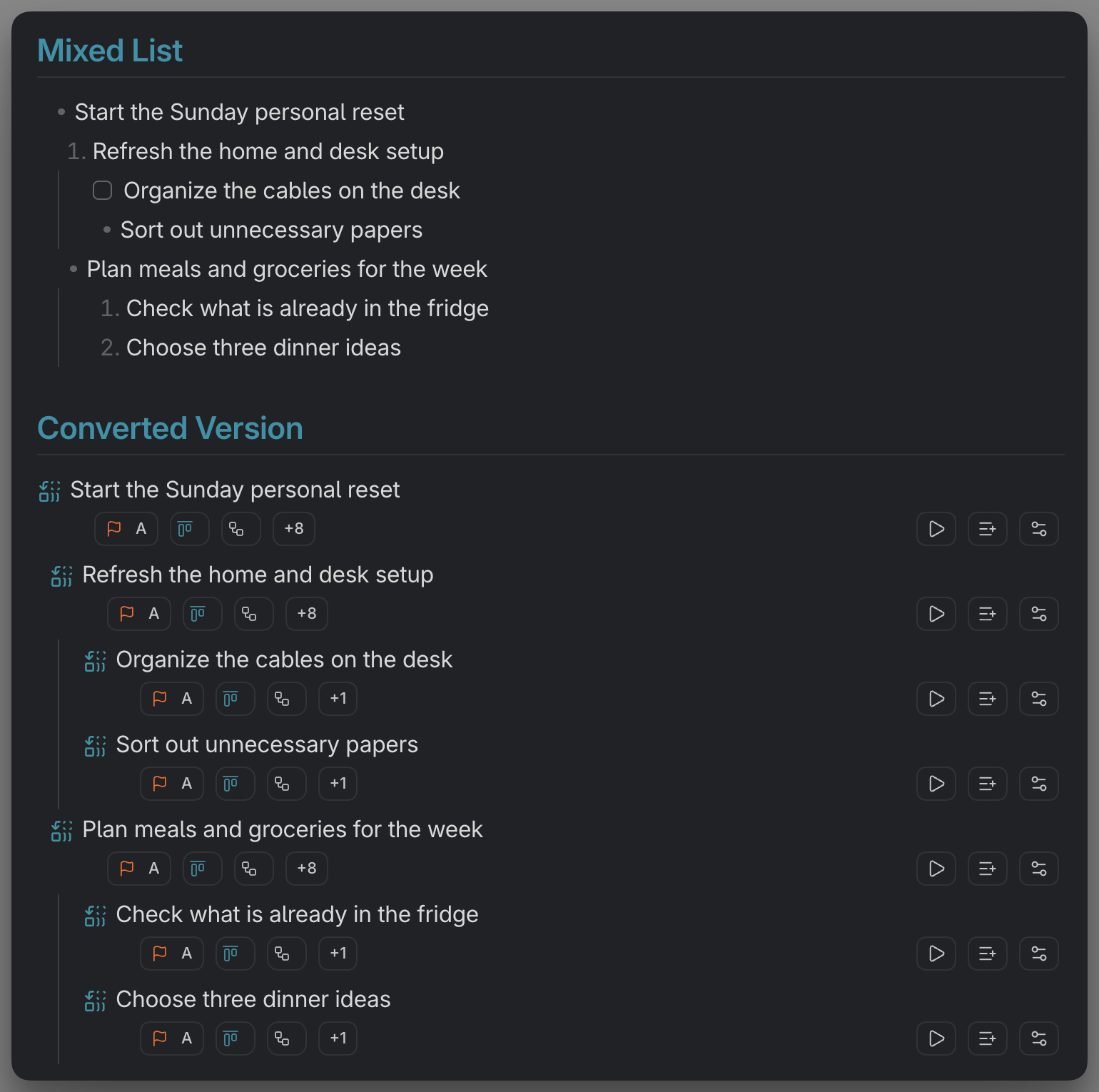
MEDIA-DOCS-023-1: A selected mixed list becoming Operon inline tasks after running the command.
Convert a selection into tasks
Select a continuous range of list items, then run Convert Selection to Operon Tasks from the command palette. Operon converts supported checkbox, plain bullet, and numbered list items into inline tasks, all at once.
Two things make this more than a bulk find-and-replace:
- Nesting becomes structure. Indented list items are linked as subtasks of the item above them, so a nested list turns into a parent task with children, not a flat pile. See Parent and sub-tasks.
- Non-list lines are skipped. Only list items convert. Anything else in the selection is left untouched, and Operon tells you how many items it converted, how many subtasks it linked, and how many lines it skipped.
Select one continuous list range at a time. Each converted item becomes a full inline task with its own operonId.
Convert only checkboxes in a selection
Run Convert Checkboxes in Selection to Operon Tasks when a selection mixes checkboxes with notes. It converts supported normal and Tasks emoji checkboxes in place, leaving plain bullets, numbered items, headings, paragraphs, and blank lines untouched. Both selection commands skip fenced code and leave existing Operon tasks unchanged.
For example:
- Notes for the application
- [ ] Collect documents
- [ ] Check documents
    - [ ] Complete missing details
The checkbox command converts the last three lines. The first stays a plain bullet; Complete missing details becomes a child of Check documents.
Both commands use the checkbox ownership and indentation rules. Inside an existing inline task’s checkbox block, that owner supplies the parent for top-level converted items, even when it is outside the selection. The parent context does not carry across the end of that block. Outside an owned block, the usual list hierarchy and File Task auto-parent setting apply.
Template defaults and direct conversion
Both selection commands use Default inline task template from Tasks → Inline Tasks when one is configured. Supported template properties supplement the converted task; explicitly mapped Tasks emoji values take precedence over conflicting template defaults. The template body is not copied and Templater does not run. Existing Operon tasks remain unchanged. See Using inline task templates.
These commands work directly on the selection. Open Task Creator before conversion affects only the two Live Preview conversion icons; it does not open Creator for each selected item. Use an icon with that option enabled when you want to review one source task and change its template before conversion.
The optional dynamic-default toggle can change the saved Inline default after successful Creator creation. Selection commands use that saved value without learning a new template themselves. Check it before running the command.
A selection is different from a folder batch
For eligible Tasks emoji lines across files or folders, use Tasks bulk conversion. That Settings workflow requires Scan and confirmation and leaves tasks independent; it does not reproduce this page's parent inference or convert plain checkboxes without Tasks metadata.
To use different templates for different folders, run separate bulk batches and Scan again after each template or scope change. Bulk recovery controls handle unresolved bulk operations; they are not an Undo interface for these selection commands.
Turn one line into a file task
When a single selected line is really a document waiting to happen, make it a file task instead. Run Create file task with the line selected, and Operon seeds a new note from that text and leaves a wikilink in its place. The line becomes a task with room for a body. See File tasks.
Convert text on a visual surface
Select a normal Canvas text card and use the conversion button below it. In Excalidraw, select one eligible standalone text element and use Convert to Operon task… in the right-side toolbar, after the drawing’s File Task conversion action; this button is shown only for an eligible selection. Task Creator prepares one task with the first source line as its description and subsequent lines as its Note. This differs from the Markdown list commands above, which can create several tasks. See Canvas Task Cards and Excalidraw Task Cards.
When to use which
- Convert Selection to Operon Tasks: convert a whole list, including plain bullets and numbered items.
- Convert Checkboxes in Selection to Operon Tasks: convert only supported checkbox lines in a mixed selection.
- Create file task from a line: one item that deserves its own page.
- A single quick line you just want to track inline is fastest with Create or edit inline task on that line. See Inline tasks.
FAQ
Do my nested lists keep their structure? Yes. Within the applicable parent context, converted indented items link to the nearest converted or existing Operon task above them at a lower indentation level. The checkbox command leaves non-checkbox list items unchanged.
What happens to lines that are not list items? Both commands skip them without changing them. The checkbox command also skips plain bullet and numbered items. Operon reports how many lines it skipped.
Can I convert a single line? Yes. Use Create or edit inline task for an inline task, or Create file task to make it a note.