Pipelines and statuses
A pipeline is the workflow a task moves through, and a status is one stage in that workflow. Together they answer "how far along is this?" The same statuses can become Kanban columns or swimlanes, drive the checkbox state, and let Operon move tasks for you at the right moments. Set them up once to match how you actually work.
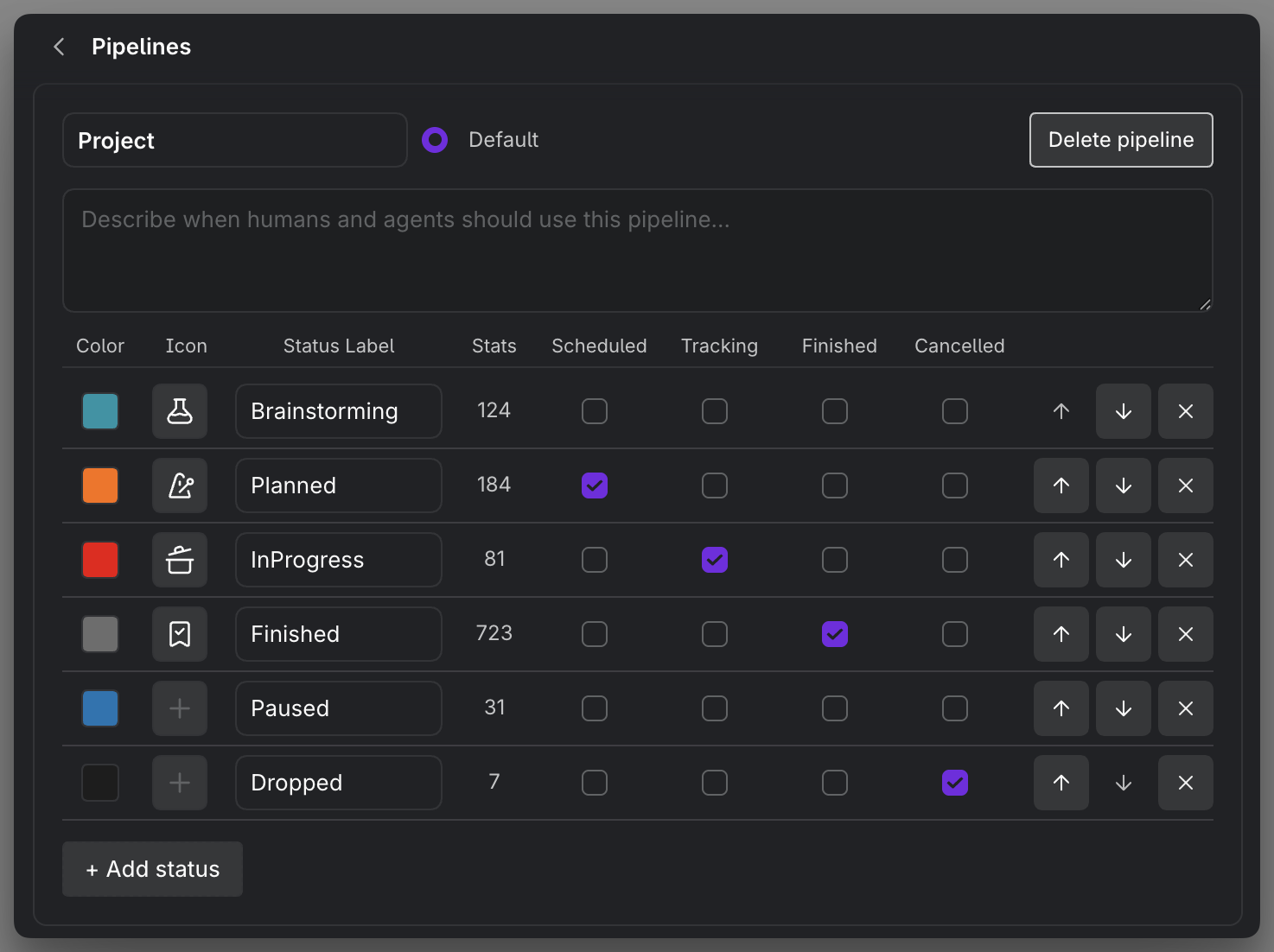
MEDIA-DOCS-037-1: The Pipelines settings showing a pipeline and its ordered statuses with colors.
How status is written
A task's status is stored in Pipeline.Status form, so both the workflow and the stage are visible at once:
- [ ] Draft release notes {{operonId:: {{operonId}}}} {{status:: Project.InProgress}} {{datetimeCreated:: {{datetime}}}} {{datetimeModified:: {{datetime}}}}
Every real task also carries an operonId, its durable identity, which Operon fills in for you. The {{datetime}} variable stamps the creation moment on paste, and Operon maintains datetimeModified for you afterward. See Task identity and operonId and operonId template variables.
The part before the dot is the pipeline name; the part after is the status label. See Inline task syntax.
The default pipeline
Operon ships with one pipeline, Project, so you have something that works on day one. Its statuses, in order, are:
- Brainstorming: shaping rough ideas.
- Planned: committed work, not started yet.
- InProgress: active execution.
- Finished: a completed deliverable. This is a terminal done state.
- Paused: blocked or intentionally deferred, without being finished.
- Dropped: intentionally abandoned. This is a terminal cancelled state.
You are not locked into this. Rename statuses, add or remove them, reorder them, and create more pipelines for different kinds of work.
What each status carries
Every status holds more than a name:
- Color and icon: how the status looks on chips, the Kanban, and task icons.
- Finished / cancelled flags: a status marked finished completes the task and sets
dateCompleted; one marked cancelled cancels it and setsdateCancelled. These also set the Markdown checkbox to done or cancelled. - Automation targets: a status can be the place a task lands when you schedule it or when you start a timer (see below).
A valid Canvas group with a single status rule uses that status's shared color. Changing it in Settings updates matching groups; choosing a color for a linked group with the Canvas palette updates the same pipeline/status definition, its other groups, and its status indicators. This is a shared color, not a local override for one group. Identically named statuses in different pipelines keep separate colors. See Operon Groups in Canvas.
The status grid
In the Pipelines settings, a pipeline's statuses are laid out as a grid: one row per status, with a column for each thing a status carries. Reading across a row shows its editable settings and task count. Stats, Scheduled, Tracking, Finished, and Cancelled use compact icon headers; hover a header to see its label. The first three text headers, Color, Icon, and Status Label, appear while the pipeline is hovered or contains keyboard focus, and remain visible on touch devices.
| Column | What it is |
|---|---|
| Color | The status's color, used on chips, the Kanban, and task icons |
| Icon | The status's icon |
| Status Label | The status name, the part after the dot in Pipeline.Status |
| Stats | How many tasks are currently in this status, shown for reference (you do not edit it) |
| Scheduled | Marks this status as the scheduled automation target. One status per pipeline holds it |
| Tracking | Marks this status as the tracking automation target. One status per pipeline holds it |
| Finished | Flags this as a terminal done state: reaching it completes the task and sets dateCompleted |
| Cancelled | Flags this as a terminal cancelled state: reaching it cancels the task and sets dateCancelled |
The Scheduled and Tracking columns are single-choice down the grid, since only one status can be each automation target; how they fire is covered in "Automatic status moves" below. Finished and Cancelled also set the Markdown checkbox to done or cancelled.
Statuses on a Kanban axis
In a Kanban preset, choose Status as the column or swimlane property, then choose a pipeline. Its statuses become that axis's headings in their configured order. Moving a card to a different status heading updates the task's status, including the usual completion or cancellation behavior.
A Kanban axis can also use other supported properties. If neither axis uses Status, a previously chosen pipeline does not silently restrict the board. Use the preset's Kanban filter when you want a pipeline restriction on a property-based board. See Kanban overview.
A task's pipeline can also group, subgroup, or sort rows on the Table, as a derived Pipeline field, without adding it as a column. See Table grouping and sorting.
Automatic status moves
Two statuses can be automation targets, so Operon advances a task at the natural moment instead of making you do it:
- On schedule: when a scheduled date changes from empty to set, the task can move to the status flagged as the scheduled target (by default,
Planned). Changing an already-set date does not trigger this transition. - On tracking: starting a timer can move the task to the status flagged as the tracking target (by default,
InProgress) if its current status differs. This also applies to later timer starts, not just the first session.
Both use the pipeline’s configured automation target and remain subject to the applicable task and dependency guards. Scheduling responds to an empty-to-set date transition; tracking checks the target when a timer starts.
An active dependency does not prevent planning a task for the first time. When you assign the first Scheduled Date, Operon saves the date and may move the open task to that pipeline's configured open Scheduled target in the same action. This narrow planning exception does not unlock unrelated status changes: moving the blocked task manually to another workflow stage, completing it, or cancelling it remains protected until its active blockers are resolved or removed.
Describe a pipeline
A pipeline can carry an optional description: a short note on when this workflow should be used. It is never required, and you already know what your own pipeline is for. Writing it down still pays off twice. It makes the intent explicit for anyone reading the vault later, and it gives an agent working in your vault the shared context to pick the right pipeline and act the way you would, rather than guessing from the name alone. The default Project pipeline ships with such a description, and you can edit it or add one to any pipeline you create.
Pipeline folders
Task Router can map each pipeline to a working File Task folder and a separate terminal archive folder. A matching pipeline working folder overrides parent-aware placement and the general File Task folder; a matching pipeline archive overrides the fallback archive. These location rules do not change the task's pipeline or identity. See Task Router.
FAQ
Where do Kanban columns come from? From the preset’s column property. When it is Status, columns come from the chosen pipeline in its defined order; Status can also be used for rows.
Can I have more than one pipeline? Yes. Make a pipeline per kind of work, each with its own statuses.
What makes a task count as done? Reaching a status marked finished. A status marked cancelled instead records the task as cancelled.
Can I schedule a task that still has an active blocker? Yes. Its first Scheduled Date and the matching configured open Scheduled status can be saved together. Other blocked workflow transitions remain protected.
Settings
Open Settings → Operon → Core → Pipelines to configure workflow statuses, their colors and icons, and automatic status behavior. Each pipeline has its own Settings search result, found by its name or description; selecting it takes you to that pipeline. Individual statuses do not create separate search results.
The pipeline header contains its name, Default selection, up/down controls, and a × delete control. On desktop, the default selection and header controls appear while the pipeline is hovered or contains keyboard focus; on touch devices they remain visible. Status rows have their own up/down and × controls, with Add status below the grid and Add pipeline below the pipeline list.