Create your first task
The first task should prove the system, not test every feature. Operon can create tasks from many places later. For now, make one task, open it, and see where it lives.
There are two good first paths:
- Use Create New Operon Task when you want a guided form before the task is written.
- Use Create or edit inline task when you are already inside a note and want the current line to become a task.
Both create real Operon tasks. The only difference is the moment you are in.
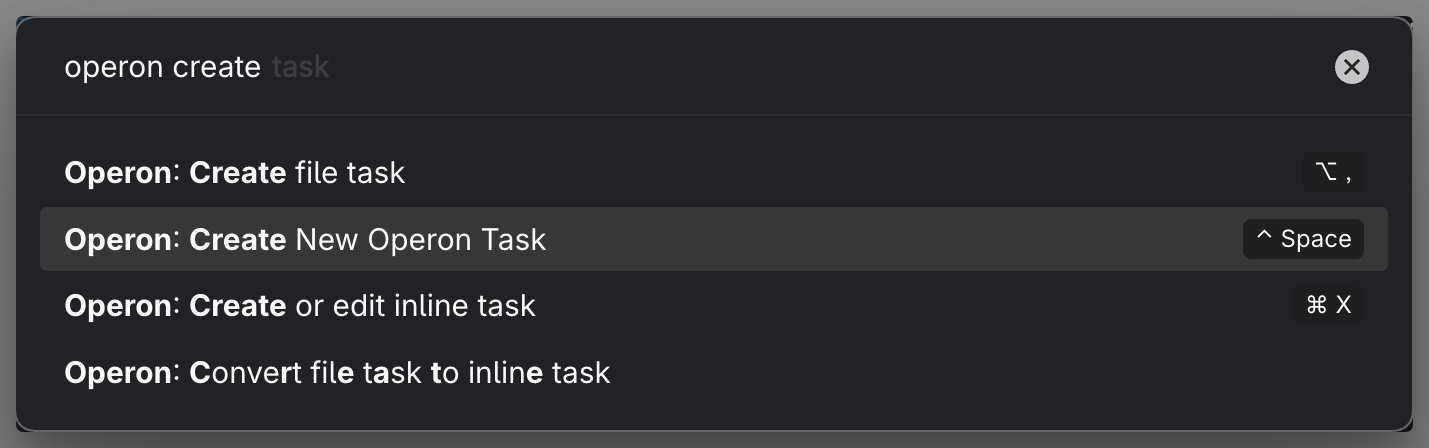
MEDIA-DOCS-009-1: The command palette showing Create New Operon Task.
Path A: from the Task Creator
Open the command palette and run Create New Operon Task. Give the task a clear title. Choose inline task if it belongs inside a note, or file task if the work needs its own Markdown file.
For a first task, set only what matters right now: a title, a status, a priority, maybe a date. Contexts, assignees, recurrence, parent links, and the rest can come later. Save the task, then open it where it appears or recover it with Task Finder.
Path B: from a line you already wrote
Sometimes the task is already on the page. Say a meeting note has the line Review launch checklist. Run Create or edit inline task on that line and Operon turns it into an inline task without making you rewrite the note:
Before:
Review launch checklist

After:
- [ ] Review launch checklist {{operonId:: ...}}
If the line is already a plain Markdown checkbox, the same command upgrades it. You do not need a migration weekend; you can convert the next useful line whenever it appears. The full field format is in Inline task syntax.
When the work needs more room
If the task is really a document, run Create file task. Operon creates a Markdown note that carries task frontmatter and gives the work a body for sections, references, and subtasks. If your cursor is on a convertible inline task, Operon can promote it into a file task without losing its identity. See Inline vs file tasks.
Open the result
Open the new task in the Task Editor to see its structured fields: status, priority, dates, parent task, recurrence, pinning, and time tracking. Your first task is a success when you can answer three questions: where is the Markdown source, what fields does Operon know about it, and where can you see it again?
FAQ
Should I fill every field? No. A task can start with just a title. Add structure when it helps you find, plan, or act on the work.
What if I pick the wrong shape? You can convert between inline and file tasks. The first choice is a starting shape, not a permanent identity.
Where does the task go? Inline tasks go to the current note when possible, or to your configured target. File tasks follow your file-task location rules. See Essential settings to configure first.
Next step
See your tasks together. Build Build your first filtered view.