Welcome: coming from Obsidian Tasks
If you used the Obsidian Tasks plugin, you already think the Operon way more than you expect. Your tasks are lines inside notes with metadata attached. Operon calls those inline tasks, so half the model is familiar on day one. What is new is two things: a second task shape (the file task, a note that is itself a task) and a set of dedicated views instead of query blocks. This page bridges the gap.
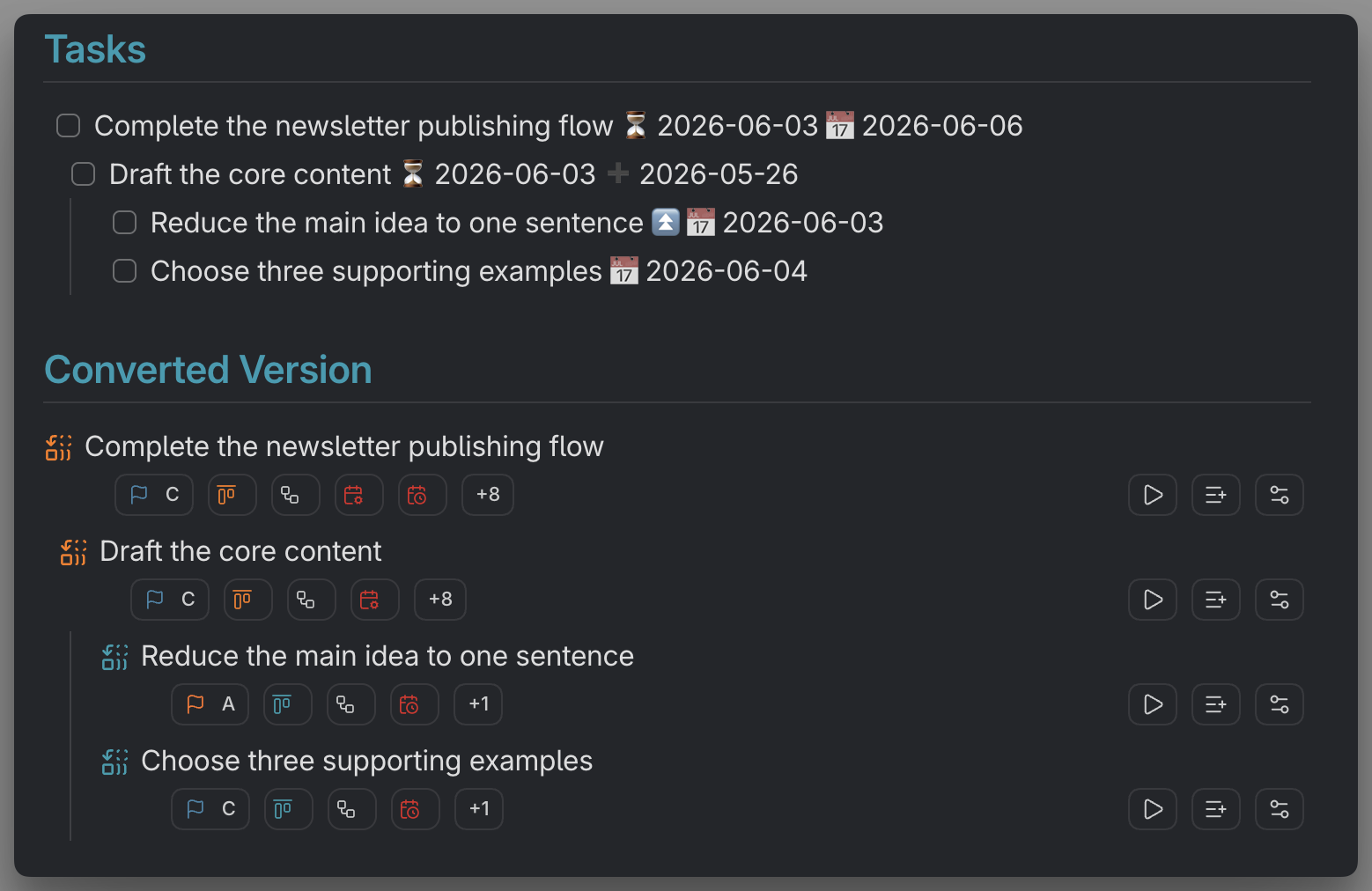
MEDIA-DOCS-077-1: A Tasks emoji line above, and the Operon inline task it becomes below.
Start by converting one line
You do not rewrite your notes. Put your cursor on a Tasks emoji line and run Convert Tasks emoji line to inline task, or use the hover convert icon in Live Preview. Operon reads the emoji metadata and rewrites the line as an inline task with an operonId. The full mechanics, including what does and does not convert, are in Obsidian Tasks migration.
At a glance, the line you have:
- [ ] Draft release notes ⏳ 2026-05-20 📅 2026-05-31
becomes an Operon line like this shortened example (defaults, template properties, and bookkeeping may add fields):
- [ ] Draft release notes {{operonId:: {{operonId}}}} {{dateScheduled:: 2026-05-20}} {{dateDue:: 2026-05-31}}
Same task, same dates; the emoji become {{key:: value}} fields and Operon adds a real operonId (shown here as the template variable).
To bring a whole checklist over at once, select it and run Convert Selection to Operon Tasks. Indented lines become parent and child tasks, so an outline keeps its structure. See Create tasks from selected text.
Move a folder at a time
Use Tasks bulk conversion to scan selected files or folders and confirm a batch. It converts eligible Tasks emoji lines, leaves plain checkboxes and existing Operon tasks alone, and keeps converted tasks independent rather than creating a parent tree from indentation.
Choose Default inline task template before scanning. For example, convert a work folder using Project, then change the default to Personal and run a separate fresh Scan for personal files. Scan again when the template, scope, or relevant settings change. Supported source emoji fields keep precedence over conflicting template defaults. See Using inline task templates.
For one-task review, enable Open Task Creator before conversion in Tasks → Inline Tasks → Checkbox Conversion and use a Live Preview conversion icon. Commands and bulk conversion remain direct workflows.
Take a backup before a large migration. If a bulk operation is interrupted, follow its recovery controls; Complete conversion only keeps an already fully converted result, not a partly written batch. Recovery is not permanent Undo. The bulk guide explains safe restoration and pending view refresh.
What carries over
Your emoji metadata maps to Operon fields, so the meaning survives the move:
| Obsidian Tasks | Operon field |
|---|---|
| 📅 due | dateDue |
| ⏳ scheduled | dateScheduled |
| 🛫 start | dateStarted |
| ✅ done | dateCompleted |
| ❌ cancelled | dateCancelled |
| 🔺 ⏫ 🔼 🔽 ⏬ priority | your configured priority, matched by rank |
| 🔁 recurrence | repeat |
Recurrence is the one people worry about most, so to be clear: supported 🔁 rules convert into Operon's repeat field. Unsupported expressions may be kept as information in Note rather than active recurrence; check the conversion messages and result. Completed and cancelled dates also adopt your configured workflow statuses.
Your query blocks become views
In Tasks, you write a ```tasks query block inside a note to render a list. Operon's main surface is the Filter View, a saved query you open as a view. So the model is a saved, reusable filter rather than a per-note block, and you can still embed one in a note when you want.
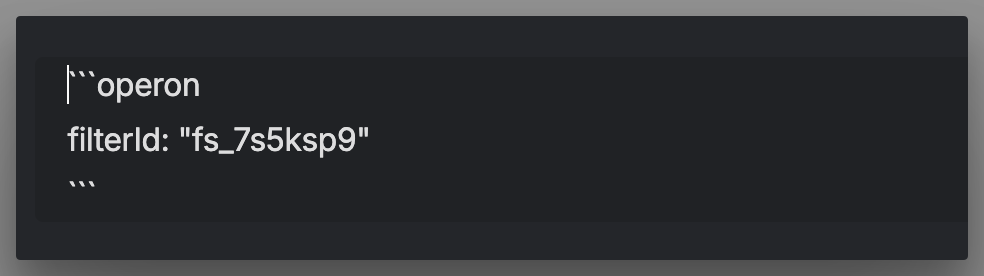
If you liked having a list embedded in a note, you still can: Operon can embed a saved filter inside a note with an ```operon code block, so a project note can show its own live task list. See Embed a filter in a note.
MEDIA-DOCS-077-2: A saved Operon filter embedded in a project note with an operon code block.
How Operon differs from Tasks
A few differences are worth knowing up front:
- Fields, not emoji. An inline task writes metadata as
{{key:: value}}, like{{priority:: A}}, instead of emoji. It reads as text and carries the same meaning. - Every task has an identity. Operon gives each task a durable
operonIdso the same task stays recognizable across views and edits. Do not edit or copy it. See Task identity and operonId. - A second shape. When a task grows past one line, convert it to a file task with its own note and body. See One workflow, two task shapes.
- A status pipeline. Operon tasks move through a pipeline of statuses. Those statuses can define either Kanban axis; boards can also group by other properties. See Pipelines and statuses.
A note on the first day
Operon views show Operon tasks, so right after install the Filter View may look empty until you convert your first lines. That is expected. Convert as you read through a note, and your views fill in. You can also run both plugins side by side while you move over; for that and other questions, see FAQ for Obsidian Tasks users.