Table files
A Table preset is a real file in your vault, with a .table extension. The file is the preset's single source of truth: open it, and Operon shows the same table you would get from the toolbar's preset picker. Move it, rename it, back it up, or put it under version control, and you are doing exactly what you would do with any other note. Old Settings-only preset records and retired sidecar files are not converted back into presets. This page covers the file itself, its lifecycle, and what happens when something about it goes wrong. For what a preset holds and how you edit it day to day, see Table presets.
MEDIA-DOCS-114-1: A
.tablefile in Obsidian's file explorer, opened as a standard Operon Table view with its normal header.
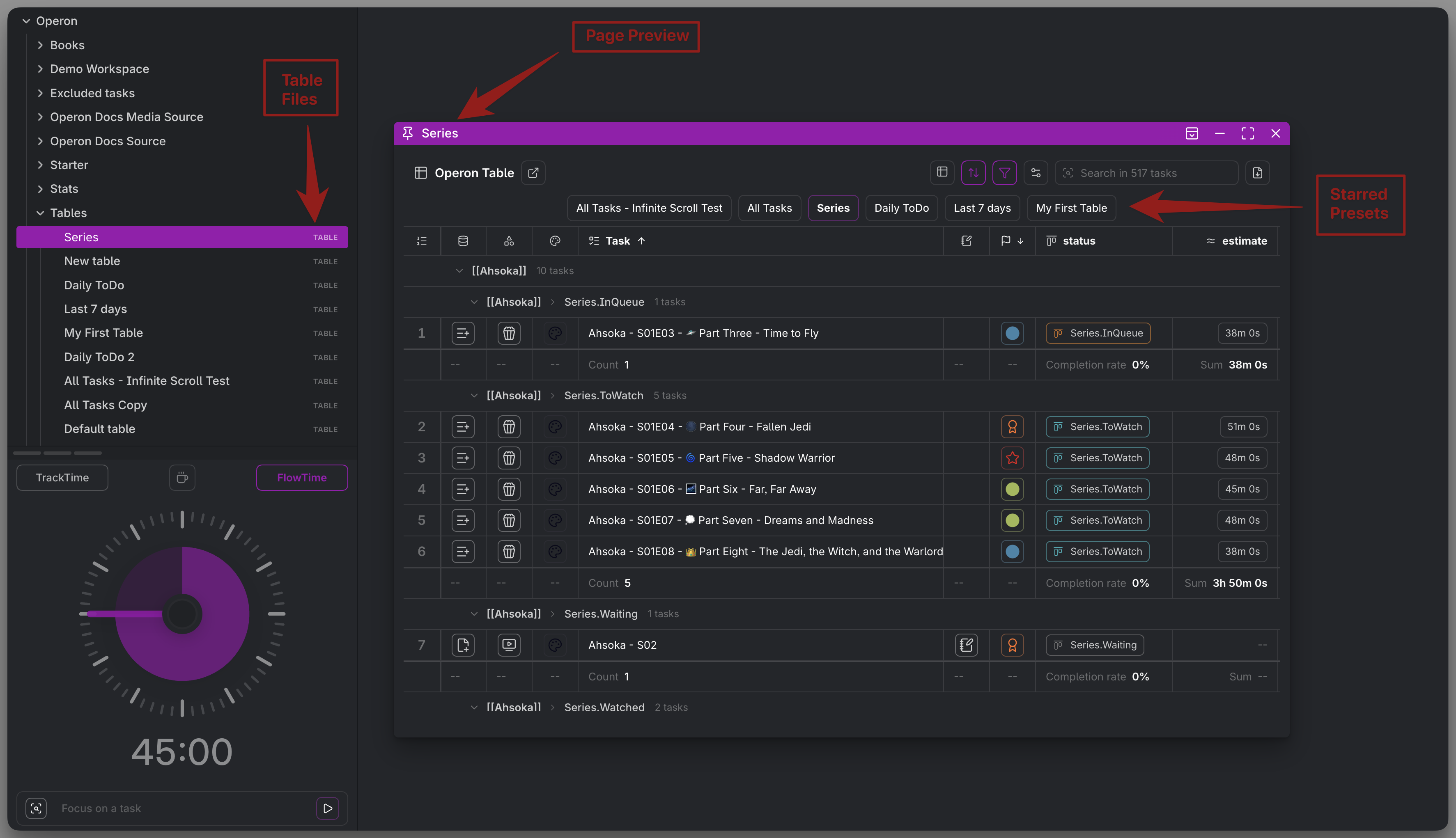
What a Table file is
A .table file is plain JSON with a small envelope around your preset: a format marker, a version number, and then the same preset data covered in Table presets, its id, name, filter, columns, grouping, sorting, summaries, display density, saved search scope, Task Tree expansion, and Gantt layout. Nothing about what a preset can hold changes because it now lives in a file; this page is about the file as a vault object, not the settings inside it.
Because the format is versioned and validated, Operon is strict about what it accepts. A file with a missing field, an unexpected field, the wrong format or version value, or JSON that does not parse at all is never guessed at or partially loaded. It is treated as invalid, and Operon tells you exactly why (see "When a file cannot be read" below) rather than silently accepting something broken.
Where Table files live
New Table files use the configurable Table default folder in Settings → Operon → Views → Tables. The historical default is Operon/Tables at the root of your vault. Choose any canonical vault-relative folder when new presets belong somewhere else, or leave the setting blank to create new .table files directly at the vault root. This destination applies only when Operon creates a new file; it does not move, rename, or reorganize existing Table files. Creation happens automatically whenever Operon needs a new file:
- New or Duplicate from a preset's settings.
- A related view created from a Calendar, Kanban, or Filter View that spins up a new Table preset. See Filter View.
The configured folder is a starting point, not a cage. Once a file exists, you can move it anywhere in the vault, rename it, or organize it alongside the project it belongs to, and Operon keeps tracking the same preset at its new location.
Opening a Table file
Because .table is a registered file type, clicking one in the file explorer, or following a wikilink to it, opens it as a genuine Operon Table view: the same toolbar, preset picker, search box, Group & Sort, Gantt View, export menu, and related-views control as a table you opened from the command palette. There is no reduced or read-only "file preview" mode; a Table file is the table.
A few things follow from that:
- It restores with your workspace. If a Table file was open in a tab when you closed Obsidian, it reopens there next time, the same as any other file-backed leaf.
- It participates in wikilinks. A link like
[[Overdue Work]]to a Table file resolves and creates the link the same as a link to any note. See "Wikilinks and Page Preview" below. - It is not the same thing as an embed. Opening the file itself gives you the full Table view in its own tab or leaf. Embedding a table inside a note with an
operon-tablecode block is a separate feature that references a preset by its id, not by opening the file directly. See Embed a table in a note.
Preview a Table file
A supported desktop Operon link to an existing .table file can open the same editable view in the shared lightbox. Its presets, filters, cells, and Gantt View toggle remain available; this is not a read-only rendering or a second copy of the preset. Pending Table saves are handled before the preview closes or transfers to a tab or split. A failed save keeps the view open.
This adds a preview route on supported Operon surfaces, not a global replacement for file-explorer or ordinary Obsidian wikilink opening. The lightbox does not add a visible background tab or rearrange the tabs already in your workspace.
The file and the preset are the same thing
Editing the table from any surface, its own tab, an embed elsewhere, or a second tab open on the same preset, writes straight back to this one file. That includes column and grouping changes, Task Tree expansion, and the saved Gantt split and presentation. If the same preset is open in more than one place at once, edits from any of them are saved to the file and every other open surface picks up the change; you never end up with two surfaces silently disagreeing about what the preset looks like.
Embeds keep working across all of this because they reference a preset by its id, not its file path. Renaming or moving the .table file never breaks an operon-table embed elsewhere in your vault; the embed finds the preset wherever its file now lives. See Embed a table in a note.
Renaming and moving
A Table file's name and its preset's name are the same thing, and Operon keeps the two in sync automatically, whichever direction you change it from:
- Rename the file from Obsidian's file explorer (or however you normally rename a file), and the preset's name, the one shown in the preset picker and every toolbar, updates to match.
- Rename the preset instead, from Edit preset's name field, and Operon renames the underlying file to match.
Moving the file to another folder is just a move. Operon notices and keeps tracking it at the new path; nothing else about the preset, its filter, columns, grouping, or embeds pointing at it, changes.
Deleting a Table file
Deleting a Table file with Delete from Edit preset sends it to Obsidian's Trash, not a permanent delete. Deleting it yourself from the file explorer follows Obsidian's own deletion behavior. A temporary inability to find or read a file is not treated as this explicit Delete action; see the distinction below.
The explicit Delete action in Operon also cleans up automatically:
- The preset's position in the preset order and preset picker disappears with it.
- Its favorite is removed. If it was the default preset, another available preset becomes the default.
- Any open tab that was showing the deleted preset falls back to another available preset.
- Any
operon-tableembed still pointed at the deleted preset shows Table preset not found until you point it at a different one. See Embed a table in a note.
The in-app Delete action does not let you remove the last preset. If you remove Table files outside Operon after the Table system has already been initialized, Operon does not recreate Default table.table. An unsuccessful scan alone does not erase the saved bindings or preferences. The same rule prevents a temporary file-move or sync gap from manufacturing a replacement while your real files are briefly unavailable. A fresh default is created only for a genuinely uninitialized profile with no valid Table file or binding to adopt. Operon never revives or converts an old Settings preset. See Table presets.
Temporary unavailability
Startup, sync, a partial write, or a read failure can briefly make a known Table file unavailable. Operon preserves its saved favorite, order, default preference, and file binding through that uncertainty. Once the same file is valid and readable again, it can return to the available presets without having to star it again.
These retained preferences are not a backup copy of the preset: the .table file remains authoritative. Operon does not expose an unreadable file as an editable preset, overwrite it with cached settings, or create a replacement default to fill the gap. If a file was actually removed outside Operon, restore it or select another available preset; a failed scan cannot establish that deletion was intentional.
When a file cannot be read
Opening a Table file directly can land on one of two states instead of the table itself:
- Loading: a brief moment while Operon reads and parses the file. You should rarely notice this.
- Invalid: the file could not be turned into a working preset. Operon shows the file's name, a plain-language reason for each problem found, and the file's raw text underneath, so you can see exactly what is there. It never rewrites, discards, or silently repairs an invalid file. Invalid files remain on disk and appear only in file diagnostics, not in the editable Table Presets list. Fix the file by hand, or restore an earlier version, and Operon adopts it again once it parses successfully and has a unique id.
A file can be invalid for any of these reasons: the text is not valid JSON; the JSON root is not an object; the format value is wrong; the version value is one Operon does not support; a required field is missing; a field has the wrong type or an invalid value; the file has a field that is not part of the current version; the file could not be read at all; or its id duplicates another Table file's id (see "Duplicate IDs" below).
Duplicate IDs
Two Table files can end up sharing the same internal id, most often from copying a .table file directly in your file manager instead of using Duplicate from the preset settings (Duplicate always assigns a fresh id; a raw file copy does not). When that happens, Operon does not guess which file is authoritative and does not rewrite either file. The conflicting files remain on disk, appear in file diagnostics, and stay out of the editable preset list until every usable preset has a unique id.
To keep both files, edit one copy's internal id to a new unique value or recreate the copy with Duplicate from a healthy preset. Once the conflict is gone, Operon adopts the valid files automatically. Other healthy Table presets and General Table Settings remain available while the conflict exists.
Wikilinks and Page Preview
A .table file is an ordinary vault file as far as Obsidian's linking is concerned:
- A
[[wikilink]]to a Table file resolves, and creates the link, the same as a wikilink to any note. - Hold Cmd (macOS) or Ctrl (Windows and Linux) and hover a link to a Table file to get Obsidian's Page Preview of it, the same convention used for previewing any other note. This needs Obsidian's core Page Preview plugin enabled; a plain hover without the modifier does not trigger it.
Tips
Treat the Table default folder like any other vault folder
The setting chooses where new Table files begin, not where every Table file must stay. Because a Table file is a real file, everything you already do with vault files works on it: move it into the project folder it belongs to, rename it to match your own naming convention, back it up, or version it alongside your notes. Nothing about editing the table, its presets, or its embeds depends on the file living in any particular folder.
FAQ
Can I edit a .table file by hand outside Obsidian? You can, it is plain JSON, but Operon validates it strictly when it loads. A typo, a missing field, or an extra field you added by hand shows up as an invalid file rather than being silently applied. Editing the preset from inside Operon is the reliable path.
Does renaming the file rename the table I see in the preset picker? Yes. A Table file's name and its preset's name are the same value; changing either one updates the other automatically.
Does moving the file break an embedded table in my notes? No. Embeds reference a preset by its id, not the file's path, so moving or renaming the file never breaks an operon-table embed.
What happens if I delete a Table file that is still embedded somewhere? Operon's Delete action sends it to Obsidian's Trash; deleting it outside Operon follows that tool's deletion behavior. Restore the file to bring the preset back, or point the embed at a different preset. While the preset is unavailable, the embed shows Table preset not found.
Will Operon recreate Default table.table after I delete my last Table file? No, not after the Table system has been initialized. Default bootstrap is only for a genuinely fresh profile. Restore a file from Trash or create a new preset when you intentionally removed them all.
Two Table files ended up with the same id. What do I do? Give one copy a new unique internal id, restore a known-good version, or recreate the copy with Duplicate from a healthy preset. Operon leaves both conflicting files unchanged and adopts them when their ids are unique.
Settings
Open this page from the help action beside General Table Settings in Settings → Operon → Views → Tables. The Table Presets list contains only healthy file-backed presets; invalid and duplicate-id files remain available through file diagnostics without disabling healthy presets or general controls. Day-to-day renaming, duplicating, and deleting a healthy Table file are done from Edit preset or the file's own context menu. See Table presets.