Calendar overview
The Calendar shows your tasks in time. It is the best surface for scheduled work, deadlines, and time blocks, and for planning by day or week. Inline tasks and file tasks land on the same Calendar as soon as they carry a date, so a quick line in a note and a full task note are planned side by side. Many tasks only become real once they are placed on a date, and the Calendar is where that happens.
Open it with Operon Calendar from the command palette.
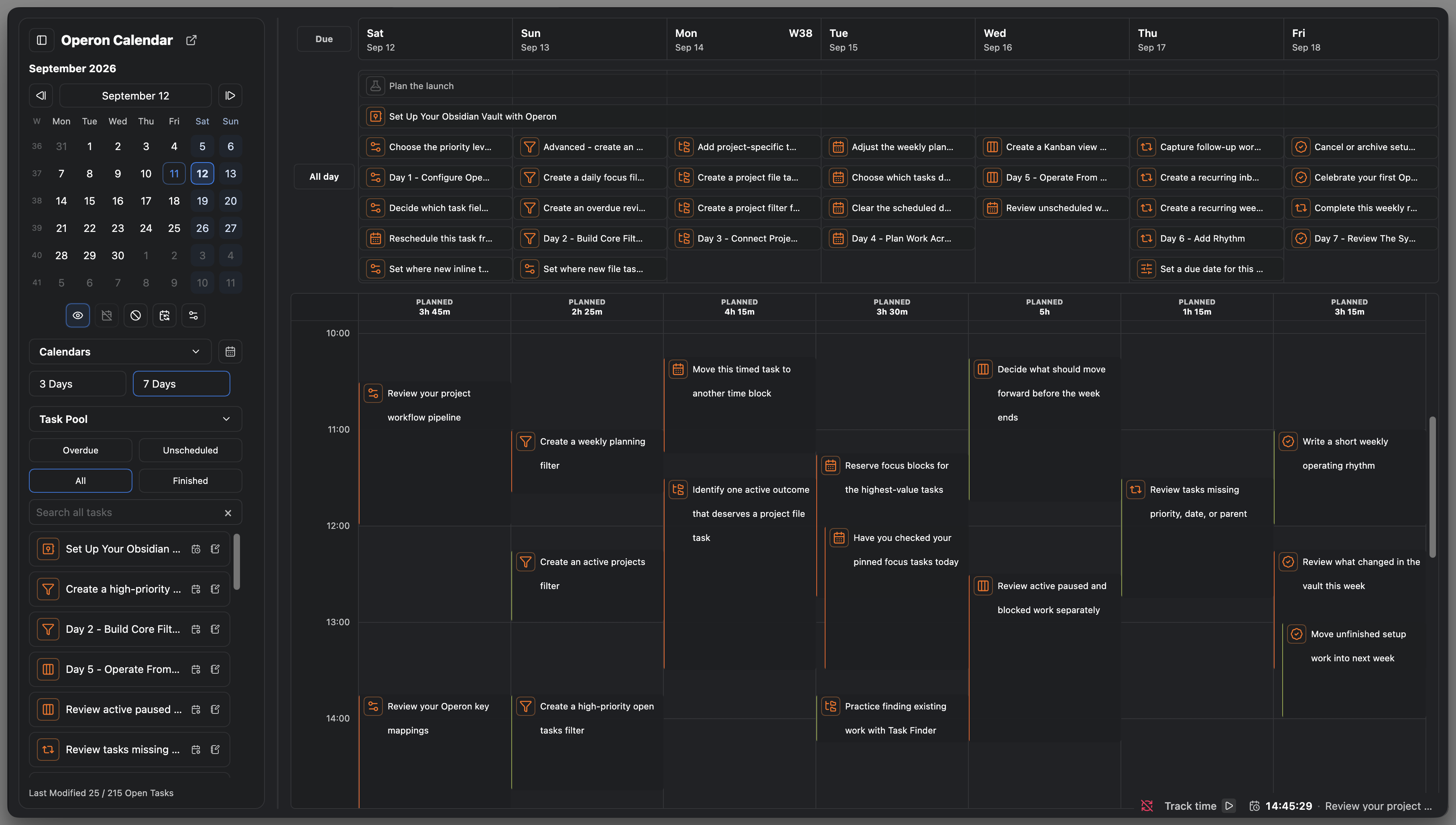
MEDIA-DOCS-028-1: The Operon Calendar with all-day items and timed blocks across a week.
Rendered task titles support default and six-color highlights. Colored highlights show their color without the leading marker emoji, while the task's source Markdown stays unchanged. See Text field editor popover for syntax and editing behavior.
What the Calendar reads
A task appears on the Calendar based on its date fields:
dateScheduled: when you plan to work on it.dateDue: its deadline.datetimeStartanddatetimeEnd: a specific timed block.dateCompleted: when it was finished.
A task with only a date shows as an all-day item. A task with a start and end time shows as a timed block. See Inline task syntax for the field formats.
Plan by dragging
You can schedule and reschedule by dragging tasks on the Calendar instead of editing fields by hand. Drop a task on a day to schedule it, or drag a block to move or resize its time. This is the fastest way to shape a week and to spot overload before it happens.
On a desktop or hybrid device, touch and pen use press-and-hold before a task begins to drag. Moving before the drag activates scrolls the Calendar instead, while a normal tap keeps its existing open or selection action. Mouse and trackpad dragging continue to work directly.
Work with the Due lane
Turn on Calendar due markers lane to display deadline markers in a dedicated row above the scheduling grid in every Calendar preset. Dragging a marker to another day inside the Due lane changes only dateDue; the task's start, scheduled, and timed fields stay as they are.
You can also move eligible materialized, non-recurring tasks between the Due lane and the scheduling area:
- Dragging a task from the grid to the Due lane adds or updates only
dateDue. Its start, scheduled date, timed block, and duration are preserved. - Dragging a Due marker to the grid uses that target's normal scheduling behavior, while preserving the existing due date.
Operon does not write projected occurrences or external items through these moves. If a Due-lane drop would put the due date before the task's existing start date, the drop is rejected and a short notice explains that the selected date cannot be earlier than the task's start date.
Task-date details and Calendar confirmation messages follow Settings → Operon → Core → General → Language & Formats → Date format. Calendar day, week, month, range, and navigation headings remain locale-based, so the setting changes task information rather than the Calendar scale.
Open a task
Click a task on the Calendar to open it in the Task Editor. Hold Cmd (macOS) or Ctrl (Windows and Linux) and click to open the task's source in a new Obsidian tab instead: the note for a file task, or the exact line for an inline task, the same convention as opening a link in a new browser tab. This works on materialized tasks; a recurring occurrence that has not been created yet has no source line to open.
Move by keyboard
Arrow keys move the date the grid is anchored to. Their step depends on the view:
- In Rolling days, Multi-Week, and the compact mobile layout, Left and Right step one day; Up and Down step one week.
- In Calendar week on the normal desktop or tablet grid, Left or Up opens the previous week, and Right or Down opens the next week. Each step changes the selected date by seven calendar days, even when weekends are hidden.
Navigation keys are ignored while you are typing or using an editing interaction that needs them. For toolbar controls and horizontal gestures, see Calendar layout: toolbar and sidebar.
Presets
The Calendar can be tuned with presets that control its time grid and how it displays, so you can switch between, say, a focused day grid and a broad week view. Presets are saved with Operon's data and detailed in Calendar presets and time grid.
You can also switch the Calendar's own layout between a top toolbar and a side panel with a working Task Pool you drag tasks from to schedule them. See Calendar layout: toolbar and sidebar.
Time Grid and Time Tracker Grid offer Rolling days or Calendar week under Range & Layout → Date range. Calendar week follows your Week start setting and keeps a complete week boundary while you navigate. This works on desktop and tablets using the normal grid.
On mobile
On a phone the Calendar runs as a compact, phone-first surface with its own view modes, Agenda, Day, 2 Days, and 3 Days, that you cycle through, and each mode can open with its own preset. See Mobile Calendar.
External calendars
Operon can also show events from external calendar sources alongside your tasks, so your planning view reflects meetings and commitments too. Refresh them with Update External Calendars. See External calendars.
Tips
Treat Calendar as your planning surface
Operon clears Obsidian's duplicate native header from the main Calendar workspace on desktop, giving you back the height that matters when you are scanning a week or a month. The calendar's own toolbar and sidebar controls stay right where they are.
To plan with room to think, open Calendar in its own window and let it fill the screen. On a multi-monitor setup, park it on a second display so your week or month stays in front of you while the rest of Obsidian stays on the main one.
FAQ
Why is a task not on the Calendar? It probably has no date. Give it a dateScheduled, dateDue, or timed block and it will appear.
What is the difference between all-day and timed? A date alone makes an all-day item; a datetimeStart and datetimeEnd make a timed block you can size on the grid.
Does dragging change my Markdown? Yes. Rescheduling on the Calendar writes the new dates back to the task, so your notes stay the source of truth.
Settings
Operon settings for this live in Settings → Operon → Views → Calendar, which configures how the Calendar displays tasks and time blocks. Use Calendar Lanes for lane visibility, Calendar presets for saved layouts, and Calendar Sidebar Settings for sidebar width and opening preferences. Calendar Lanes also includes the hover add button for starting a task from an empty all-day date cell.