Canvas Task Cards
Canvas Task Cards bring Operon tasks onto an Obsidian Canvas, where you can arrange a project, connect its work, and edit tasks without leaving the board. Use them when a spatial plan makes the relationships easier to understand than a list: a product launch, a development roadmap, or a project broken into several workstreams.
A card represents an existing Inline Task or File Task. It is another view of that task, linked by its operonId, so changes to its fields appear wherever the same task is shown. The Canvas holds the arrangement and connections; the task still lives in its Markdown source.
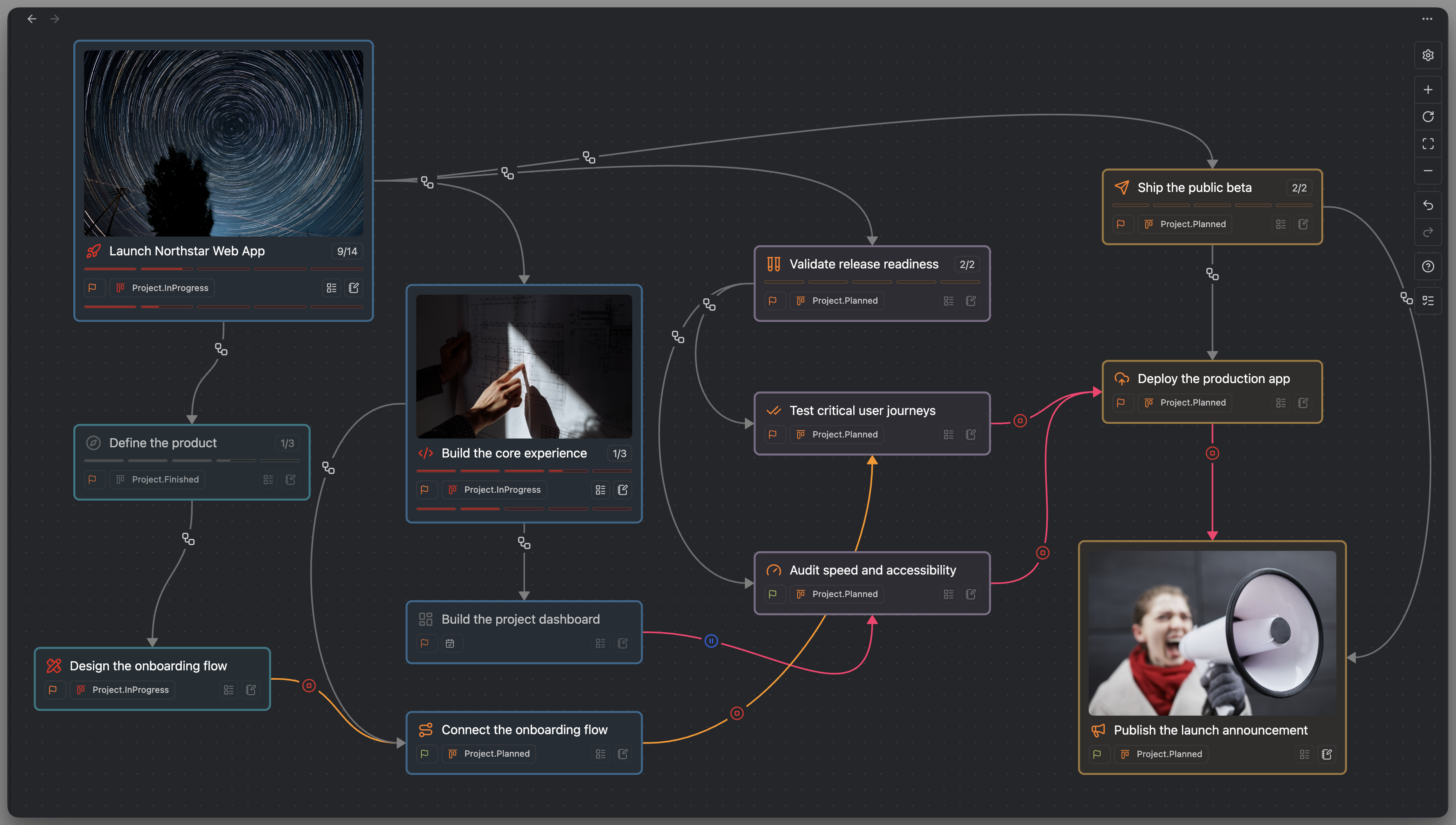
MEDIA-DOCS-141-1: General Canvas overview of the Northstar web app launch, showing parent tasks, their children, and blocking connections across the workstreams.
Add an existing task
Open Canvas Task Pool from the Canvas controls to find tasks and add their cards while arranging a project. See Canvas and Excalidraw Task Pool for search, task modes, and insertion methods.
As an alternative, run Operon: Add task to Canvas from an editable Canvas. Choose an Inline Task or File Task in Task Finder to place its card. The Canvas creation menu also offers Add Operon task for selecting an existing task at that location.
Adding a card does not move the task out of its source note or make a second task. You can show the same task on more than one Canvas, and each card continues to refer to the same identity. Copying a task card between canvases also keeps that source connection.
Create a task from the Canvas
Convert a text card
Select one normal Canvas text card, then click Convert to Operon task… in the button centered below it. The Task Creator opens with the card's text prepared for the new task: the first source line becomes the description, and subsequent lines become its Note. Visual wrapping does not add new source lines. Cancelling Task Creator leaves the card unchanged.
Review the fields and create an Inline Task or File Task. Operon replaces the text card with a linked task card and keeps its Canvas connections. The new card starts with the configured width and a height fitted to its content. The task's Markdown destination follows the task creation and Task Router rules.
Create from a connection
Drag a connection from a card into empty Canvas space. In the resulting menu, choose Add Operon task, then complete the Task Creator. Operon places the new card at the drop location and keeps the connection.
When the connection starts from an Operon task card, the new task is prepared as its subtask, with the parent and configured inheritance applied. Review that context in Task Creator before creating it. A connection from an ordinary Canvas card does not supply an Operon parent.
This is useful for breaking a project down as you think: start from the project card, create its workstreams, and then create the smaller tasks belonging to each workstream. See Parent and sub-tasks for how the task tree works independently of the visual layout.
Work with a task card
Select a card to reveal its task controls. Open editor opens the full Task Editor, and Open Source opens the task's current Markdown in the lightbox on desktop. Cmd-click on macOS or Ctrl-click on Windows/Linux opens it in a focused Obsidian tab instead. Clicking the task description outside a supported link opens its compact text editor; dragging the card moves it without editing its title. On desktop, a supported HTTP/HTTPS or existing local link inside the description opens the lightbox instead, without also editing the title, selecting a new action, or starting a drag. Shared modifier and middle-click rules apply to those links.
Cards can show:
- A task image, its title, and its task icon.
- Configured field chips, such as status, priority, dates, and dependencies.
- Task progress and descendant counts, with access to the task's subtree.
- Progress for the task's plain checklist.
- Action controls for time tracking, pinning, Source, Notes, creating subtasks, and opening checkboxes.
Only enabled controls that apply to the task appear. Field chips use their normal editing or navigation behavior. Hover over the task icon to use its contextual menu; available actions follow the Task Cards surface in the Contextual Menu Matrix. See Task chips and Contextual menu actions.
The Source action inside the card's chip row is separate from the selected-card shortcut. Its visibility comes from Task Card Actions; it follows the shared hover/focus rules in Task chips and actions.
Use Property Value Pool to apply reusable values to existing cards. See Operon Groups in Canvas for property-based group rules.
Edits made through these controls update the source task; opening Source is navigation only. Moving a card around the Canvas changes its position, not its Scheduled or Due date.
Connect tasks and set relationships
Draw a normal Canvas connection between two Operon task cards, then select the connection. Operon adds four relationship controls: parent–child in either direction, and blocking in either direction.
A normal connection between existing cards is a visual link until you choose a task relationship. The arrowhead's direction does not decide which task must be the parent or the blocker. Choose the control whose tooltip describes the relationship you want.
Parent and child
The tooltip identifies both roles on separate lines:
Parent: Build the core experience
Child: Implement secure sign-in
That choice makes Implement secure sign-in a child of Build the core experience. The reverse control swaps the two roles. This updates the actual task tree, including the relationships visible in Task Editor and other Operon views.
Blocking and blocked by
A dependency means one task must be resolved before another can proceed. For example, Test critical user journeys blocks Deploy the production app.
The tooltip uses the same field terminology as Task Editor:
Blocked by: Test critical user journeys
Blocking: Deploy the production app
Read the first line as the prerequisite and the second as the task it blocks. In Task Editor, the deployment task lists testing under Blocked by; the testing task lists deployment under Blocking. The reverse control creates the opposite dependency.
Add, remove, or reverse a relationship
An inactive control is titled Add Relation. An active control is titled Current Relation; clicking it removes that relationship. To reverse an existing relationship of the same kind, remove the current one first, then select the opposite control.
Parent–child and blocking are separate relationships, so the same pair can have both. When Operon can detect a problem before you click, the affected icon is faded and cannot be applied. Its Operon hover tooltip explains the reason and what to fix, such as removing a child's existing parent, removing the reverse relationship first, resolving a missing or duplicate task identity, or avoiding a hierarchy or dependency cycle. Each direction is checked separately.
Checks also run when applying a relationship. If the tasks or their relationships change after the tooltip appears, the operation may still be refused.
Removing a Canvas connection removes the visual line. Use the relationship control or Task Editor to remove the underlying task relationship.
Read the connection indicators
Operon draws relationship indicators on connections between matching task cards. The parent–child indicator sits on the parent's side of the connection. A dependency indicator sits on the blocking task's side.
An active blocker uses a red blocking indicator. When the blocker is resolved, the dependency uses the blue blocked-by indicator. This reflects the state of the prerequisite; it does not reverse the relationship. When both hierarchy and dependency exist, both indicators can appear on the connection.
The icons follow the corresponding canonical field mappings, so changes to Parent, Subtasks, Blocking, and Blocked by icons are also reflected in the appropriate Canvas controls. See Key mappings.
Appearance, removal, and Undo
Cards start at Default Canvas card width and fit their content. This preference is separate from embedded and Excalidraw card widths. You can arrange and resize them using Canvas controls. Changing the default width later does not resize existing cards.
Canvas task cards follow their source Task Color. Choosing a Canvas color for a task card updates that task's color, so its other cards follow the change. This does not recolor its subtasks automatically.
Removing a card from a Canvas leaves the source task intact. Use Task Editor's Remove action when you intend to delete the task itself and clean its relationships. See Task Editor.
Normal card placement uses Canvas Undo and Redo. Undoing a text-card conversion also involves the newly created source task, so that operation is guarded: it can be refused if the task or related records changed, or if the conversion's session history is no longer available. Canvas history is not a general rollback of every edit made through a task card.
FAQ
Are Canvas cards a third task type? No. A card represents an Inline Task or File Task, and its Markdown source remains the task record.
Does drawing an arrow create a dependency? A connection between existing cards is only a visual link until you select a relationship control. Creating a new task from an Operon card's connection is different: Task Creator prepares it as a subtask of that source task.
Why is a card unavailable? Its source may be missing, the index may still be loading, or its ID may be duplicated. Resolve the source or identity problem instead of creating another copy of the task. See Task identity and Duplicate IDs.
Why can I not edit from the Canvas? Check whether the Canvas is locked or saving and whether the task can be resolved uniquely. Canvas mutation controls respect its read-only state.
Does deleting the card delete my task? No. It removes this appearance of the task from the Canvas. Task deletion is a separate action in Task Editor.
Can I keep adding tasks without reopening the pool? Yes. Use Pin Task Pool. See Task Pool for panel behavior.
Settings
Open Settings → Operon → Views → Task Cards for shared appearance and Canvas pool preferences. Card Layout and Appearance, Card Images, and Card Sections and Order configure the cards. Task Pool size and row preferences are covered in Canvas and Excalidraw Task Pool. Property Pool size, shortcuts, and favorites are covered in Canvas and Excalidraw Property Value Pool.
| Setting | Purpose |
|---|---|
Default Canvas card width |
Starting width for new cards; 300, 325, 350, 375, or 400 px, with 350 px as the default |
Image source and Image ratio |
Choose the task media field and whether to show its original proportions or a fixed crop |
Card Sections and Order |
Arrange the image, header, task progress, chips, and checkbox progress; the header remains visible |
| Task progress, chips, and checkbox progress | Control which optional sections are shown when their data is available |
Default alignment and text wrapping apply to cards embedded in notes. Canvas cards use their Canvas dimensions and positions instead.
Open Settings → Operon → Interface → Task Chips → Task Card Chips for chip visibility and order; Task Card Actions is a section within that same subpage. Configure task-icon menu actions through the Task Cards surface under Interface → Context Menu.