Canvas and Excalidraw Task Pool
Task Pool is a searchable list of existing Operon tasks for building a visual plan. Use it to gather work from your notes and place linked cards on a Canvas or Excalidraw drawing, without creating the tasks again.
Both surfaces share the same search, task modes, and panel size preferences. Each open pool belongs to its own board or drawing. For card editing and relationships, see Canvas Task Cards or Excalidraw Task Cards.
Open Task Pool
Open the Task Pool button in the active surface's controls, or use its command:
| Surface | Command |
|---|---|
| Canvas | Operon: Open Canvas Task Pool |
| Excalidraw | Operon: Open Excalidraw Task Pool |
The corresponding view must be active. Excalidraw also requires the Excalidraw plugin and its supported integration APIs. The panel follows the drawing's light or dark appearance.
The pool starts in All with an empty search each time it opens. You can browse available tasks, but adding cards or changing tasks requires a writable surface.
Choose which tasks to show
The five mode buttons appear in this order: Overdue → Unscheduled → All → Finished → Pinned. Hover over a button for its name.
| Mode | Tasks included |
|---|---|
| Overdue | Open tasks with a Scheduled or Due date before today |
| Unscheduled | Open tasks without a Scheduled date |
| All | All open tasks |
| Finished | Completed tasks, including those completed on earlier days |
| Pinned | Pinned tasks in any status, including completed and cancelled tasks |
This pool is independent of the Calendar's selected date and preset filter. Search narrows the selected mode across its matching tasks, not just the rows currently displayed. More results load as you scroll, and task changes refresh the results.
Changing the mode or query does not remove cards already placed on the board. The results are available tasks from your notes, not an inventory limited to this drawing.
Add a task card
Use whichever method fits how you are arranging the plan:
- Click a row's + button to add its task, then position the new card.
- With a mouse, drag a task row onto the desired position in the board or drawing.
- With the search box focused, use
UpandDownto select a result, then pressEnterto add it. - On a touch screen, use +, then arrange the card on the surface.
Clicking the task title opens the task instead of adding its card. The row's task icon and Note control provide their own task actions when available.
Adding a card does not move the task's Markdown source, change its parent or dates, or create another task. The card refers to the existing task identity. You can show that task on more than one board and keep working with the same source task.
Keep the pool beside your work
Drag the header to move the panel. Moving it also pins the panel open. You can instead choose Pin Task Pool before adding several cards.
Panel pinning is separate from the Pinned task mode. The panel pin keeps the pool open; the mode shows tasks pinned in Operon.
An unpinned pool closes after a successful addition or an outside click. A pinned pool stays open as you add cards and work elsewhere on the surface. Choose Unpin and close or press Escape to close it. Interacting with Task Pool or Property Pool brings that panel in front of the other.
Plan a project from existing work
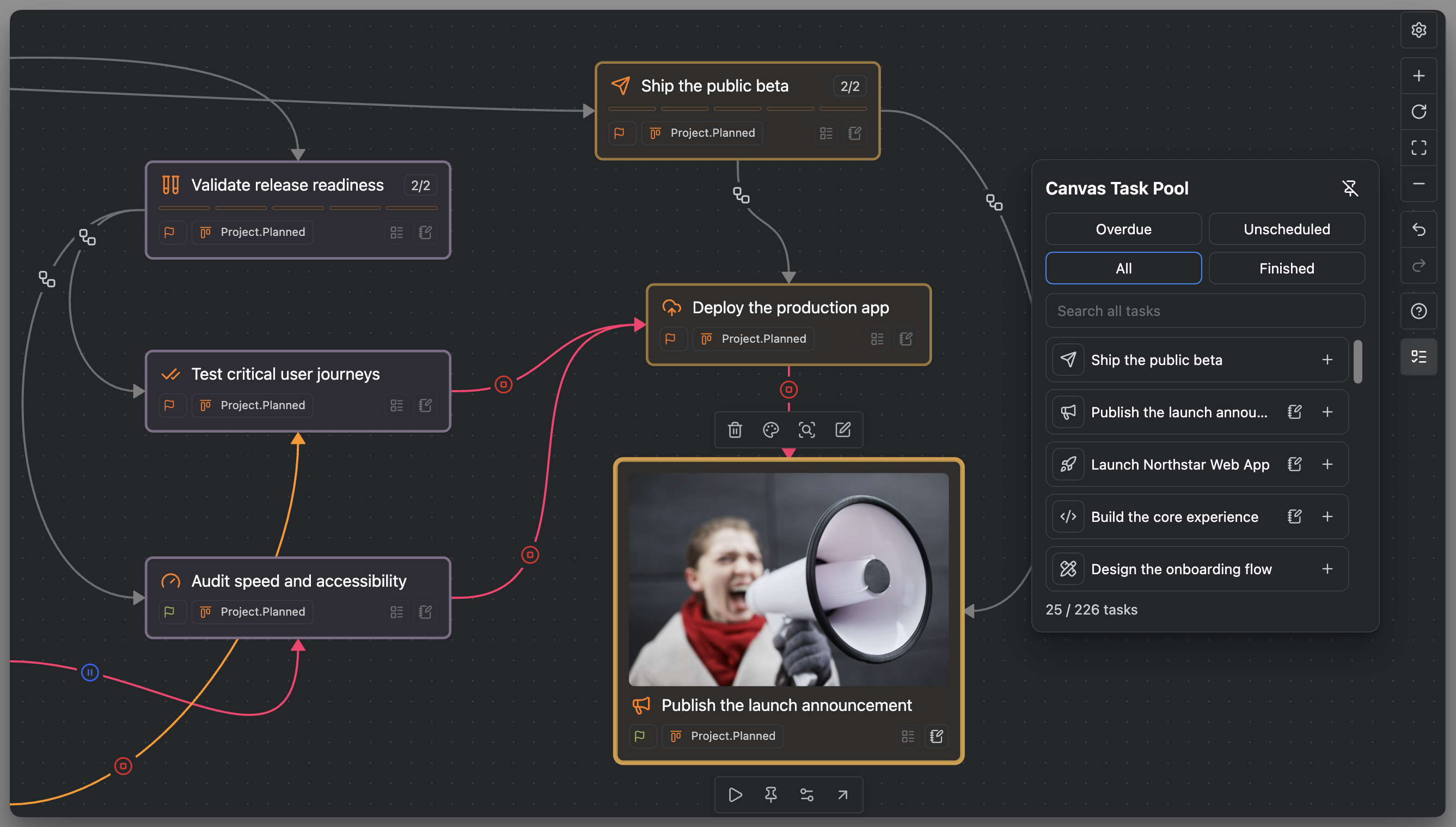
For a web app launch, start with Launch Northstar Web App and arrange four workstreams: product definition, core development, release validation, and the public beta.
- Pin Task Pool and move it to a free edge of the board.
- Find the relevant work. Search in
Allfor launch tasks already in your notes. UseUnscheduledfor work without a scheduled date, orOverdueto review what has slipped. - Add cards in context. Drag tasks near the workstream they belong to, or use + and arrange them afterward. Placement alone does not assign a parent or schedule.
- Set the relationships deliberately. Connect cards, then use that surface's relationship controls for parent/child or blocking relationships. The card guides explain those controls.
- Review what is done. Switch to
Finishedwhen completed tasks help explain the plan's progress.
You can gather tasks in several passes without losing the arrangement. Use Calendar to place the work in time or Gantt to review dates and dependencies along a timeline.
MEDIA-DOCS-148-1: Canvas Task Pool open beside the Northstar launch plan, showing mode controls, search, and task rows ready to add to the project's workstreams.
Tips
Choose the pool for the action
Task Pool adds cards for existing tasks. Property Value Pool applies reusable values to tasks already on the surface. To create a new task, use Task Creator or the creation controls described in the relevant card guide.
FAQ
Does the pool create new tasks? No. It adds cards for tasks that already exist. Use Task Creator to create a task.
Why is a task missing from the results? Check the selected mode and search text first. Completed tasks belong in Finished, while Pinned can include pinned tasks in any status. If the task is still missing, see Missing tasks.
Why can I not add a card? Check that the target board or drawing is writable and that the task can be resolved uniquely. Missing or duplicate identities must be resolved before adding the card. See Duplicate IDs.
Does changing the pool's size resize my cards? No. Pool dimensions control the floating list. Card widths have separate settings for Canvas, Excalidraw, and note embeds.
Settings
Open Settings → Operon → Views → Task Cards → Canvas & Excalidraw Task Pool. These preferences apply to both surfaces.
| Setting | Choices and behavior |
|---|---|
Panel width |
240, 280, 320, 360, or 400 px; default 320 px, constrained by the available space |
Visible rows |
5, 7, 11, or 13; default 5. This controls the panel height, not the number of searchable tasks |
Use Pin Task Pool on the panel to keep it open during a planning session.