Calendar presets and time grid
A Calendar preset is a saved configuration of the Calendar: its grid type, range, filtering, and appearance, bundled so you can switch between ways of looking at your time with one choice. The same Calendar can be a focused hour-by-hour day, a several-week plan, or a review of where your time actually went. Presets are what make that switch instant, and the time grid is the dial for how the timed views feel.
MEDIA-DOCS-029-1: Switching between Calendar presets, with the grid changing type and range.
What a preset saves
A preset is a complete look at the Calendar, grouped into a few areas:
- Type and range: which grid layout it uses (below), whether a timed grid follows rolling days or a calendar week, and its visible day count or week count.
- Filtering: which tasks the preset shows, through a filter. Different presets can show different slices of work.
- Appearance: the task color source and the light and dark color schemes (covered below).
- Visibility: weekends, projected future occurrences of recurring tasks, and external calendars.
Because all of this is saved together, switching presets reshapes the whole Calendar in one step. New Calendar leaves open with your chosen default preset.
Opening the Calendar and keeping your place
A newly opened Calendar leaf starts on today in your local time zone. This also applies when you close and reopen the leaf or restart Obsidian. In the time grid, the opening hour follows Settings → Operon → Views → Calendar: Auto around current time focuses around the current local time, while Fixed hour uses your Default scroll hour.
Once the leaf is open, the time grid keeps your vertical position while you switch Task Pool modes, save task changes, or switch between timed presets such as three and seven days. Planning a future week does not pull you back to the current hour. You can scroll to another hour yourself; choosing Today deliberately returns to today and reapplies your opening-hour preference.
This preserves your place within the available grid. A different grid type or a changed Hidden Time interval can change which positions are available.
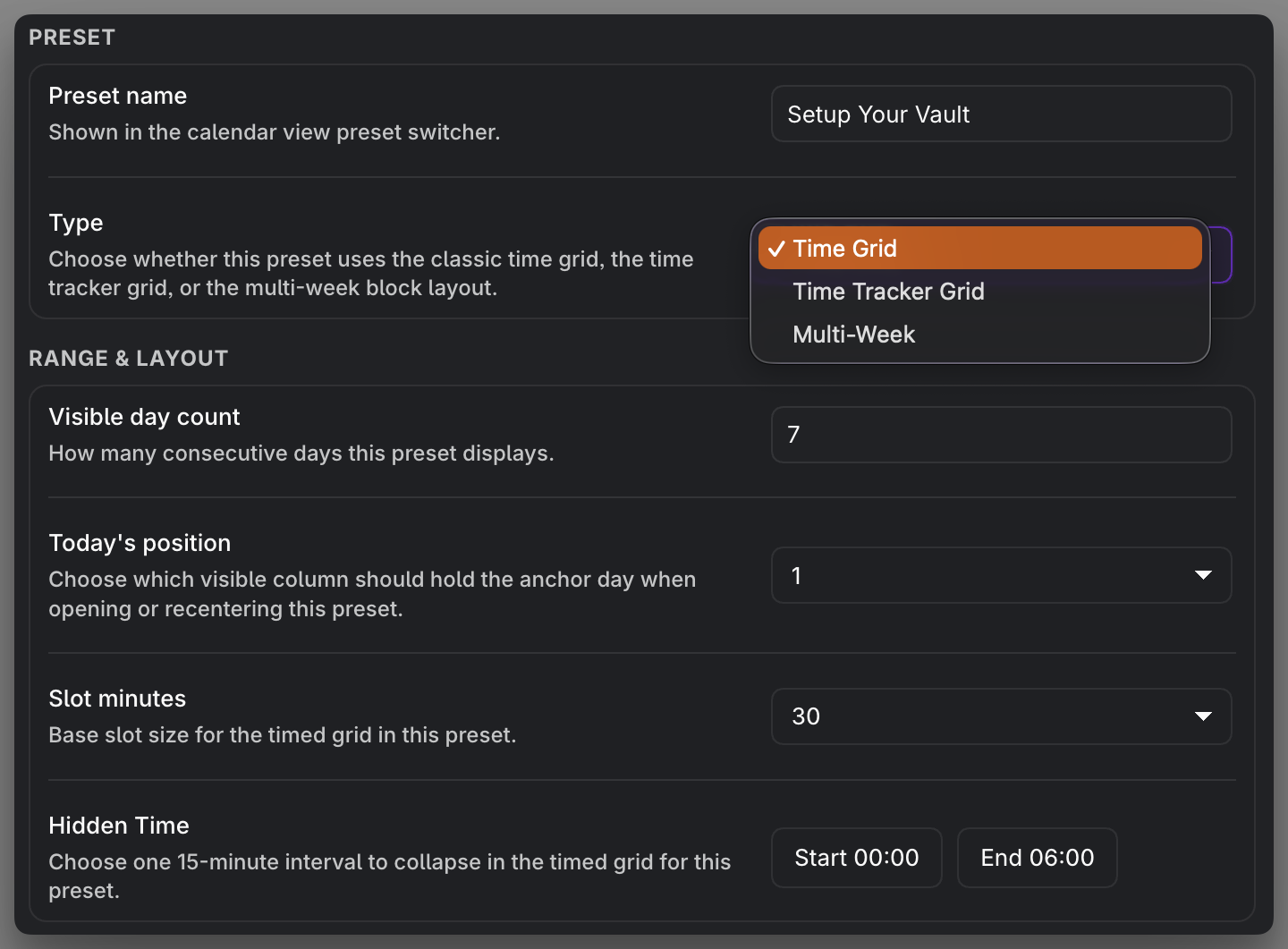
Preset type: Time Grid
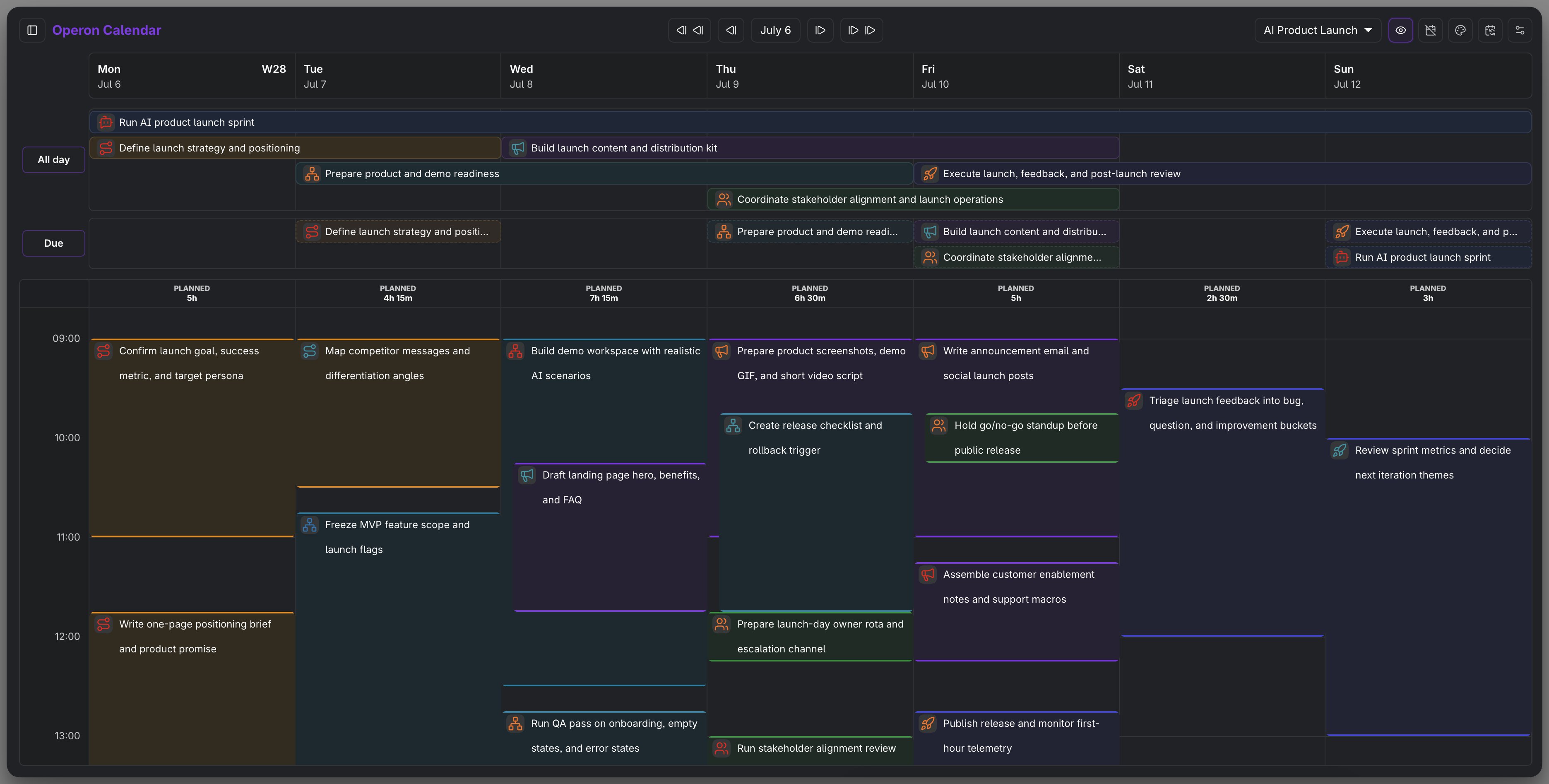
The Time Grid is the classic timed calendar: days run across as columns, hours run down the side, and each task with a start and end time sits as a block you can drag and resize. Reach for it when you plan by the hour and want to see a day or a week laid out in time.
Clicking or tapping a task preserves its saved time, including minutes between grid steps. Intentional dragging uses 15-minute steps. When you resize a task from its top or bottom edge, only the dragged edge snaps to those steps; the opposite edge keeps its exact saved time.
For Time Grid and Time Tracker Grid, the first setting under Range & Layout is Date range, available in the main preset settings and Edit preset quick settings:
- Rolling days is the default, including for existing presets. Visible day count sets the number of columns, and Today's position places the selected date within that range.
- Calendar week shows the seven-day week containing the selected date, using Operon's Week start setting. Visible day count and Today's position become disabled; their saved values remain visible and are used again when you return to Rolling days.
For example, with Monday as Week start, selecting Wednesday shows that Monday through Sunday. With Sunday as Week start, it shows Sunday through Saturday. Hiding weekends removes Saturday and Sunday from that same week without filling the gap with days from the following week. Selecting a hidden weekend date still opens the week containing it. Week start changes the week boundary, not which days count as weekends.
Calendar week works in the normal grid on desktop and tablet. Slot minutes, Hidden Time, filters, colors, external calendars, and tracked sessions continue to use the chosen preset. Switching to Multi-Week hides the Date range control and ignores its choice, but retains it for a return to a timed grid.
It has the finest time controls of the three types:
- Slot minutes set the base granularity of the grid.
- Hidden Time collapses one interval you never use (for example the small hours), so the grid spends its space on the part of the day you actually plan.
- The time grid scale stretches or compresses hour height (covered below).
Choose the Hidden Time interval
Hidden Time uses two native dropdowns, one for the beginning and one for the end of the collapsed interval. The choices use 30-minute steps across the day: Start begins at 00:00, End begins at 00:30, and the final End choice is 23:59. Each dropdown keeps the beginning earlier than the end, so choosing one boundary narrows the valid choices for the other.
If an existing preset already contains a valid custom value outside the new 30-minute steps, such as a quarter-hour value, Operon keeps that current value available instead of silently changing the preset. Once you choose a standard value, the dropdown continues with the 30-minute choices.
MEDIA-DOCS-029-2: The Time Grid preset, a week of timed blocks with hours down the side.
Preset type: Time Tracker Grid
The Time Tracker Grid is built for looking back, not just ahead. It arranges the day into three lanes so you can compare intent against reality:
- Planned: the time blocks you scheduled.
- External: events from your external calendars.
- Tracked: the time you actually recorded.
Set side by side, these lanes turn the Calendar into a review surface: did the work take the slot you gave it? This is the preset to pair with Time tracking and the time session history.
When the preset's filter uses Tracked time, the Tracked lane shows only sessions selected by that filter within the visible calendar range. Planned tasks keep their scheduled dates, and the calendar range stays unchanged. See Time tracking for how session dates and period totals work.
On desktop, recorded sessions in the Tracked lane use a muted fill and four color-aware dashed edges. That finished-work treatment keeps measured time visually distinct from the solid planned blocks beside it; a session without a task color uses a neutral outline.
MEDIA-DOCS-029-3: The Time Tracker Grid with its Planned, External, and Tracked lanes side by side.
Preset type: Multi-Week
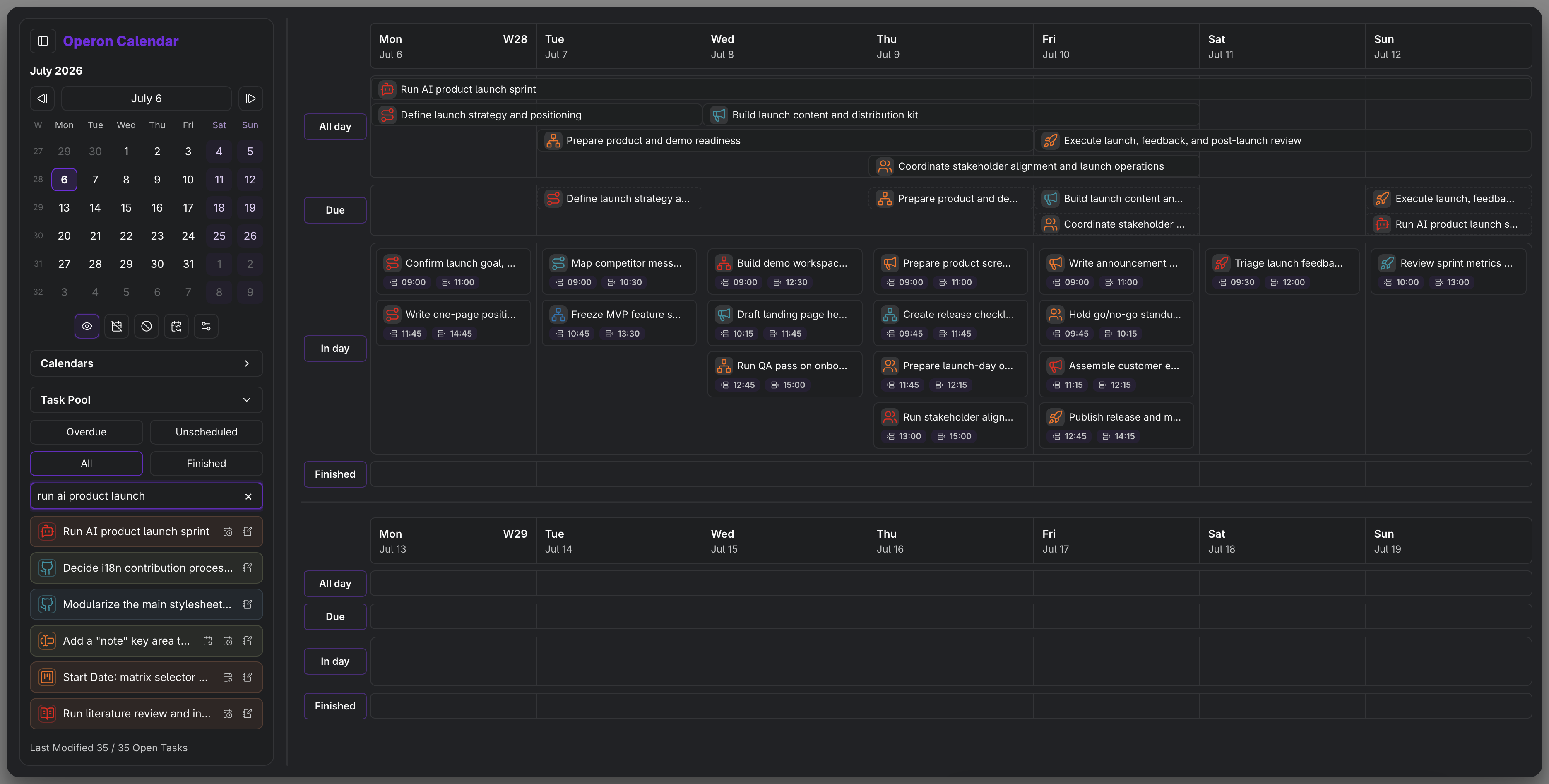
The Multi-Week preset trades hour-level detail for reach. It shows several consecutive weeks as a block layout, so you can plan and scan further than a single week. Two controls shape it: the week count sets how many weeks appear, and the focused week number decides where a chosen day lands in that span. Use it for backlog grooming, deadlines weeks out, and any planning that lives above the level of a single day.
MEDIA-DOCS-029-4: The Multi-Week preset showing several weeks of tasks as blocks.
Appearance and color
A preset also decides how its blocks look. The task color source chooses what drives a block's color: the task's own color, an accent color, its workflow status color, its priority color, or no color at all. Picking status color makes the grid read like a pipeline at a glance, while priority color makes urgency pop. You set separate color schemes for Obsidian's light and dark modes, so the Calendar stays readable in both.
Visibility
Each preset controls what is shown alongside your tasks:
- Show weekends: keep Saturdays and Sundays in the grid, or drop them for a workweek view.
- Show future occurrences: project upcoming instances of recurring tasks, so a routine appears on the days it will recur.
- Show external calendars: include the external calendar sources chosen for this preset.
The dedicated Due lane is a global Calendar display choice rather than a per-preset field. When Calendar due markers lane is enabled, the lane appears above the scheduling area in Time Grid, Time Tracker Grid, and Multi-Week presets. Its drag behavior is described in Calendar overview.
The time grid scale
In the timed views, the time grid scale sets how much vertical space an hour takes. A larger scale spreads the hours out, which makes short blocks easier to see and grab. A smaller scale fits more of the day on screen at once. It is a quick comfort dial: stretch the grid when you are fitting detailed blocks, compress it when you want the whole day in view.
Presets on mobile
Calendar week applies to the normal grid, including tablets using that grid. The compact mobile layout keeps its Agenda, Day, 2 Days, and 3 Days ranges even when its preset has Calendar week selected. Changing tablet orientation or window width does not rewrite the preset's Date range choice.
On a phone, each mobile Calendar view, Agenda, Day, 2 Days, and 3 Days, opens with its own chosen preset. That is how a phone can keep a detail-heavy preset like the Time Tracker Grid on Day while using a lighter planning preset on 2 Days or 3 Days. See Mobile Calendar.
Tips
Turn a one-day grid into a daily command center
Time Grid and Time Tracker Grid work nicely as a focused single-day view. Set the grid to one day, then keep Calendar in a sidebar or a narrow pane, so today's plan and any running time session stay in sight while you work elsewhere in the vault.
FAQ
What is the difference between a preset and the time grid scale? A preset is a whole saved Calendar configuration, including its type. The time grid scale is one setting inside the timed views that controls hour height.
Which preset type should I start with? Time Grid for day and week planning, Multi-Week for longer-range planning, and Time Tracker Grid when you want to compare planned against tracked time.
Can two presets show different tasks? Yes. Filtering is part of a preset, so each can show its own slice.
Why does my Hidden Time dropdown show a quarter-hour value? It is an existing value preserved for compatibility. New choices use 30-minute steps, and End also offers 23:59 for the end of the day.
Settings
Operon settings for this live in Settings → Operon → Views → Calendar, under Calendar presets to manage presets and choose the default. Open a preset's editor for its type, range, filtering, appearance, and visibility. The separate Time Grid section holds global grid preferences, including the opening scroll position. The preset assigned to each mobile view is set under Settings → Operon → Mobile → Mobile Calendar → Mobile view presets.