Lightbox
A lightbox opens a link over the surface you are working in, so you can inspect a page, file, or image without rearranging your workspace tabs. On desktop, Operon shares this preview across supported task chips, Tables, task descriptions, and Description/Note popovers. Markdown notes, Bases, and Operon Tables use their normal editable views and save behavior inside the preview.
MEDIA-DOCS-151-1: An editable Markdown note in the narrower lightbox frame, with the preview controls visible.

Where it works
The shared opening rules apply to supported links on:
- Inline tasks in Live Preview and Reading view, and standalone or embedded filters.
- Task Wikilink Overlays, Kanban cards, Task Cards in notes, Canvas, and Excalidraw.
- Real Operon task descriptions on Calendar and in its sidebar Task Pool.
- Standalone and embedded Table cells, including links inside Description and Note.
- The shared Description/Note text editor popover, using the link in the current draft.
This is not a global replacement for Obsidian links. General Markdown notes and the Creator/Task Editor's own field editors keep their existing behavior. Task Finder, Pinned, Upcoming, time-tracking headings outside Time Session History, and other deliberately passive task lists do not become interactive link surfaces. Mobile navigation is unchanged.
Which chip or cell opens a preview is covered in Task chips and Table cells. Ordinary property values still open their pickers. A Text or List value must be a complete, existing wikilink to use the link exception; an HTTP address stored as ordinary Text remains a Text value.
Open a link
| Action on a supported desktop link | Result |
|---|---|
| Click | Open in the lightbox |
| Enter or Space while the link itself is focused | Open in the lightbox |
| Cmd-click on macOS, or Ctrl-click on Windows/Linux | Open the same target in a focused Obsidian tab |
| Middle-click an HTTP/HTTPS link | Open in the system browser |
Middle-click is an external-browser shortcut for web links using this shared flow. It does not change local wikilinks, Source, Parent Task, or Task Image/Gallery media actions. It works even when Obsidian's Web Viewer is disabled.
MEDIA-DOCS-151-2: A website in the Web Viewer lightbox, showing its navigation toolbar and the preview controls.
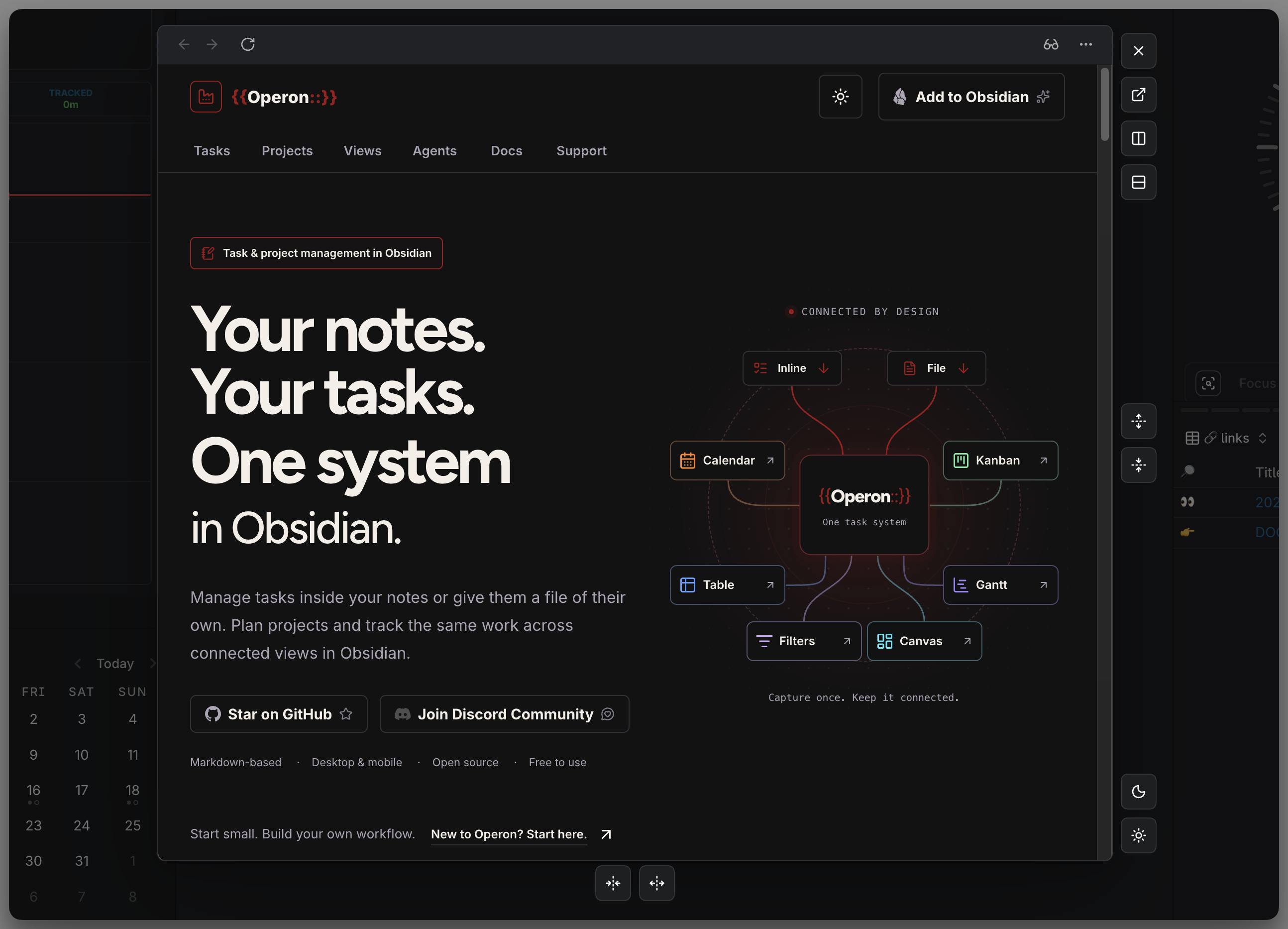
Inside a text editor, ordinary Enter and Space remain editing keys. The link shortcut does not replace typing or line-break behavior.
Aliases change the visible label, not the destination. Relative paths are resolved from the source note; supported heading, block, PDF page, and Inline task line targets are retained. Missing local targets are not created by previewing them. Depending on the field, Operon returns to its picker or editor, or reports that the target could not be found.
Open a task source
On desktop, the shared preview also opens a task's source from:
- A Source metadata chip or Table Source cell.
- The Source action on Inline Tasks, Filter Tasks, Kanban cards, Task Wikilink Overlays, and Task Cards. Its toggle and hover/focus visibility are separate from the metadata chip; see Task chips and actions.
- Open Source in the task's contextual menu.
- Source navigation in Time Session History, through its configured task-description action or the companion Source button.
- Open Source below a selected Canvas or Excalidraw task card.
Source chips, Table Source cells, Source actions, and card selection controls support Cmd/Ctrl-click for a focused Obsidian tab. Context-menu and Session History Source actions open the preview; use its Open in new tab control to continue in a tab.
For an Inline task, Operon resolves its current source position. In the editable Markdown view, the caret sits immediately after the description's last character, before trailing metadata, with no text selected. Source opening with Cmd/Ctrl uses the same position. Task Editor File Body also uses this Inline caret position. A File task opens its source file normally. Opening Source itself does not change the task or create a missing file.
These are specific navigation controls, not a change to every file link or task title. Other task-opening actions and mobile navigation retain their existing behavior.
Supported content
| Content | Preview |
|---|---|
| HTTP/HTTPS page, other than a supported YouTube video link | Obsidian Web Viewer, with its navigation controls |
| Supported YouTube video link | The privacy-enhanced embedded player, including links from the Links field or task text |
| Markdown note | The normal Obsidian Markdown view, including editing |
.base file |
The native Bases view, including its supported edits |
.table file |
Operon's editable Table, including presets and the Gantt toggle |
| Supported image, video, or PDF reference | The shared media viewer with the relevant viewing controls |
Ordinary web-page previews and web tabs require the Web Viewer core plugin. Supported YouTube video links instead open the embedded player without Web Viewer, retain a supported start time, and do not autoplay. Cmd/Ctrl-click, middle-click, and the player's tab or split controls keep the original URL: Obsidian web tabs and splits require Web Viewer, while the system-browser shortcut does not. YouTube pages that do not identify a supported video keep the ordinary web-page route.
Bases require the Bases core plugin. If a required view is unavailable, Operon explains what is missing rather than enabling a plugin or silently opening another application.
MEDIA-DOCS-151-3: A Base file in the wider lightbox frame, with its native view controls and the preview controls visible.
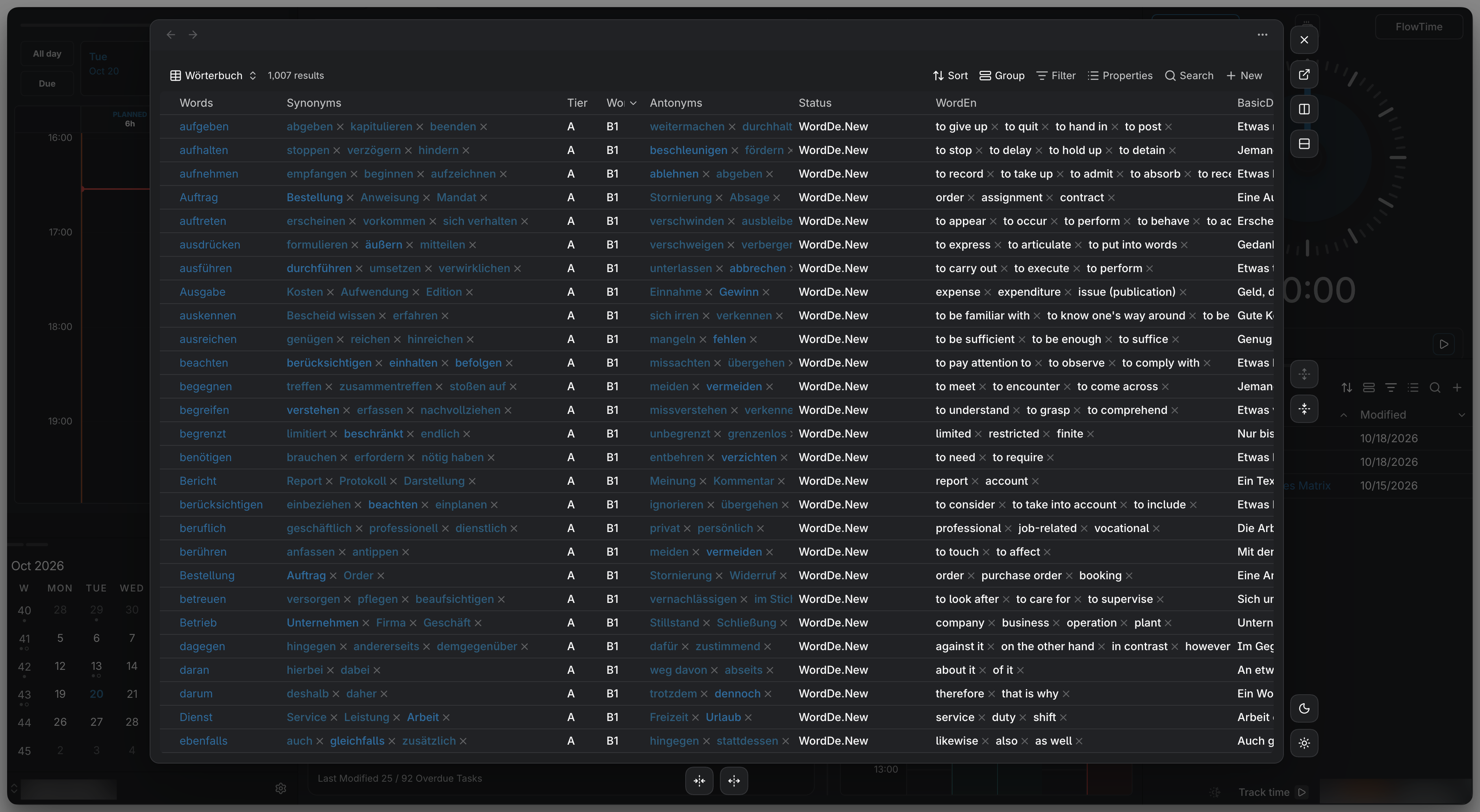
Existing files with no lightbox host, such as Canvas files, use the supported native file-opening fallback.
For media formats, image zoom and pan, playback, and gallery order, see Task images and galleries. Opening a preview does not change a media field or reorder its gallery.
Size and remembered preferences
Desktop previews choose their content profile before loading, so a Markdown note starts in its own frame rather than first appearing at Table width. These defaults apply until you change an axis for that profile:
| Profile | Default width | Default height |
|---|---|---|
| Markdown | Up to 1050px or 90% of the window, whichever is smaller | 90% of the window |
| Base | 90% of the window | 85% of the window |
| Operon Table | 90% of the window | 85% of the window |
| Video | The same wide frame as Base and Table | 85% of the window |
| YouTube | The same wide frame as Video | 85% of the window |
| Web | Up to 1200px or 90% of the window, whichever is smaller | 85% of the window |
| Up to 1200px or 90% of the window, whichever is smaller | 85% of the window | |
| Image | Natural proportions within the window limits | Follows the image proportions and window limits |
Window limits can reduce the actual size to leave room for the controls. The video or image itself keeps its proportions inside a resized frame.
Use the width controls at the bottom center to narrow or widen the preview, and the height controls at the right center to shorten or lengthen it. Both axes use these percentages of the app window, not the underlying workspace pane:
40 · 45 · 50 · 55 · 60 · 65 · 70 · 75 · 80 · 85 · 90
Each button chooses the next smaller or larger step from the current size. For example, a width of 67% narrows to 65% or widens to 70%. A control becomes unavailable when there is no further usable step within the window limits. There is no numeric size indicator.
Each changed axis is saved separately for Markdown, Base, Table, Web, PDF, Image, Video, and YouTube. The next preview of that type starts with its saved size, including a different file or URL of the same type. Base and Table remain independent preferences even though their defaults match; Video and YouTube are also independent. Unchanged profiles and axes retain their defaults. Opening a preview or resizing the app window does not save a new preference.
These preferences belong to the vault's Operon settings; another vault has its own preferences unless you transfer a settings backup. Size controls live on the preview, with no additional Settings menu. Settings backups include the saved sizes, and Reset Settings clears those overrides. A failed preference save reports the problem and leaves the current preview available.
Window controls
The upper control group sits beside the preview:
| Control | Action |
|---|---|
| Close | Return to the previous preview or the surface underneath |
| Open in new tab | Move the current content into a focused Obsidian tab |
| Open to the right | Open the current content in a split to the right of the original tab |
| Open below | Open the current content in a split below the original tab |
The split controls use the tab from which the preview chain started, even if another tab later became active. If that tab is no longer available in the same window, the preview stays open with a short explanation. The content's supported view state and position carry over when it is opened in a tab or split.
The separate lower-right group contains Moon to darken the background and Sun to lighten it. Each moves to the next available dimming setting and saves directly to Lightbox background dimming in Workspace Tweaks. There is no numeric indicator beside the preview; the dropdown shows the saved starting level. Dimming and preview size use separate sets of steps.
The full choice of levels, defaults, and nesting calculation is documented in Workspace Tweaks. Task Creator, Finder, Editor, and the standalone Dynamic Subtasks Filter share that backdrop setting, but do not gain the lightbox's side controls.
The controls use neutral, theme-based backgrounds and borders. With a pointer, they hide while you are over the content and appear when you move over the dimmed backdrop or a control's own area. A control reached with Tab stays visible with its focus ring, even over the content.
Opening a preview does not automatically focus Close or another management button. Focus starts in the preview shell or its content; Inline Source opening retains the caret position described above. All available controls remain reachable by keyboard.
Nested previews and returning
Opening another Operon-handled link from a preview or its text popover can open a child preview. Only the top preview is interactive. Closing it restores the previous view, including its position and any preserved text draft. Native navigation inside a file or web view keeps its own behavior.
Use Close, the backdrop, or Escape to return. An open menu or picker receives Escape before the preview closes. Keyboard focus inside a web page can affect Escape handling; the close control remains available. Returning from a preview restores focus to the living source control, while opening a tab or split leaves focus at the destination.
Editing and save protection
Markdown, Bases, and Tables keep their existing save paths; there is no second editor or separate Save system. Merely viewing a file does not request a task edit or a rewrite of the file. Your deliberate edits inside a native view are real edits to the original data.
Before closing or transferring an editable view, Operon waits for the relevant pending native or Table saves. A failed save keeps the preview available rather than discarding the view. Opening or closing a lightbox does not close or rearrange your existing workspace tabs.
A Description/Note popover is different from a native file view: opening a preview preserves its unsaved draft without dismissing or saving it. Finish the popover edit before using a new-tab or split action from that preview chain. Operon blocks that transfer while an unfinished popover draft remains. See Text field editor popover for its normal dismissal and save behavior.
Hover preview
- Local modifier-hover uses Obsidian's Page Preview when enabled, following the user's preview preferences.
- HTTP/HTTPS links retain their URL tooltip; there is no separate web hover browser.
- Task Image and Task Gallery keep their small normal-hover media preview. Click its header/open control or its image once to open the lightbox.
- For local media, an active modifier-hover Page Preview replaces the small media preview, so both do not appear together. With Page Preview disabled, the existing media preview remains available.