Excalidraw Task Cards
Excalidraw Task Cards bring Operon tasks into your drawings. Arrange work beside sketches, create tasks from text, and connect cards to show a project's structure and dependencies without leaving the drawing.
Each card represents an Inline Task or File Task, linked by its task identity. The drawing holds the card's position and appearance; the task stays in its Markdown source. Showing the same task in Excalidraw, Canvas, and a note does not create separate tasks.
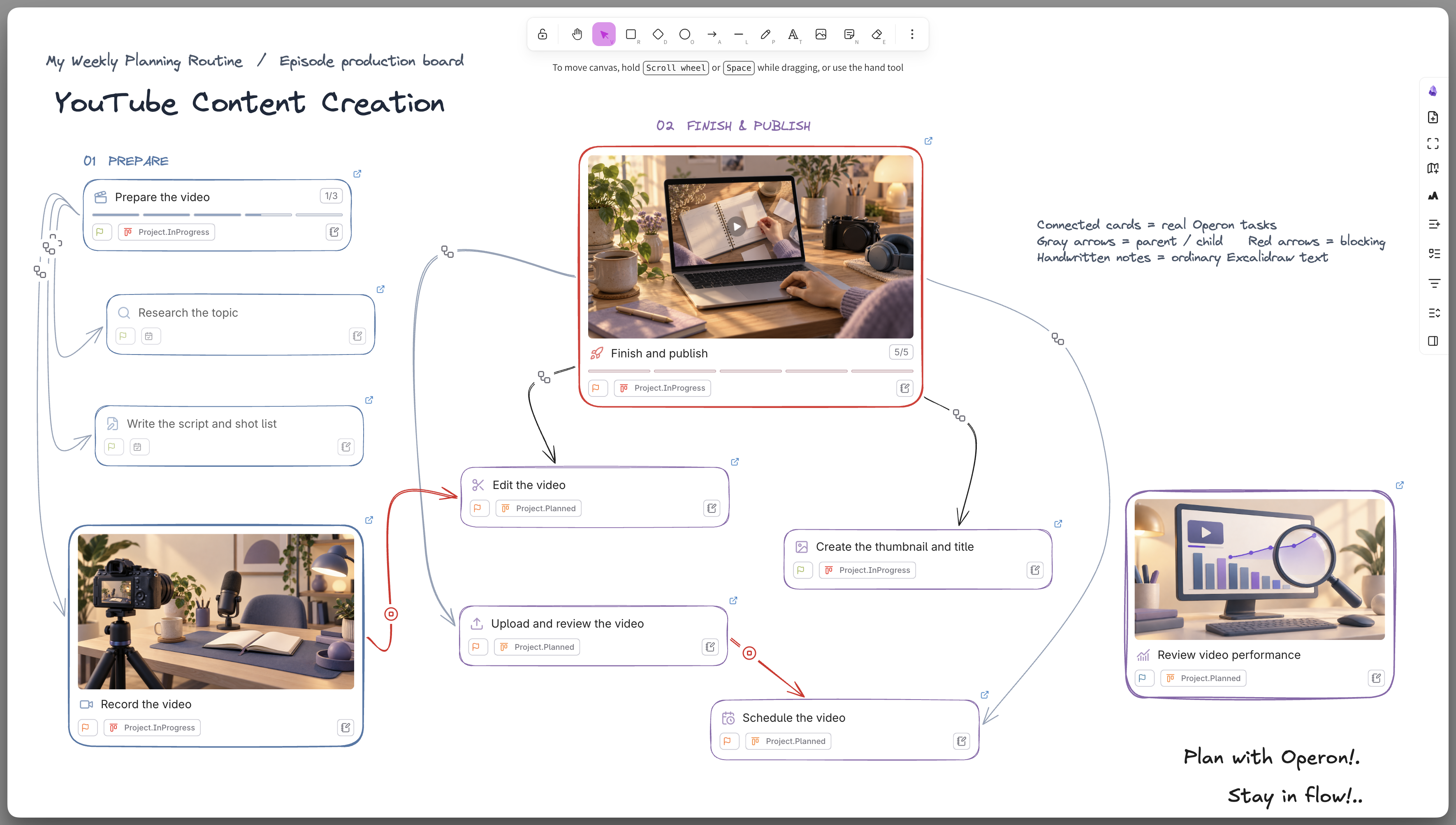
MEDIA-DOCS-147-1: Screenshot of an Excalidraw project drawing with several Operon task cards, connecting arrows, and visible parent–child and blocking indicators.
Before you start
Enable the Excalidraw plugin and open an editable drawing. Operon's controls use Excalidraw's integration APIs; if a required API is unavailable, Operon reports which control cannot be used. The integration was validated with Excalidraw 2.28.1.
Task-changing controls require a writable drawing and an unlocked target. A task must also resolve to one valid identity. Existing relationship indicators can still be viewed in a read-only drawing.
Add an existing task
Open Excalidraw Task Pool from the drawing toolbar to find existing tasks and bring them into your plan. Search for the work you need, then add a card with the row's add button, the keyboard, or drag-and-drop. Keep the pool open while adding several tasks and arranging the drawing. You can also open it with Operon: Open Excalidraw Task Pool. See Canvas and Excalidraw Task Pool for the shared pool workflow.
Adding a card does not move the task, change its parent, or create another task.
As an alternative, run Operon: Add existing task to Excalidraw with the drawing active. This opens Task Finder to choose an existing task and place its card in the drawing.
Create a task in the drawing
Use the drawing toolbar's Task Creator shortcut or run Operon: Create task in Excalidraw. The creation action is also available from the drawing's context menu when no element is selected.
In Task Creator, choose Inline or File mode and review the fields before creating. The task follows your normal destination, template, parent-placement, and inheritance rules. Operon adds a card after the task is created.
An Excalidraw Markdown file can hold inline tasks. Operon keeps task content before the drawing's technical data. The drawing remains an available destination under the normal Task Router rules; creating from a drawing does not force every task to be stored there.
The drawing toolbar also provides a File Task action. It can convert the drawing into a File Task; for a drawing that already is a File Task, it opens its dynamic filter. A separate shortcut opens that drawing task in Task Editor. See File tasks and Dynamic file task filter.
Convert drawing text into a task
- Select one standalone text element.
- Click Convert to Operon task…, centered below the text.
- Review the description, Note, destination, and parent in Task Creator.
- Create the task to replace the text with its card.
The first source line supplies the description; subsequent lines supply the Note. Visual wrapping in Excalidraw does not introduce new lines into the task. Explicit line breaks, blank lines within the Note, and lists are preserved.
The button applies to nonempty, unlocked standalone text, not text inside a shape, an arrow label, or a multiple selection. Cancelling Task Creator leaves the text unchanged.
The replacement keeps the text's top-left position, rotation, and connections. Its width comes from Default Excalidraw card width, and its height fits the task content. Review the parent and inheritance indicators before creation, especially when the drawing itself is a File Task.
MEDIA-DOCS-147-2: Screenshot of one selected standalone text element with the Convert to Operon Task button centered beneath it. The example has a task description on its first line and notes on the following lines.

Create a task from an arrow
Draw a new arrow from an Operon task card and finish it in empty space. A small menu beside the free endpoint offers Add Operon task.
MEDIA-DOCS-147-3: Screenshot of a new arrow extending from an Operon task card into empty drawing space, with the Add Operon task menu beside its free endpoint.
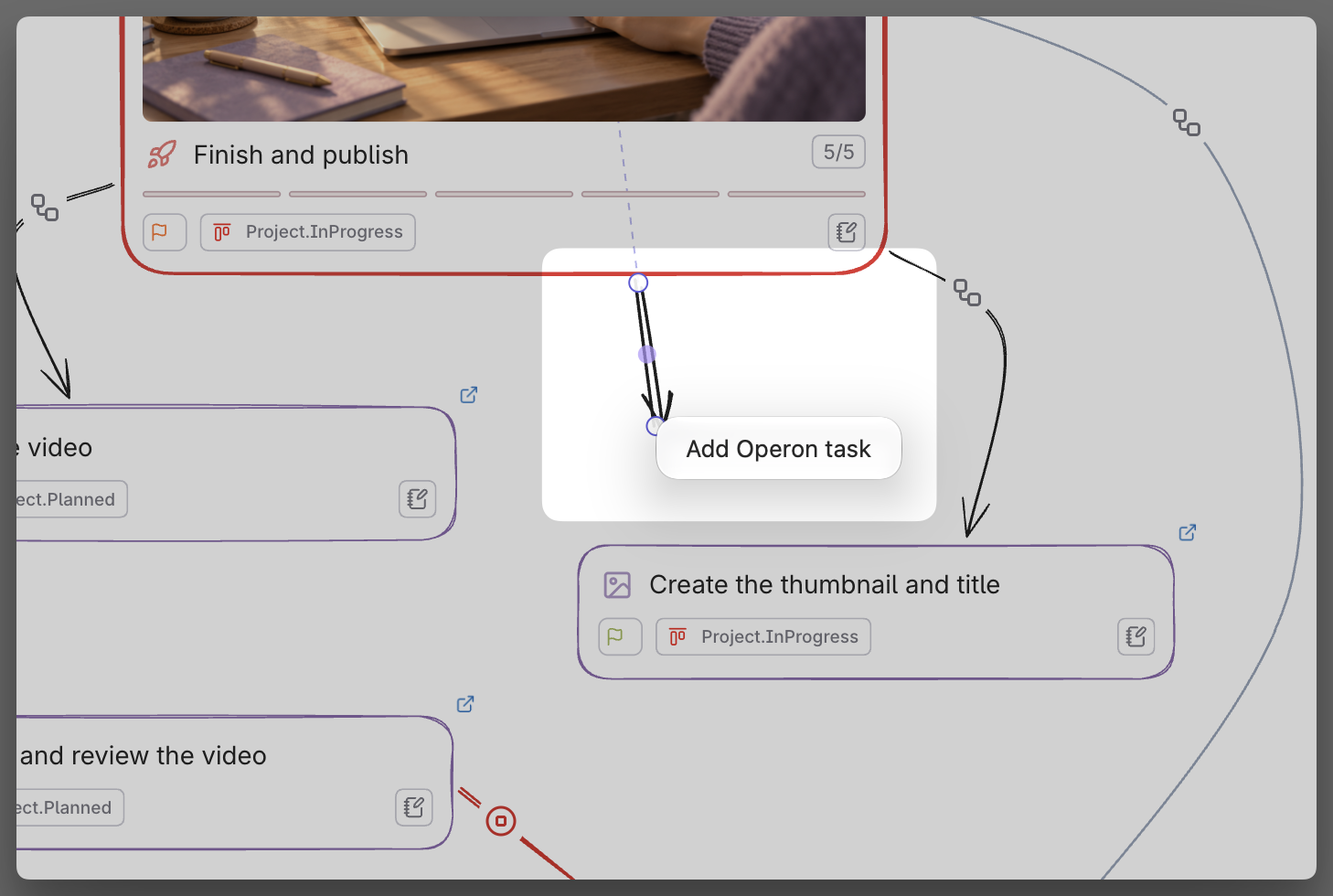
Choosing it opens Task Creator with the starting task selected as parent and its configured inheritance shown. You can change or clear the parent before creating. Operon places the new card at the free endpoint and connects the existing arrow, preserving its style and label.
Click elsewhere or press Escape to dismiss the menu and leave the arrow unconnected. Cancelling Task Creator also leaves it unconnected. Moving an existing arrow's endpoint does not open this creation menu.
Drawing the arrow alone does not write a task relationship. The new task's parent comes from the final choice in Task Creator; no blocking relationship is added automatically.
Work with a task card
Select a card to show the Operon shortcuts below it: timer, pinning, Task Editor, and Open Source. On desktop, Open Source previews the current task source in the lightbox; Cmd-click on macOS or Ctrl-click on Windows/Linux opens a focused Obsidian tab instead. These shortcuts follow the same tasks and settings used in Canvas.
Activate the embedded card to interact with its content. Clicking an empty area of an active card opens Task Editor. The description, task icon, chips, and other controls keep their own actions. Hover over the task icon for its contextual menu.
On desktop, supported HTTP/HTTPS and existing local links inside the active card's description use the lightbox, without also triggering the card's outer action. The description outside its links and other controls retain their own behavior. Note popovers share the draft-preserving preview flow described in Text field editor popover.
Chips edit or navigate the source task using their normal behavior. A separate Source action in the chip row follows Task Card Actions and its shared hover/focus visibility; see Task chips and actions. Notes, images, progress, and checklist controls follow the shared Task Card preferences. Edits appear on other cards showing the same task; opening Source is navigation only.
Use Excalidraw Property Pool from the drawing toolbar, or Operon: Open Excalidraw Property Pool, to find reusable values and drag them onto task cards. See Canvas and Excalidraw Property Value Pool for shared favorites, shortcuts, and value editing. Check the drop preview before applying a value; it changes the task itself.
Set relationships between cards
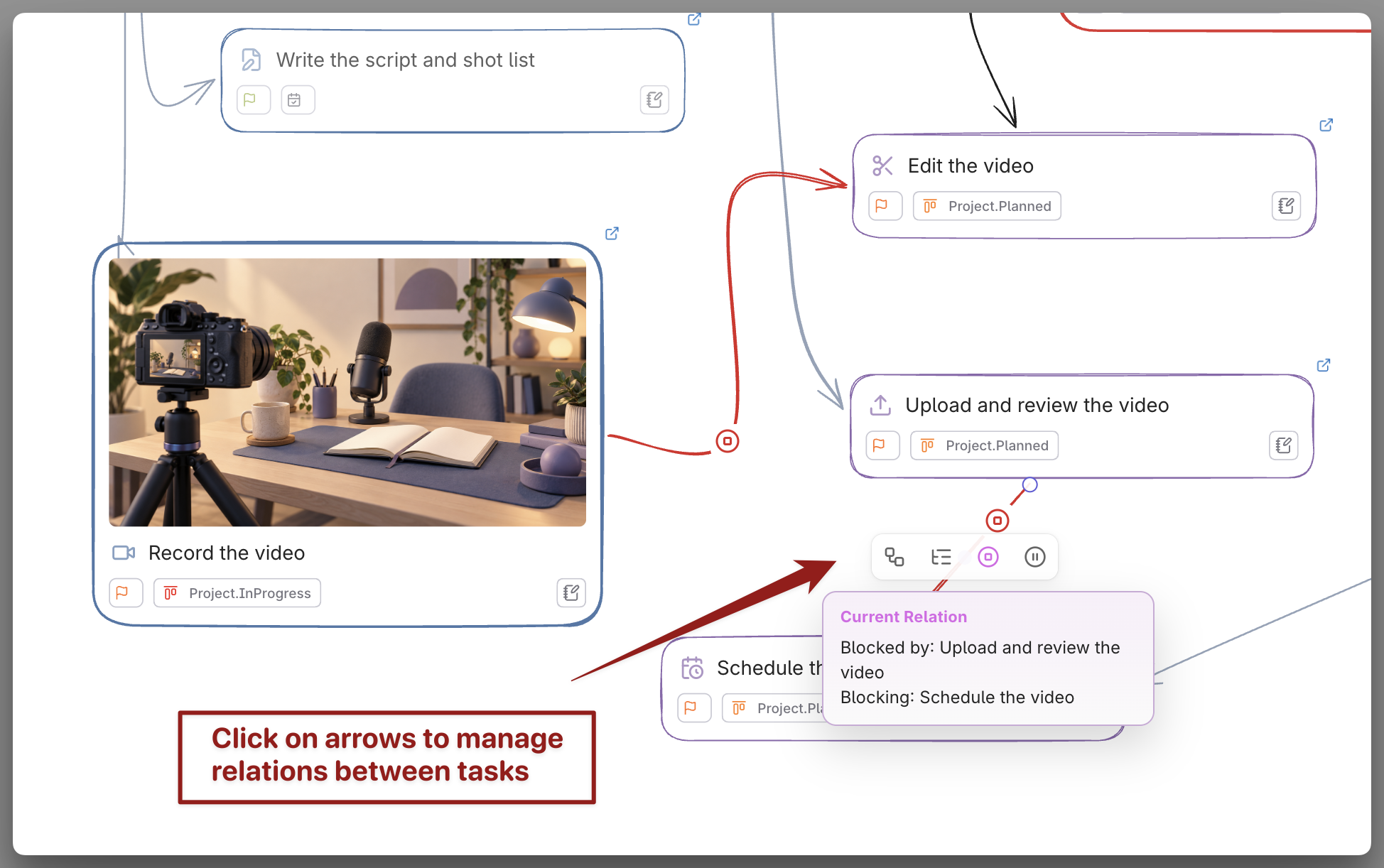
Connect two different Operon task cards and select the arrow. Four controls appear at its center: parent–child in either direction, followed by blocking in either direction. You do not need to activate the endpoint cards first.
The arrowhead does not choose the relationship. Read the Operon tooltip to see which task will be the parent, child, blocker, or blocked task. Click an inactive control to add its relationship; click the active control to remove it. To reverse a relationship, remove the current direction first.
The same pair can have both a parent–child relationship and a dependency. Controls use the same rules as Canvas, including checks for an existing parent, reverse relationships, hierarchy or dependency cycles, and missing or duplicate identities. An unavailable control explains its restriction in the tooltip.
Drawing, deleting, or reconnecting an arrow does not by itself change existing task relationships. Use these controls or Task Editor to change the underlying fields.
MEDIA-DOCS-147-4: Screenshot of a selected arrow between two Operon task cards, showing the four relationship controls at its center. One control has its Operon tooltip open, identifying the tasks and the direction of the relationship.
Read the arrow indicators
Relationship indicators remain visible when the arrow is not selected. The parent–child indicator appears toward the parent; the dependency indicator appears toward the blocker.
An active blocker is shown in red. When the blocker is resolved under its pipeline rules, the indicator becomes blue. This reflects the prerequisite's state, not a reversal of the dependency. Both indicators can appear when both kinds of relationship exist.
Icons follow the configured field mappings. Indicators keep a stable screen size as you zoom, and their backgrounds match the drawing while hiding the line beneath them. They are an editor overlay and are not included in PNG or SVG exports.
Source changes, removal, and Undo
Cards keep following the same task when its source is renamed, moved, or converted between inline and file forms. Their placement and styling stay with the drawing, while source links and task controls follow the current task.
Deleting a card removes that appearance only. It does not delete the task. When the actual task is deleted, Operon removes its cards from open drawings; closed drawings are handled when next opened. A read-only drawing waits until it can be written.
When the task returns, cards removed by that automatic cleanup can return to their previous positions and styles. Cards you deleted manually are not restored by this process. Operon does not treat temporary index unavailability or an unresolved identity alone as proof that a task was deleted.
Excalidraw Undo changes the scene, not the task source. After text conversion or arrow-end creation, Undo can undo the card replacement or connection while leaving the created task intact. Redo uses that same task. Undo does not reverse edits to task fields or relationships. If a task is still deleted, a card brought back by scene Undo is cleaned up again.
Troubleshooting
A task was created, but no card appeared. Check the task source or Task Finder before trying to create it again. If the task exists, use Add existing task to Excalidraw. A card insertion failure does not automatically delete a saved task.
The conversion or arrow menu is missing. Check the selection and drawing permissions. Text conversion needs one standalone text element; arrow-end creation needs a newly drawn arrow from an Operon card to empty space. If Operon reports an unavailable integration API, check the installed Excalidraw version.
A card is unavailable. Its source may be missing, the index may be loading, or the ID may be duplicated. Resolve the source or identity issue instead of creating another copy. See Missing tasks and Duplicate IDs.
What is the small link icon outside the card? It is Excalidraw's native link control. It can open the drawing's Markdown at the card reference. Use Operon's source shortcut to open the actual task source.
Settings
Open Settings → Operon → Views → Task Cards for shared sections, images, and layout preferences.
| Setting or control | Effect |
|---|---|
Default Excalidraw card width |
Starting width for new cards; 375 px by default, independently of Canvas and embedded cards |
Card Sections and Order |
Arrange the shared card content and choose which optional sections appear |
| Excalidraw Stroke color | Update the task's color, reflected across cards showing that task |
| Excalidraw frame controls | Adjust the card's frame appearance using the drawing's native controls |
Changing the default width does not resize existing cards. Resize those directly in the drawing. Height adjusts to the content as the card changes; long labels are kept within its bounds.
Configure chip visibility and order under Settings → Operon → Interface → Task Chips → Task Card Chips. Configure the task-icon menu through the separate Excalidraw surface under Settings → Operon → Interface → Context Menu. See Task chips and Contextual menu actions.