Calendar Task Pool
The Task Pool is the planning surface in the Calendar's sidebar. It is a working list of tasks you drag straight onto the grid to schedule them. Where the grid shows what is already placed in time, the pool is where unplaced and stalled work waits to be picked up and dropped onto a day or a time slot.
This makes it the heart of calendar planning: open the sidebar, choose what you want to see, and pull tasks onto your week.
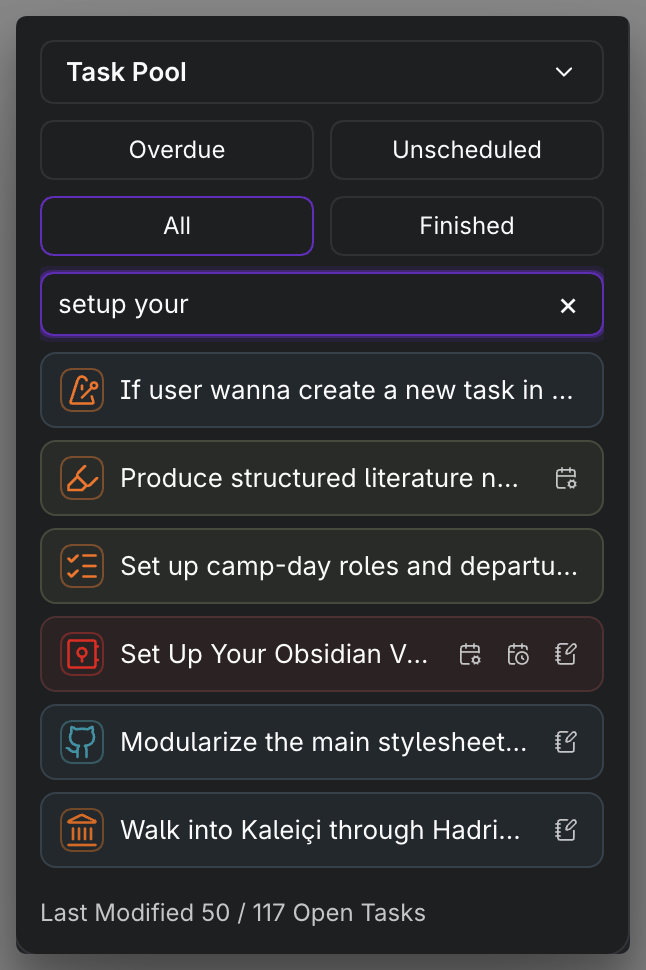
MEDIA-DOCS-095-1: The Task Pool in the Calendar sidebar, with its mode buttons, search box.
Where it lives
The Task Pool is one of the two sections of sidebar mode, alongside Calendars. Completed tasks are available through its Finished mode rather than a separate sidebar section. Switch the Calendar to sidebar mode to use it. Its width and whether it starts open or collapsed are set in Settings → Operon → Views → Calendar → Calendar Sidebar Settings. It always shares the active Calendar preset's filter with the grid; there is no separate setting for that.
The five modes
Five equal icon buttons share one row at the top: Overdue → Unscheduled → All → Finished → Pinned. Hover for each mode name. Only one mode is active at a time.
| Mode | What it gathers | Use it to |
|---|---|---|
| Overdue | Open tasks whose scheduled or due date is already in the past | Catch up: find what slipped and drag it onto a real day |
| Unscheduled | Open tasks with no scheduled date | Plan ahead: place work that has no home on the calendar yet |
| All | Every open task | Reach anything that is still open, regardless of its dates |
| Finished | Tasks completed on the anchored day | Review what got done, or pull a finished task back onto the grid |
| Pinned | Pinned tasks in any status | Plan from the tasks you have pinned |
How each one works, and why it helps:
- Overdue lists open tasks where the scheduled date or the due date is earlier than today. It is your recovery view. Instead of hunting through notes for things that fell behind, you see them in one place and re-home them by dropping them onto a day you can actually do them.
- Unscheduled lists open tasks that have no scheduled date at all. This is the core planning pool: it is exactly the backlog of work that has not been placed on the calendar, so dragging from here is how loose tasks become a plan.
- All lists every open task, scheduled or not. Use it when the task you want is not overdue or unscheduled, for example something already scheduled that you want to move, or when you would rather search the whole open set than narrow by date first.
- Finished lists tasks completed on the day the Calendar is anchored to, not all history. It keeps done work out of the way while staying reachable, so you can review the day or, if something was closed too early, drag it back onto the grid.
Overdue, Unscheduled, and All include only open tasks. Pinned also includes completed and cancelled pinned tasks, but still follows the active Calendar preset filter.
Search
The search box narrows the current mode, and it looks at more than the task's title. Matching works in two layers:
- A direct text match on the task's words (its description), its tags, contexts, related links, and note. A match here ranks highest, with a task whose description starts with what you typed coming first.
- A broader fuzzy match across the rest of the task's text, which also takes in its status, dates, id, and file path. This catches looser matches and tasks that line up on a field rather than the title.
At a glance, which layer reaches which field:
| Field | Direct match | Fuzzy match |
|---|---|---|
| Description (the task's words) | Yes | Yes |
| Tags, contexts, related, note | Yes | Yes |
| Status and dates | No | Yes |
| Task id and file path | No | Yes |
Closer matches are ranked to the top, so the task you mean tends to rise as you type.
The important part is scope: search runs over the entire set for the current mode, not just the rows you can see. That set is always narrowed by the active Calendar preset's filter first. So a task buried deep in a long Overdue or All list still surfaces the moment you type enough of its name, as long as it is inside the current Task Pool scope.
Why the list looks capped, and why search still finds everything
The pool shows a limited number of rows at once: up to 25 by default, and up to 50 while you are searching. Above the list, a summary tells you the real total, such as showing 25 of 142.
This cap is only visual. It keeps the sidebar light and quick to scroll; it does not limit what the pool considers:
- The mode still collects all matching tasks inside the current Task Pool scope; the count in the summary is the true total.
- Search ranks across that whole scoped set, then shows you the top matches. The limit never hides a task from search; it only caps how many rendered rows you scroll through at once.
- If what you want is not in view, type more of its name rather than scrolling. Because search sees the whole current scope, a sharper query brings the match up into the visible rows.
In short, the number you see is a rendering budget, not a search boundary.
The pool always follows the Calendar's filter
The Task Pool shares its filter with the grid: it always applies the active preset's filter first, then applies its own Overdue, Unscheduled, All, Finished, or Pinned mode, and then the search box. This keeps the pool aligned with whichever Calendar preset is currently visible, so switching presets narrows the pool the same way it narrows the grid.
Finished follows the same rule, but keeps its day-specific behavior: it shows tasks completed on the day the Calendar is anchored to, and those finished tasks must also match the active preset filter.
The Task Pool uses the same filter rules the Calendar grid uses. If the Calendar surface ignores a special or dynamic filter in this context, the Task Pool ignores it too.
Scheduling from the pool
Drag a task from the pool onto a timed slot, an all-day lane, a Multi-Week all-day cell, or a Multi-Week in-day cell to schedule it there. The drop sets the task's date and, on a timed target, its time, then the Calendar refreshes from the saved task. Dropping outside a supported target makes no task change.
On a desktop or hybrid device, touch and pen use press-and-hold before the row begins to drag. Moving first scrolls the Task Pool without scheduling anything. Mouse and trackpad keep their existing direct drag behavior. This is the everyday loop of Calendar planning: pick a mode, find the task, and drop it where it belongs.
Staying in place while planning
Changing the pool mode or search does not move the time grid to another hour. Moving a task within the grid or scheduling one from the pool also keeps the grid at your working position.
While a task is being saved, unchanged Task Pool rows remain visible and the list keeps its scroll position. Tasks can still enter or leave the list when they no longer match its mode, search, or preset filter. For example, scheduling a task removes it from Unscheduled; that is a change to the results, not a reset of the whole pool.
The Calendar's initial date and hour are applied when its leaf opens, or when you explicitly choose Today. See Calendar presets and time grid for those controls.
FAQ
Does the Calendar's filter also filter the Task Pool? Yes, always. The pool first applies the active preset's filter, then its own mode and search box. See the section above.
Why can I only see 25 tasks? That is just the display limit (25 normally, 50 while searching). The summary line shows the real total, and search still looks across all matching tasks in the current scope. Type more of a task's name to bring it into view.
Where did my done tasks go? Overdue, Unscheduled, and All show only open tasks. Finished shows work completed on the anchored day; Pinned can also show completed tasks you have pinned, within the preset filter.
The pool is empty in Unscheduled mode. That means every open task already has a scheduled date. Try All or Overdue to see scheduled or past-due work.