Reminders
A due date tells you when something is expected. A reminder tells you when to look at it. Operon separates the two on purpose: a task can be due Friday and still deserve a nudge on Wednesday afternoon, and neither of those facts should have to stand in for the other.
Reminders live in two fields, and the difference between them is the whole idea:
- ReminderDatetimes holds a fixed moment: 14:30 on the 3rd, and nothing about the task changes that.
- ReminderRules holds a rule relative to one of the task's own dates: one day before it is due, thirty minutes before it starts. Move the date and the reminder moves with it.
A task can use either, or both at once. This page is what they are and how they behave. For the exact grammar of a rule, its offsets and reference times, see Reminder rules.
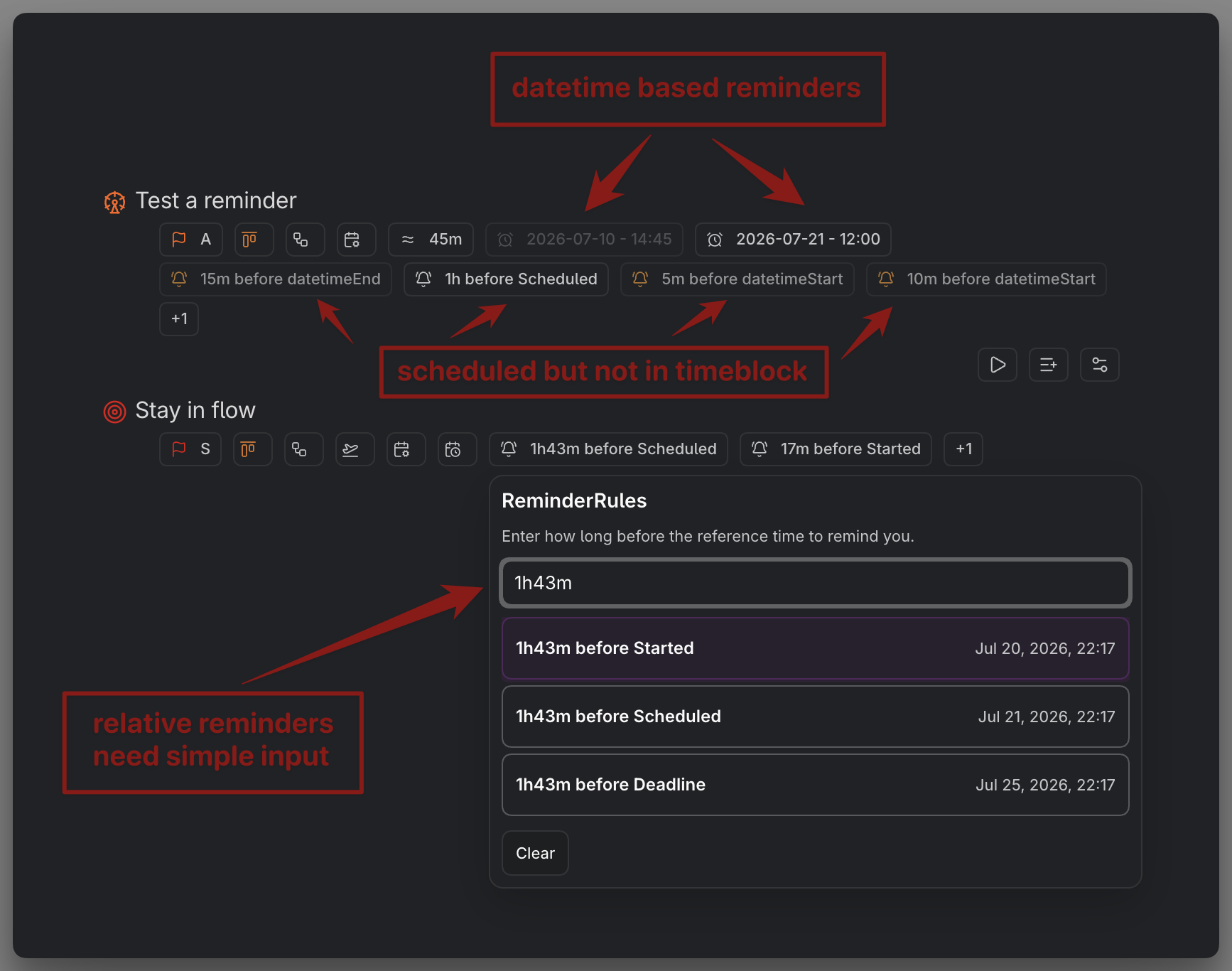
MEDIA-DOCS-116-1: Tasks with both a fixed reminder and a rule-based reminder shown as chips.
Choosing between the two
| ReminderDatetimes | ReminderRules | |
|---|---|---|
| What you enter | A date and time | An offset, such as 1d or 30m |
| What it means | Remind me then | Remind me that long before one of this task's dates |
| If the task's dates change | Nothing changes | The reminder moves with the date |
| Needs the task to have a date | No | Yes, at least one supported date |
| Written as | 2026-08-03T14:30:00 |
dateDue.1d |
The rule of thumb follows from the table. If the moment matters on its own, "call the office at nine", use a fixed reminder. If the moment only matters because of when the task happens, "an hour before the meeting", use a rule, because then you never have to remember to move the reminder when the meeting moves.
Adding a fixed reminder
Open the ReminderDatetimes picker on a task and choose a date and time. It is the same date and time picker the built-in date fields use, natural-language input included. See Date and time picker.
Two things it will not accept:
- A time that has already passed. Operon asks for a future date and time instead. A reminder for a moment that is gone would never fire.
- A duplicate. If the task already has a reminder at that exact moment, from either field, you are told it already exists rather than getting two notifications for one instant.
Reminders stay in the order you added them, so a task's list is a record of how you built it rather than a timeline. Whatever that order, they are always delivered in time order.
Adding a rule
The ReminderRules picker works differently, and it is worth understanding because it saves a step. You do not pick a date. You type how long before, and Operon shows you what that offset resolves to against each of the task's dates. A row of common offsets, On time, 10m, 30m, 1h, and 1d, sits above the input from the moment the picker opens, so the offset you reach for most is usually one click away instead of something you type out.
Click 1d, or type it yourself, on a task that has both a due date and a start time, and you get two candidates: one day before the due date, and one day before the start. Pick the one you meant. The list shows the actual date and time each candidate resolves to, so you are choosing a real moment, not guessing at an abstraction.
An offset is written as a short duration: 10m, 1h, 2d, 1w, or a combination like 1d12h. An offset of 0m is valid and means at the date itself rather than before it. See Reminder rules for the full syntax and the five dates a rule can attach to.
Two cases to know:
- The task has no usable date. The picker does not open, and Operon says the task has no available reference times. Give the task a due date, a scheduled date, a start date, or a timed start or end first.
- A candidate is already in the past. It is shown but cannot be chosen, because a rule that resolves to a moment behind you has nothing left to fire.
A rule follows the task
This is the reason rules exist. A rule stores the relationship, not the result: dateDue.1d means "one day before whatever this task's due date currently is." Push the due date back a week and the reminder is a week later too, with nothing to update by hand.
The same property explains what happens when the date disappears. Clear the due date and a dateDue rule has nothing to resolve against, so it becomes unresolved: still saved, still visible, but not scheduled. Put a due date back and it resolves again on its own. Operon never quietly deletes a rule because its date went missing.
Editing and removing
Every reminder on a task shows as its own chip. Click a chip to reopen the picker it came from, already loaded with that reminder, so you can change it or remove it. A fixed reminder reopens the date and time picker; a rule reopens the rule picker with its offset filled in.
Editing one reminder never disturbs the others. If a task carries a reminder that Operon cannot read at all, a hand-edited value with a typo, that broken entry is left exactly as written rather than being silently repaired or dropped, and it is flagged so you can find and fix it.
What a chip is telling you
A reminder chip carries its state, so a glance is enough:
| State | What it means |
|---|---|
| Normal | Scheduled, still ahead |
| Past reminder | Its moment has gone by |
| Unresolved reminder | A rule whose reference date is missing or unreadable, so nothing is scheduled |
| Invalid reminder | The stored value could not be understood at all |
A fixed reminder shows just the time when it falls today, and the date with the time when it does not. A rule shows itself in words, as 1d before Due date or At Due date, using whatever you have named that field in your key mappings.
Where reminders show up
Reminder visibility settings are off by default, including in the Task Editor. In Task Creator, prepared template reminder fields can still appear for the current draft even when their permanent controls are off. This is deliberate: most tasks do not carry reminders, and a control or chip slot that is empty most of the time is wasted space. Turn them on where you actually want them:
- In the Task Editor, from Settings → Operon → Interface → Task Editor, in Property Visibility & Order.
- In the Task Creator, from Settings → Operon → Interface → Task Chips, on the Task Creator Chips subpage. See Task Creator.
- On task chips in reading view, Live Preview, the Filter View, Kanban cards, Task Finder, and the wikilink overlay, each from its own section under Settings → Operon → Interface → Task Chips. See Task chips: display and behavior.
Hiding a reminder surface only hides it. The reminders themselves stay on the task and keep firing.
When a reminder fires, and when it does not
A reminder belongs to an open task. Once a task is finished or cancelled, its reminders stop being scheduled, without you having to clear them; the task is done, so the nudge is pointless.
Reopening a task does not replay what you missed. If a reminder's moment passed while the task sat completed, reopening does not fire it retroactively. Reminders still ahead of you schedule as normal.
Recurring tasks preserve the same distinction, and it matters more here than anywhere else. ReminderRules carry forward: each time a recurring task completes and Operon builds the next occurrence, the same rule comes along and resolves again against that occurrence's own dates. Set a rule such as 15 minutes before Start time once, and every future occurrence that has a Start time gets reminded the same way, run after run, with nothing to re-add and nothing to remember. ReminderDatetimes do not carry forward: each one names a fixed moment that belonged only to the occurrence where you created it, so the next occurrence starts with none, and you add a new one by hand if that run needs it. See Recurring tasks and Operon inheritance rules.
How you are notified
Operon picks one of three paths at the moment a reminder comes due, in this order:
- Operon is in front of you. You get a notification inside Obsidian, carrying the task's description, the reminder's time, and an Open task link that takes you straight to it.
- Operon is not focused, and system notifications are on. You get a desktop notification from your operating system. Clicking it focuses Obsidian and opens the task. This path is desktop-only, and it needs both the setting turned on and the permission granted; Operon requests that permission when you enable the setting.
- Neither applies. The reminder is held rather than lost, and is delivered once Operon is back in front of you, subject to the catch-up window below.
The second path is desktop-only. On mobile, a reminder still arrives inside Operon while it is open, or is held until you return to it, exactly as above, unless you use the separate companion app covered next.
Reminders on your phone, even when Operon is closed
The operating system will not let a closed app schedule its own native notifications, which is why the three paths above are the whole story while Operon is not running. Turn on Mobile notification snapshot, in Reminder settings, and Operon keeps a resolved seven-day window of your upcoming reminders ready for a separate Operon Mobile Notifications companion app to read and turn into real, native notifications on your phone, even while Operon itself is closed. It is off by default.
The window's start reuses your Missed reminders catch-up setting, covered next: the same length of time Operon would still honor a missed desktop or in-app reminder is how far back the snapshot also reaches, so a reminder that only just became due is not silently left out just because the snapshot had not refreshed yet.
The snapshot stays current on its own: it updates shortly after you change a task or a reminder, and rebuilds in full about once a day, so it never drifts far from what your vault actually contains.
If you keep more than one vault on the same device, each vault writes its own identity into its snapshot, so the companion app never mixes up which vault a reminder belongs to.
Turning the setting off does not just stop new snapshots. Operon writes one last, empty snapshot marked disabled, so the companion app can cleanly cancel everything it had scheduled instead of being left guessing why updates stopped.
Catching up on missed reminders
If Operon was closed, or the device asleep, reminders come due with nobody to tell. Missed reminders, in Reminder settings, decides how far back Operon still bothers:
| Setting | Behavior |
|---|---|
| Never | Only reminders coming due right now are delivered |
| 30 minutes, 1 hour, 6 hours, 1 day | A reminder missed within that window is still delivered when Operon returns |
The default is 1 hour, which catches a closed laptop lid over lunch without dredging up yesterday. A reminder older than your window is quietly retired rather than delivered late.
Missed reminders are tracked per device, so a reminder you have already seen on your desktop does not arrive again on your laptop as though it were new, and a device that was off does not miss its turn because another one was on.
Sound
Operon can play an audio file from your vault when reminders are delivered. Point Reminder sound at any mp3, wav, m4a, aac, or ogg file in your vault, and leave it empty for silent reminders.
The sound plays once per batch, not once per reminder, so three reminders arriving together do not stack three overlapping sounds. Playback stops after ten seconds, so a long file cannot keep going.
The same Reminder sound file can also be used by FlowTime, but it is a separate setting. Play reminder sound when FlowTime reaches zero is off by default under Settings → Operon → Tasks → Tracker. When enabled, it plays this file once when a FlowTime focus session or break reaches zero. It is independent of FlowTime's target-reached notice and does not affect TrackTime. See FlowTime focus sessions.
Pinning a task when its reminder arrives
Reminder settings carries one optional automation: Pin task when its reminder time arrives adds the task to your Pinned Task Dock as Operon processes its due reminder. It applies to open tasks only and never pins a task twice.
It is off by default. Turn it on when a reminder means "this now needs to stay in front of me", rather than just "look at this once."
Testing your setup
Rather than creating a throwaway task with a reminder a minute out, use Test notifications at the bottom of Reminder settings:
- Preview in Operon shows an example in-app notification.
- Send system notification sends an example desktop notification using your current settings.
Both use your real notification and sound settings, and neither creates or opens a task. This is the quick way to confirm permission is granted and your sound file works before you rely on any of it.
Tips
Use a rule when the reminder is about the deadline, not about the clock
A rule such as 1d before Due date survives every reschedule, because it is re-resolved against wherever the due date ends up. A fixed reminder at a specific date and time does not; it stays put even after the due date moves. If you find yourself moving a reminder every time you move a date, that reminder wanted to be a rule.
FAQ
What is the difference between a reminder and a due date? A due date is when the work is expected. A reminder is when Operon tells you about it. They are separate fields, so one can exist without the other.
Can one task have several reminders? Yes, as many as you need, mixed freely between fixed reminders and rules. Two that land on the same moment are refused, so you never get doubled notifications.
Why will the rule picker not open? The task has none of the dates a rule can attach to. Give it a due date, scheduled date, start date, or a timed start or end first.
I cleared a date and its reminder is still there. That is intentional. The rule is kept and marked unresolved, so restoring the date restores the reminder instead of making you rebuild it.
Do reminders fire on completed tasks? No. Reminders apply to open tasks; finishing or cancelling a task stops them without clearing anything.
Why did I not get a desktop notification? System notifications are desktop-only, off by default, and need permission. Check the setting and use Send system notification to test.
Can I get real notifications on my phone? Turn on Mobile notification snapshot in Reminder settings. It feeds a separate companion app that can notify you even while Operon itself is closed.
Will I get the same reminder twice on two devices? No. Delivery is tracked per device, so each one keeps its own record of what it has already shown you.
I do not see reminder chips on my tasks. Their visibility settings are off by default. Prepared template fields in Creator are separate from saved-task chip visibility. Turn them on for the surfaces you want under Settings → Operon → Interface.
Settings
Operon settings for this live in Settings → Operon → Tasks → Reminders. Reminder delivery contains the missed-reminder catch-up window, in-app notification duration, pin-on-reminder automation, system notifications, mobile notification snapshot, and reminder sound. Test notifications contains the two test actions. FlowTime's optional completion-sound toggle is separate, under Settings → Operon → Tasks → Tracker → TrackTime & FlowTime, but uses this Reminder sound file.
Where reminders are shown is configured separately, under Settings → Operon → Interface, in Task Editor for the editor's picker rows and Task Chips for every chip surface. The two fields' property names and icons are set in Settings → Operon → Core → Key Mappings → Task Property Mapping. See Key mappings.