Essential settings to configure first
You do not need to configure everything before using Operon. But five settings shape how every task behaves, so it is worth a few minutes in Settings → Operon before you create a lot of tasks. Set them once and the rest can wait.
MEDIA-DOCS-008-1: The Operon settings tabs (Core, Tasks, Pipelines, Priority, Keymapping).

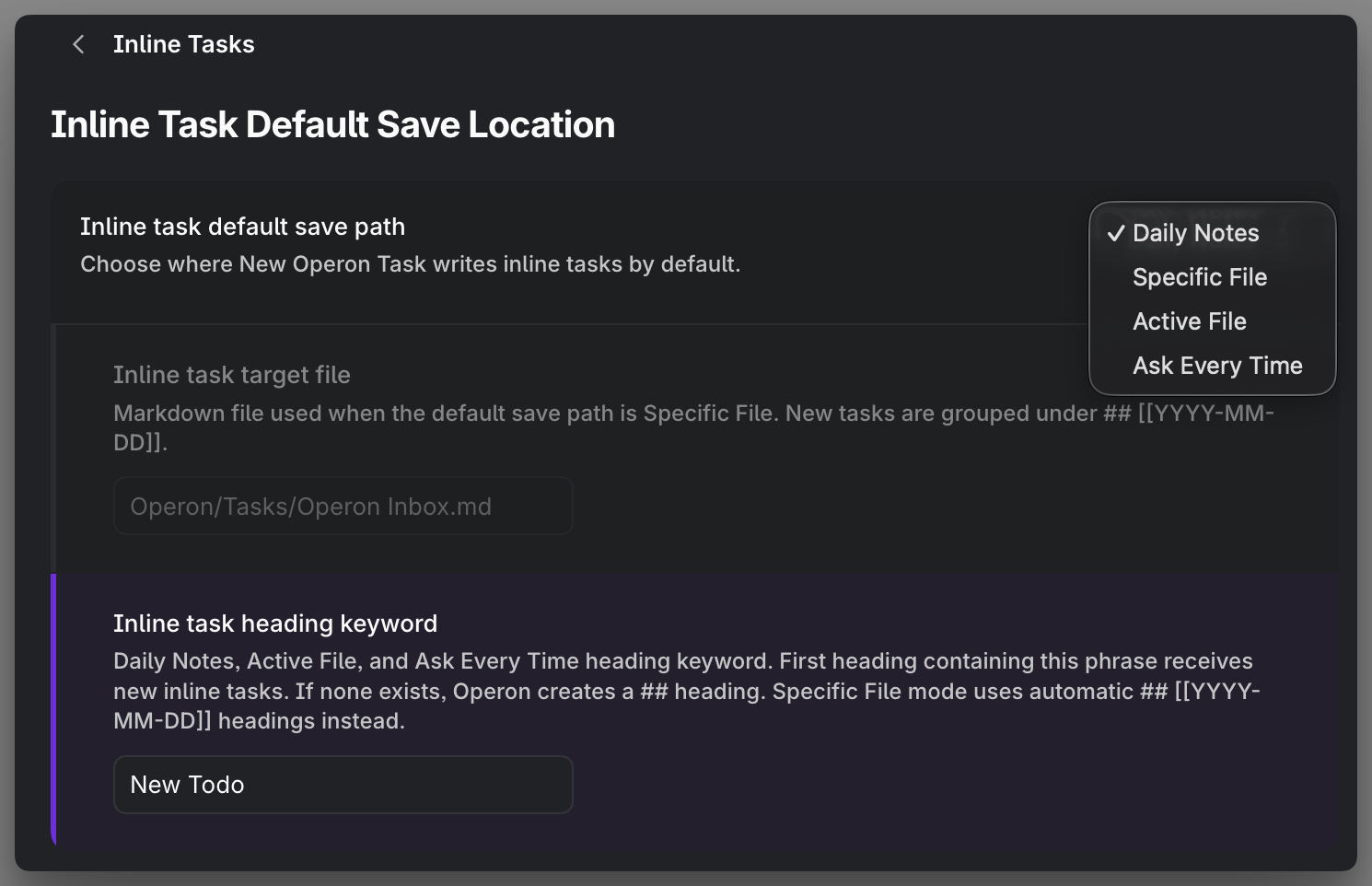
1. Where inline tasks are written
Open Tasks → Task Router and decide where a new inline task goes when there is no obvious target. Choose Daily Notes, Weekly Notes, a specific file, the active file, or Ask Every Time. This is the difference between quick capture landing somewhere sensible and tasks scattering unpredictably. See Task Router.
MEDIA-DOCS-008-2: The Tasks settings where the inline-task capture target is chosen.
2. Where file tasks are created
In the same Task Router page, check the File Task default folder, pipeline-specific folders, parent-aware placement, and archive destinations. A File Task is a real Markdown note, so its working and terminal folders matter for how your vault stays organized. Decide the basic rules before you create many File Tasks.
3. Your pipeline and statuses
Open Core → Pipelines and look at the workflow stages a task moves through. These become Kanban headings when an axis uses Status; other properties can also define columns or rows. You do not have to perfect them on day one, but the first status names should already make sense to you. See Pipelines and statuses.
4. Priorities
Open Core → Priority and confirm the priority levels match how you actually rank work. Priority drives sorting and filtering later. See Task priorities.
5. Key mappings (property names)
Open Core → Key Mappings → Task Property Mapping. Key mappings set the property names used in file-task frontmatter and the corresponding UI labels. Inline tasks keep their stable canonical keys in {{key:: value}}. If your vault already uses names such as Tier for priority, align them here before creating many file tasks. Renaming a mapping does not rewrite existing frontmatter. See Key mappings, and Custom keys if you need a field the defaults do not cover.
MEDIA-DOCS-008-3: The Keymapping tab mapping canonical fields to visible property names.

A good first pass
- Set the inline-task capture target.
- Set the file-task location.
- Glance at your pipeline and status names.
- Glance at your priority levels.
- Align key mappings with your property naming, if you have one.
That is enough for a first pass. If you rename a property later, update existing file-task frontmatter to match; changing the mapping alone does not migrate those files.
Optional: choose capture templates
If you repeat the same kinds of tasks, choose Default inline task template under Tasks → Inline Tasks and Default file task template under Tasks → File Tasks → New File Task Creation Defaults. Both use the shared File Task Templates folder configured under File Tasks.
Keep Use last used template as default off for a fixed default, or enable it independently for either mode to learn from successful Creator creation. Creator shows supported template properties, empty or filled, before saving. A small permanent selection under Interface → Task Chips → Task Creator Chips is often enough when templates supply most fields. Start with Using inline task templates.
Next step
With the basics in place, make something. See Create your first task.