Table columns
Columns are how a table decides which fields each row shows and how each one looks. A column can be any task field, from status and due date to your own custom keys, and each column carries its own width, alignment, color, and format. Columns belong to the preset, so every table can show a different set of fields arranged its own way. This page covers what a column can hold and every way to shape one.
MEDIA-DOCS-106-1: A table with several columns: task, status, priority, due date, estimate, and source.

Which fields can be a column
Almost any field a task carries can become a column:
- Task fields: the description (shown as Task), status, priority, Task Type, Task Image, Task Gallery, the dates (due, scheduled, start, and the completion and cancellation dates), estimate, duration and its rolled-up totals, assignees, contexts, parent, blocking and blocked-by links, location, recurrence, tags, and note.
- Your custom keys: any custom key appears as a field you can add as a column, so a table can carry exactly the properties your workflow uses.
- Vault Properties: additional properties on File and Inline tasks, offered from the current task scope without requiring a Custom Key. Supported native editing uses declared property types; Automatic or conflicting types can remain read-only. See Vault Properties.
- Source and file fields: read-only columns that describe where the task lives, such as Source, source path, source line, and the file name, basename, path, and folder.
- Identity: the task's operonId, as a read-only column, and its Project Serial where a scope is set up, also read-only.
- Repeat reference date: the saved recurrence reference date, shown in your Date format and edited through the Repeat picker. A missing saved date leaves the cell empty.
- Task Occurrence Date: the recorded date of this existing task occurrence, not a forecast of its successor. Its header and cells use the repeat icon. The date follows your Date format; a missing or invalid recorded date leaves the cell empty. Clicking an editable cell opens the Repeat picker.
- Countdown: a read-only calculated column showing time remaining until a Scheduled or Due target, without adding a task property.
- Task Tree: a read-only presentation column that can expand the parent and subtask hierarchy around a row without writing a task field.
You add a column from a header's menu with Add column to left... or Add column to right..., or from the preset's Columns section. See Table presets.
Task Occurrence Date and Repeat reference date use the same saved field for valid recorded dates. Task Occurrence Date adds the Scheduled-style red/blue icon cue for past/today dates; the reference column keeps its existing presentation. The occurrence date is not edited as a separate property: both date cells open the recurrence configuration. See Table cells: display and behavior.
Pipeline is the derived-field exception. It never appears in the column picker, because it is not a column at all, only a field you can group, subgroup, or sort by. See Table grouping and sorting.
Task Tree: hierarchy without changing the result
Add Task Tree when you want to inspect parent and subtask structure beside the normal Table fields. It starts as a compact, centered, read-only column. A parent occurrence gets an expand or collapse control; detailed mode also shows hierarchy numbers such as 1, 1.2, and 1.2.1.
Expanding a row projects its descendants directly beneath that occurrence, including descendants that the preset's filter did not return on their own. A matching child can therefore appear twice: once as its normal base row and once as context inside an expanded parent branch. Each visible occurrence expands independently, and the expansion state is saved with the preset.
Task Tree never rewrites parentTask, moves the base rows, or changes Table counts, summaries, grouping, or export. Existing sort rules can still order siblings inside a projected branch, but Task Tree cannot itself be used as a group, sort, or summary field. It can be aligned, colored, resized, and switched between compact and detailed display like a presentation column. See Parent and sub-tasks and Table grouping and sorting.
Countdown: time until a task date
Add Countdown from the column picker when you want remaining time beside your tasks. It starts in Compact mode with Center alignment and Earlier date as its target. It is not added to existing tables automatically. The column works in both Table views and embedded tables, using the tasks already included by the preset; it does not apply the Upcoming Tasks day window or hide terminal tasks on its own.
Right-click the Countdown column header. Immediately below Add column to right..., a separate section shows three choices directly:
| Target | Counts toward |
|---|---|
| Earlier date (default) | The earlier of the valid Scheduled and Due candidates |
| Scheduled | A valid scheduled start date and time, otherwise the Scheduled date |
| Due | The Due date, with day precision |
Earlier date compares calendar dates first. On the same day, a timed Scheduled candidate takes precedence over an all-day Due candidate. Two all-day candidates on the same date share the tooltip heading Scheduled / Due. If only one candidate is valid, Earlier date uses that one. Actual started dates and end times are not targets.
A past target stays at zero; Earlier date does not skip it to count toward the later date. Changing the source dates or the selected target recalculates the result. With no valid target, the cell is fully empty in both modes.
Target selection is saved with the column in the preset. For borders, alignment, units, and the live tooltip, see Table cells: display and behavior. Countdown is read-only: clicking or double-clicking its cell does not open an editor or start tracking. It supports sorting by the selected target date, but not grouping, summaries, or a dedicated countdown filter.
Vault Properties from the shared index
The column picker offers Vault Properties separately from mapped task fields. File Tasks contribute their frontmatter; Inline Tasks contribute their own inline properties, not all frontmatter from the containing note. Mapped aliases are resolved so the same field is not offered again as an unrelated native property.
Supported native types are Text, List, Number, Checkbox, Date, and Date & time. Declare the type in Obsidian's Properties controls; a value that looks like a number is not by itself permission to edit an Automatic property as Number. Unsupported values, type conflicts, or an unavailable source remain protected. See Vault Properties and Task properties for the distinction from Canonical keys, Custom keys, and Key Mapping.
Vault Properties are included in the main persistent task index with canonical and mapped custom data. An unchanged, valid cached source does not need a separate note read just because a preset displays Vault Properties. Changing a property updates the source and its indexed representation. The cache improves access; Markdown remains the source of truth. See Plugin data and state files for startup and update behavior.
Shape a column from its header
Right-click, or open the menu on, a column header to reach everything you can do to that column:
| Action | What it does |
|---|---|
| Rename column... | Gives the column a custom display name for this preset |
| Align left / Align center / Align right | Sets alignment; for Countdown, moves the border while its detailed value stays right-aligned inside |
| Pin column / Unpin column | Freezes the column so it stays in view as you scroll sideways |
| Show compact cell / Show detailed cell | Switches supported fields between a compact value or icon and full detail |
| Add column to left... / Add column to right... | Inserts another field beside this one |
| Show total / Show sessions | For Duration only, switches between the task's session sum and individual session chips |
| Earlier date / Scheduled / Due | For Countdown only, selects the date to count toward |
| No color / Task color / Priority color / Status color / Random colors | Chooses how the cells are tinted (see below) |
| Summarize column... / Edit summary... | Adds or edits a summary at the foot of the column. See Table summaries |
| Edit preset | Opens the full preset settings. See Table presets |
| Hide column | Removes the column from the table |
You cannot hide the last remaining task column, so a table always shows at least one field.
Rename column... opens a small popover to give the column a custom name, shown in its header instead of the field's normal label. It only relabels the column in this preset; the underlying task property is untouched, so a renamed Due column still edits and sorts the task's actual due date. For most compact fields, the hover tooltip shows the custom name too. Countdown keeps its source heading—Scheduled, Due, or Scheduled / Due—so the date being counted toward remains clear.
Resize and reorder by dragging
Two things you do directly on the header rather than through the menu:
- Resize: drag the edge of a header to set the column's width. Widths are remembered per preset.
- Reorder: drag a header onto another to move the column there. For more deliberate layout changes, open Edit preset and use the preset's Columns section.
- Sort: click a header, or focus it and press Enter or Space, to cycle the primary sort for that column.
Switch compact and detailed cells quickly
On desktop, double-click the same column header edge you drag for resizing. This switches a supported task-field column between compact and detailed cell mode. It is the quick shortcut for Show compact cell and Show detailed cell, so you do not need to open the header menu.
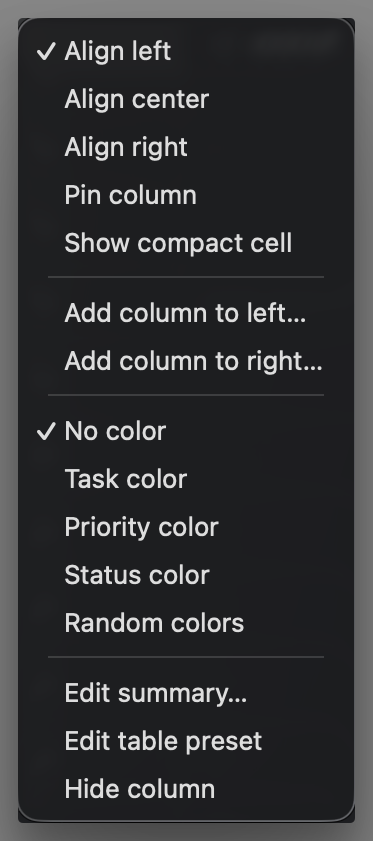
MEDIA-DOCS-106-2: A column header menu open, showing alignment, pin, color, summary, and column options.
Column color
A column can tint its cells so a value reads at a glance. For columns that support color, the header menu offers these color modes directly:
| Mode | Cells are colored by |
|---|---|
| No color | Nothing; plain text |
| Task color | The task's own color |
| Priority color | The task's priority color |
| Status color | The task's status color |
| Random colors | A stable color per distinct value in the column |
Sensible defaults apply without any setup: a status column uses status color, a priority column uses priority color, and a task-color column uses the task color. Random colors is useful on a grouping field such as assignee or context, where each distinct value gets its own consistent tint. The description, source, and duration columns do not take a color.
For Countdown, Random colors uses the selected target’s calendar date rather than the changing remaining-time text. Minute or second updates therefore do not change its color; changing the target date can. Its border and hover/focus accent follow the existing Table chip styling.
Duration: sessions or total
In detailed mode, the Duration column offers two choices:
- Show sessions: one duration chip per session, earliest start first.
- Show total: one chip with the sum of that task's sessions.
The toggle sits below Add column to left... / Add column to right..., in its own section between separators. Compact mode always shows the task's session total as one abbreviated time unit.
To include subtasks, add the separate Total duration column. Total estimate is the corresponding roll-up for estimates. A Tracked time filter limits recorded durations to its selected period; see Time tracking.
Compact cell columns
Show compact cell keeps supported columns narrow. Status, priority, and many other fields use an icon. Duration, Total duration, Estimate, Total estimate, and Trackers show one abbreviated time unit instead, such as 2h or 45m; hover reveals the detail. Countdown has its own time display, described above.
Show detailed cell restores the full display. Compact description and note cells still open their text editor popover. Table display modes are separate from the Icon Only setting on task chips. See Table cells: display and behavior for each field's appearance and actions.
Editable and read-only columns
Most columns are editable: click a cell to change that field on the spot, as covered in Table overview. Some columns are read-only by nature and only display their value:
- Editable task fields include status, priority, Task Type, Task Image, Task Gallery, description, note, due, scheduled, start, completion and cancellation dates, repeat end, estimate, recurrence, parent and dependency links, tags, contexts, assignees, location, the task icon field, task color, and supported custom date, datetime, number, text, and list fields.
- Vault Property columns use type-appropriate controls when the source and declared type are verified and writable. Automatic types, conflicts, and unsupported values remain read-only. See Vault Properties.
- Countdown is calculated from task dates and has no writable value.
- Source and file columns, which describe where the task is stored rather than a property you set.
- Identity, checkbox, progress, Task Tree, and helper columns, such as operonId, Project Serial, checkbox, subtask progress, line number, task icon helper, and Task Data Type helper columns, are read-only or have their own dedicated action instead of opening a normal field picker.
The Source column is still active: on desktop, clicking it opens the current source in the lightbox, including the current line for an Inline Task. Cmd/Ctrl-click opens a new tab. Other source-path and file columns keep their existing display behavior.
The three helper columns
Beyond your field columns, a table can show three fixed helper columns, turned on for every table in Settings → Operon → Views → Tables → Helper Columns:
| Column | Shows |
|---|---|
| Line numbers | A row-number column at the start of the table |
| Task icon helper | A task icon that follows the global click preference, with the task’s context menu; see State Icons |
| Task Data Type helper | An inline-or-file icon that opens the Task Editor; Cmd/Ctrl-click opens the task's source |
Jump from Task Data Type to source
On desktop, click the Task Data Type icon to open the Task Editor. Cmd-click on macOS, or Ctrl-click on Windows and Linux, opens the task's source instead: the note for a File Task, or the exact line for an inline task. The editable Task Type field is a separate user classification.
These are global toggles rather than per-preset columns, so they appear the same way on every table. They cannot be reordered or hidden from a header menu.
Tips
Let a narrow, ordered set of columns do the reading
A table is easiest to scan when each column earns its place. Put the field you sort or group by near the description, collapse status and priority to icons, and pin the columns you always want in view. A focused six-column table tells you more at a glance than a wide one you have to scroll.
FAQ
How do I add a column? Use Add column to left... or Add column to right... from a header menu, or the Columns section of the preset settings.
Can I give a column a different label? Yes. Use Rename column... from its header menu. It only changes the label shown in this preset; the column still reads and edits the same task field.
How do I remove a column? Choose Hide column from its header. A table always keeps at least one task column.
Why can I not color a column? The description, source, and duration columns do not take a color. Every other task field column can.
Do column changes affect other tables? No. Columns, widths, order, and color are stored in the preset, so each table keeps its own layout.
Why did a frontmatter property show up as a column on its own? It is an unmanaged file task property, discovered automatically from the tasks in the preset's current scope. See File task property columns.
What is the difference between Task Type and Task Data Type? Task Type is an editable Text property you control. Task Data Type is the read-only inline-or-file helper; it opens the Task Editor and Cmd/Ctrl-clicks through to the source. Its internal key __taskDataType is not writable task data.
Why can the same task appear twice after I expand Task Tree? Its normal row still belongs to the filtered Table result, while the second occurrence supplies hierarchy context under an expanded parent. Only the base row contributes to counts, summaries, grouping, and export; the current sort rules can still order siblings in the projected branch.
Settings
The three helper columns are toggled in Settings → Operon → Views → Tables → Helper Columns: show line numbers, show task icon helper, and show Task Data Type helper. Every other column choice, its field, width, order, alignment, color, and format, lives in the preset and is edited from the table. See Table presets.