Task Wikilink Overlay
A Task Wikilink Overlay turns an ordinary wikilink into a live view of the task it points to. When a note links to a task, Operon decorates that link in place with the task's progress, its compact chips, and a row of quick actions, so you can read and act on the task without leaving the note you are in. It renders in both Reading View and Live Preview.
Two link forms
The overlay works for both kinds of task, which differ only in how the link is written:
- File task: a normal link to the note, like
[[Renew the car insurance]]. The note is the task.
Reminder: [[Renew the car insurance]] before it lapses on Friday.
- Inline task: a link to an inline task inside its source file, written as
[[File#-operonId]]. The#-operonIdpart points at one inline task by its operonId, so the link does not depend on a line number.
Still chasing the plumber about [[Home tasks#-k3m9p2q]] this week.
Both render the same overlay controls. The inline form is what lets you link to a task that lives inside a note rather than in its own note. The k3m9p2q above stands for the task's real operonId, which the Add Task Wikilink Overlay command fills in for you.
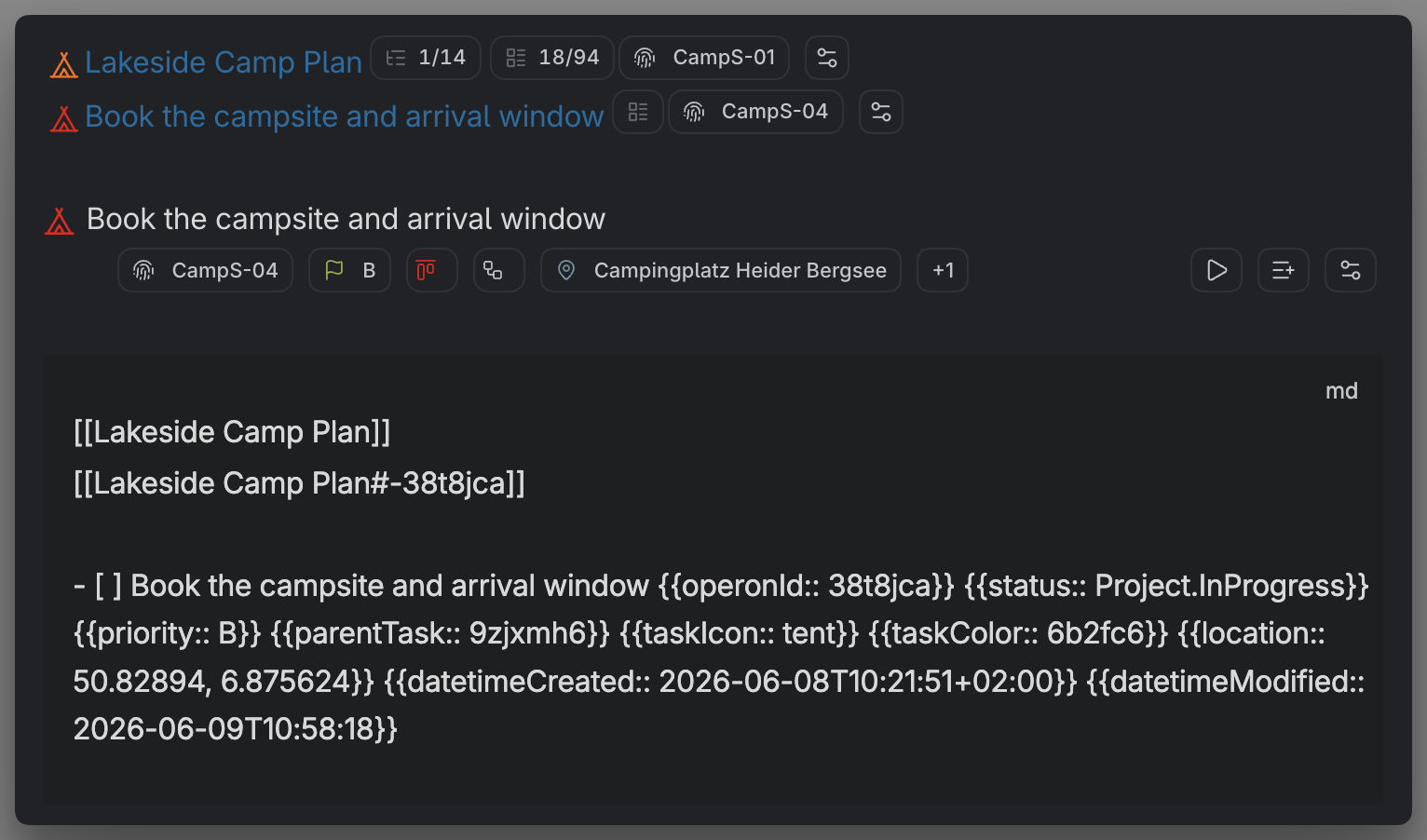
MEDIA-DOCS-103-1: A file-task link and an inline
[[File#-operonId]]link, side by side, each showing the overlay.
Insert one
The quickest way is the Add Task Wikilink Overlay command. It opens Task Finder, you pick a task, and Operon inserts the right link at the cursor: a normal link for a file task, or a [[File#-operonId]] link for an inline task. You can also write the link by hand if you already know the target.
In everyday notes
The overlay is most useful where you already plan in prose: a daily note, a weekly review, a project page. You drop a link to a task and it brings the task's live state with it, so the planning note becomes a place you can act, not just a list of names.
A Monday planning note that pulls a few tasks together, mixing file tasks and inline ones:
## This week

- Health: [[Book the dentist checkup]]
- Money: [[Renew the car insurance]] before Friday
- Home: waiting on a quote for [[Home tasks#-k3m9p2q]]
- Trip: confirm the dates on [[Summer plans#-7d4f1a8]]
A daily note that links one task you want in front of you, so you can tick it off without opening it:
## Today

Pick up the parcel and finish [[Errands#-b8n2v5w]] on the way home.
Meeting notes are where this earns its keep. As you write up a meeting, each action item can be a link to its task, so the notes double as a live tracker: you see each item's status and owner right in the minutes, and you can tick one off or start its timer without leaving the page.
## Project sync notes

Decided to ship the beta next week. Action items:

- Sam follows up on [[Launch checklist#-p4r7t2k]]
- Budget sign-off still pending on [[Q3 budget#-m9k3x6b]]
- Revisit scope at [[Project plan]] before the next sync
Next meeting, the same note tells you at a glance what moved and what is still open, because the links show current state, not the state at the time you wrote them.
Each of these links renders with the task's progress, chips, and actions inline, so you read and update the task right from the note you are writing.
What the overlay shows
On a decorated link, Operon shows, in order:
- A task icon before the label, which follows the global Task icon click action preference: Follow pipeline by default, or Cycle task state through Open, Finished, and Cancelled. It also exposes the overlay’s contextual actions. See State Icons for the behavior and fallback rules.
- The task label, using an explicit link alias if you wrote one, otherwise the task description.
- A progress indicator for a parent task, summarizing its subtasks.
- The Open checkboxes action, when enabled, for regular Markdown checkboxes associated with the task.
- The configured chips, the same compact metadata chips used elsewhere.
- Configured Task Type, Task Image, and Task Gallery chips follow the same field and media-reference rules as inline rows and Kanban cards. On desktop, supported image, video, PDF, and YouTube references use the shared hover preview and lightbox, including labels from named Markdown links.
- Optional actions: start or stop the timer, pin or unpin, show a note indicator when the task has a
note, add a subtask, and open the source on desktop. - An edit action that opens the task in Task Editor.
Terminal tasks (done or cancelled) show their state and drop the actions that no longer apply.
On desktop, supported links inside the task description use the lightbox. The outer task-link label retains its existing action; opening an inner link does not also activate that outer label. Configured Parent, Source, and complete existing Text/List wikilinks follow the shared chip rules. Missing wikilink values keep their picker rather than creating a note.
Configure it
The overlay's chips and configurable actions are set in Settings → Operon → Interface → Task Chips → Task Wikilink Overlay Chips. There you choose which chips appear and their order, and toggle each configurable action: the checkbox action, the timer, pin, note, subtask, and Source. The desktop Source action starts enabled and follows the row's hover/focus visibility; its setting is independent of the optional Source metadata chip. It opens the lightbox, or a tab with Cmd/Ctrl. The task icon and edit buttons remain part of the overlay. The chips follow the same rules as every other surface, covered in Task chips: display and behavior.
MEDIA-DOCS-103-2: The Task Wikilink Overlay Chips settings, with chip order and the action toggles.

The icon’s click preference lives in Settings → Operon → Interface → Task Icons and Colors → Task Icon Behavior. Menu actions are configured separately in Interface → Context Menu, using the Task wikilink overlay row in Action Visibility by Surface (the Contextual Menu Matrix). A menu action keeps its own meaning regardless of the icon’s click mode. See Contextual menu actions for hover, mobile long-press, and open-menu behavior during task updates.
Links that stay current
An inline task can move inside the same note without changing the link, because the link does not store a line number. When the task moves to another file, Operon can still resolve the stale link through the task's unique operonId and repair the file target when it can match the task safely. If a link does go stale, the Repair Task Wikilink Overlay Links command scans your vault and repairs the inline links it can match, so the overlays come back without hand-editing. Links in a duplicate operonId conflict are left alone until the conflict is resolved.
Tips
Plan where you think, not where the task lives
The overlay frees a task from its file. Inline task or file task, no matter which folder or note holds it, you can pull it into whatever note your thinking is happening in. Decide where tasks are stored once, then surface them by context as often as you need.
FAQ
Is this the same as Page Preview? No. Page Preview shows a hover preview of a note. The Task Wikilink Overlay renders live task controls on the link itself, so you can act on the task, not just preview it.
Why does one link have no overlay? The link may not resolve to a single task, or the task may be in a duplicate operonId conflict, which Operon will not decorate until you resolve it. See Duplicate IDs.
Does it need another plugin? No. The overlay is part of Operon and renders on its own.