Parent and sub-tasks
Real work has structure. A project contains tasks, and a task can contain smaller tasks. Operon models this with parent and sub-tasks: a tree of full tasks, each with its own identity, that roll up into the parent. This is the heavier of Operon's two breakdown layers; the lighter one is Plain checkbox lists.
MEDIA-DOCS-016-1: A parent task with several subtasks shown nested, with a progress rollup on the parent.
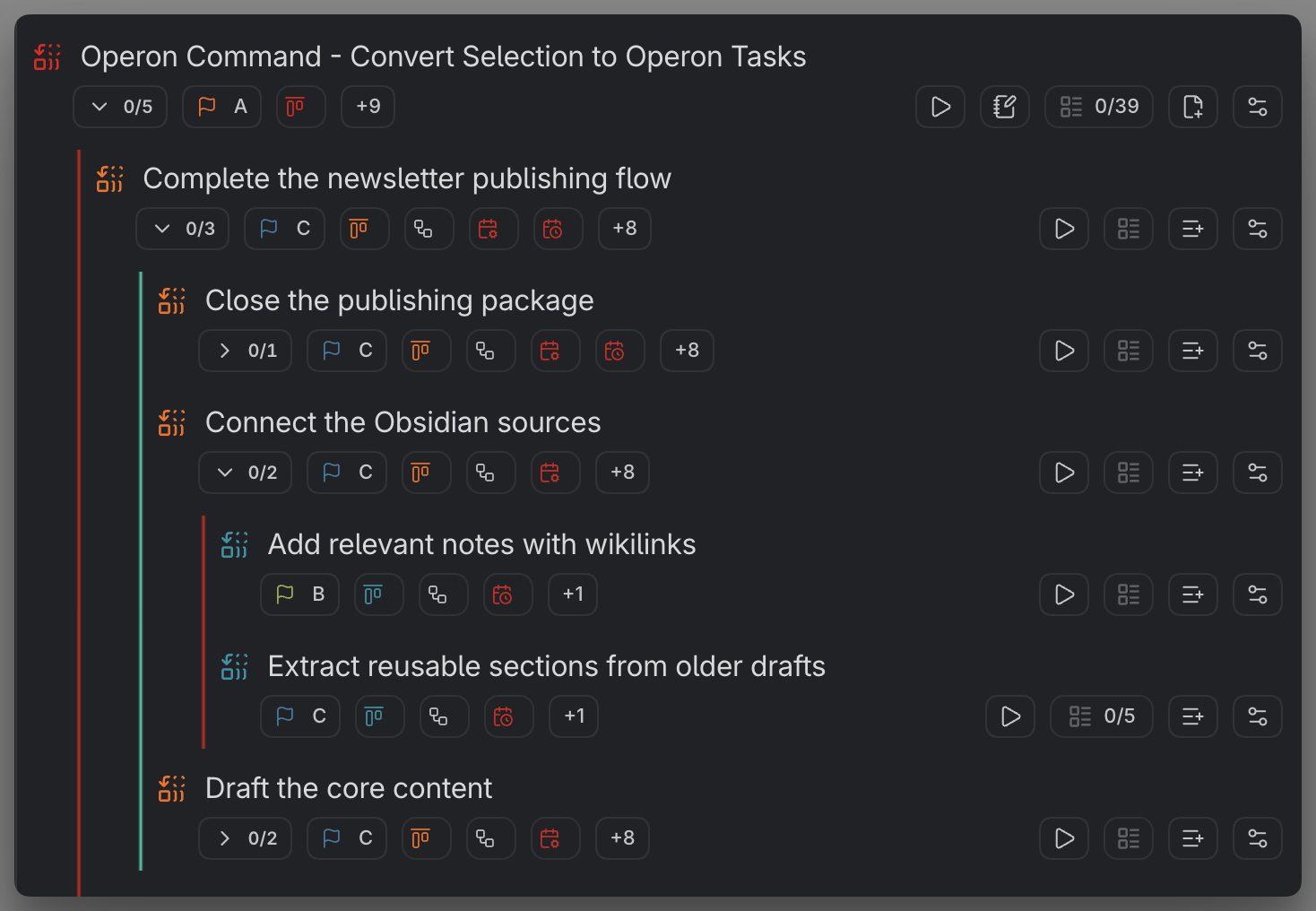
How the link works
A subtask is an ordinary Operon task that points at its parent through the parentTask field, which holds the parent's operonId. Using the template variable forms, the parent takes a shared id like {{operonId1}} and the child points its parentTask at that same suffix:
- [ ] Write the report {{operonId:: {{operonId1}}}}
- [ ] Write the introduction {{operonId:: {{operonId}}}} {{parentTask:: {{operonId1}}}}
Paste those two lines and Operon mints a real id for the parent, a fresh id for the child, and links the child to the parent automatically. See operonId template variables. Because the link is by identity, the relationship survives edits, moves, and conversions. A subtask can be inline or a file task, and it can live in the parent's note body or anywhere else in the vault.
Copyable trees
A parent with three subtasks, ready to paste:
- [ ] Launch the newsletter {{operonId:: {{operonId1}}}} {{status:: Project.InProgress}} {{priority:: A}}
    - [ ] Pick the topics {{operonId:: {{operonId}}}} {{parentTask:: {{operonId1}}}} {{dateDue:: 2026-06-10}}
    - [ ] Draft the issue {{operonId:: {{operonId}}}} {{parentTask:: {{operonId1}}}} {{dateDue:: 2026-06-14}}
    - [ ] Send and review {{operonId:: {{operonId}}}} {{parentTask:: {{operonId1}}}} {{dateScheduled:: 2026-06-15}}
A deeper, three-level tree. A second suffix {{operonId2}} names the middle task, and the leaf points its parentTask at that middle id:
- [ ] Ship version 2 {{operonId:: {{operonId1}}}} {{status:: Project.Planned}}
    - [ ] Build the importer {{operonId:: {{operonId2}}}} {{parentTask:: {{operonId1}}}}
        - [ ] Write the parser {{operonId:: {{operonId}}}} {{parentTask:: {{operonId2}}}}
The indentation is for your reading only; what links the tasks is the parentTask id, not how far a line is indented.
Create a subtask
The simplest path is the Create subtask action in the contextual menu of a task. You can also set parentTask in the Task Editor, or write it directly in a file task body as an inline task that references the parent. When you create a subtask, it inherits some fields from the parent (status, priority, icon, color, and more, all configurable). See Operon inheritance rules.
If you are linking an existing task, the optional Inherit properties when linking a parent setting can fill empty fields and add missing list values from the parent without replacing existing values. It is off by default and uses the configured inheritance fields. Later parent edits do not keep those values in sync. See Operon inheritance rules.
The optional Add subtask actions at the end of task chip rows offer File and Inline choices for a File parent, and only Inline for an Inline parent. They follow the existing visibility and task-availability rules across Inline, Filter, Task Wikilink Overlay, Kanban, and Task Card profiles. See Task chips for their settings.
Inline subtasks use native indentation
When Operon creates an inline subtask beneath an inline parent in the same note, it writes one additional Markdown indentation level. A child sits one level inside its parent, and a child created beneath that child sits another level inside. The nesting is visible in Live Preview, Reading View, and Source Mode, using Obsidian's native list layout. If the parent has a plain checkbox block, the new subtask is inserted after it, with indentation taken from the parent task line.
Existing tasks stay in place by default. The optional Keep existing inline tasks with their parent setting in Task Router can move an inline task when you change its parent, or edit it while it is in another file. It moves only that task and its own checkbox block; its subtasks stay where they are. The relationship still comes from parentTask, not indentation.
Converting a checkbox inside an inline task’s owned block makes the owner its parent and keeps the converted line in place. During bulk conversion, same-level items in that block become siblings and more deeply indented items become children. See Create tasks from selected text.
View a task's subtree
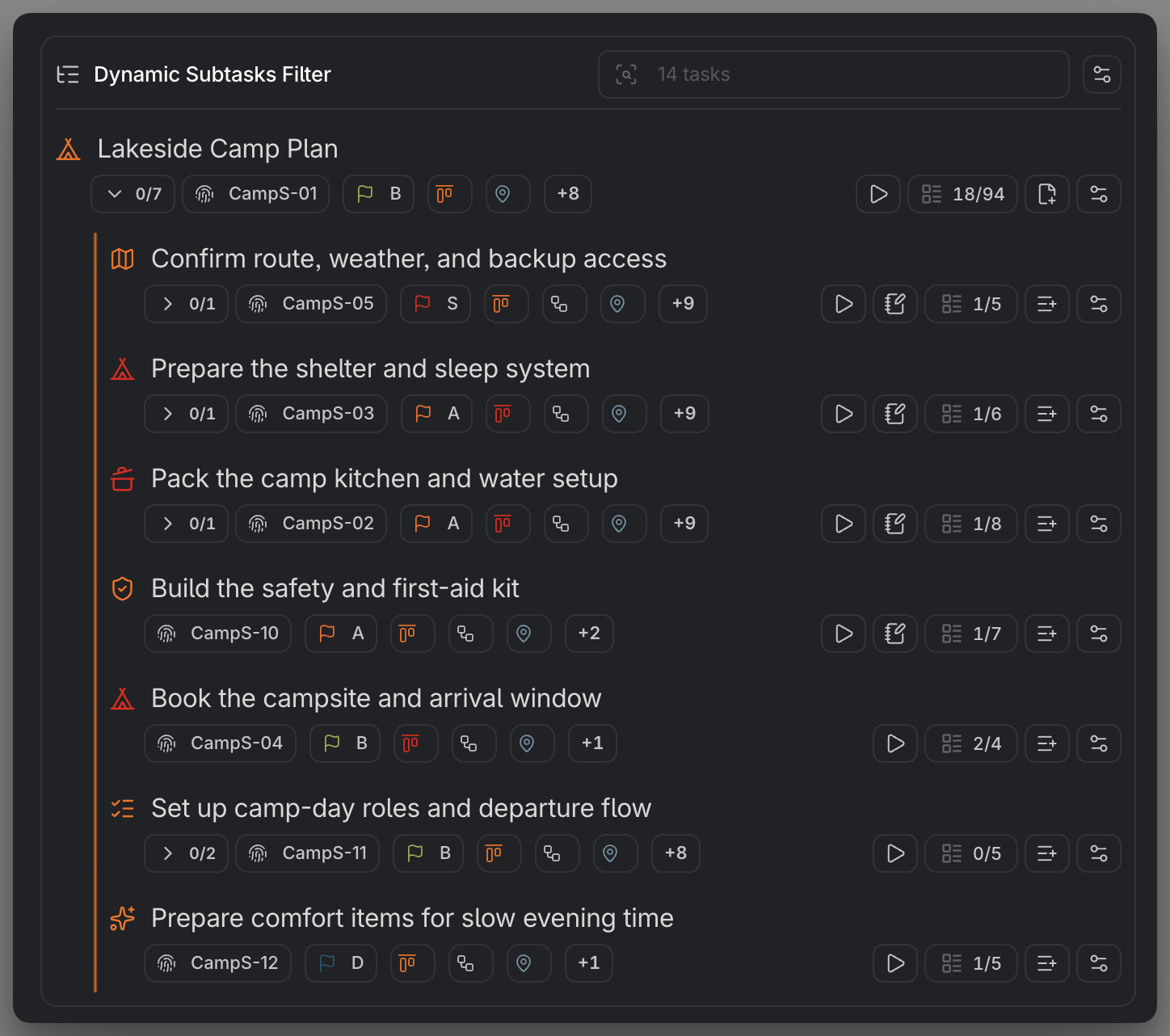
To open a task's subtree on demand, run the Subtasks action in the contextual menu. It opens the Dynamic Subtasks Filter, a live filtered window showing just this task's subtasks, locked to its operonId. The action appears only on an open task that has subtasks. See Dynamic Subtasks Filter.
MEDIA-DOCS-016-2: The Dynamic Subtasks Filter opened from the Subtasks action, showing one task's subtree.
For a quicker look at just the immediate family, without opening a separate window, the Task Editor itself shows a task's direct parent and direct subtasks as small cards, and lets you complete an open subtask right from its card.
Build relationships on Canvas
On a Canvas, connect two existing task cards and select the connection to choose a parent–child relationship in either direction. The tooltip names Parent and Child explicitly, so the arrowhead does not determine their roles. The choice updates the actual parentTask link, not just the diagram.
A relationship control can be faded and unavailable before you click if the proposed child already has another parent, the link would create a cycle, or a task needed to check the relationship cannot be resolved safely. Hover over it for the reason and the correction needed. Each direction is checked independently.
You can also drag a connection from an Operon task card into empty space and choose Add Operon task. Task Creator prepares the new task as a subtask of that source task, with the configured inheritance.
Parent–child describes what work belongs together. Blocking and Blocked by describe which task is a prerequisite for another. A pair can have both relationships, but creating one does not automatically create the other. A plain connection between existing cards does not set either relationship until you choose a control.
Use the active Current Relation control to remove a relationship; remove it before choosing the reverse direction. Removing the Canvas line alone leaves the task relationship intact. The full control and indicator reference is in Canvas Task Cards.
Rollups: the parent reflects its children
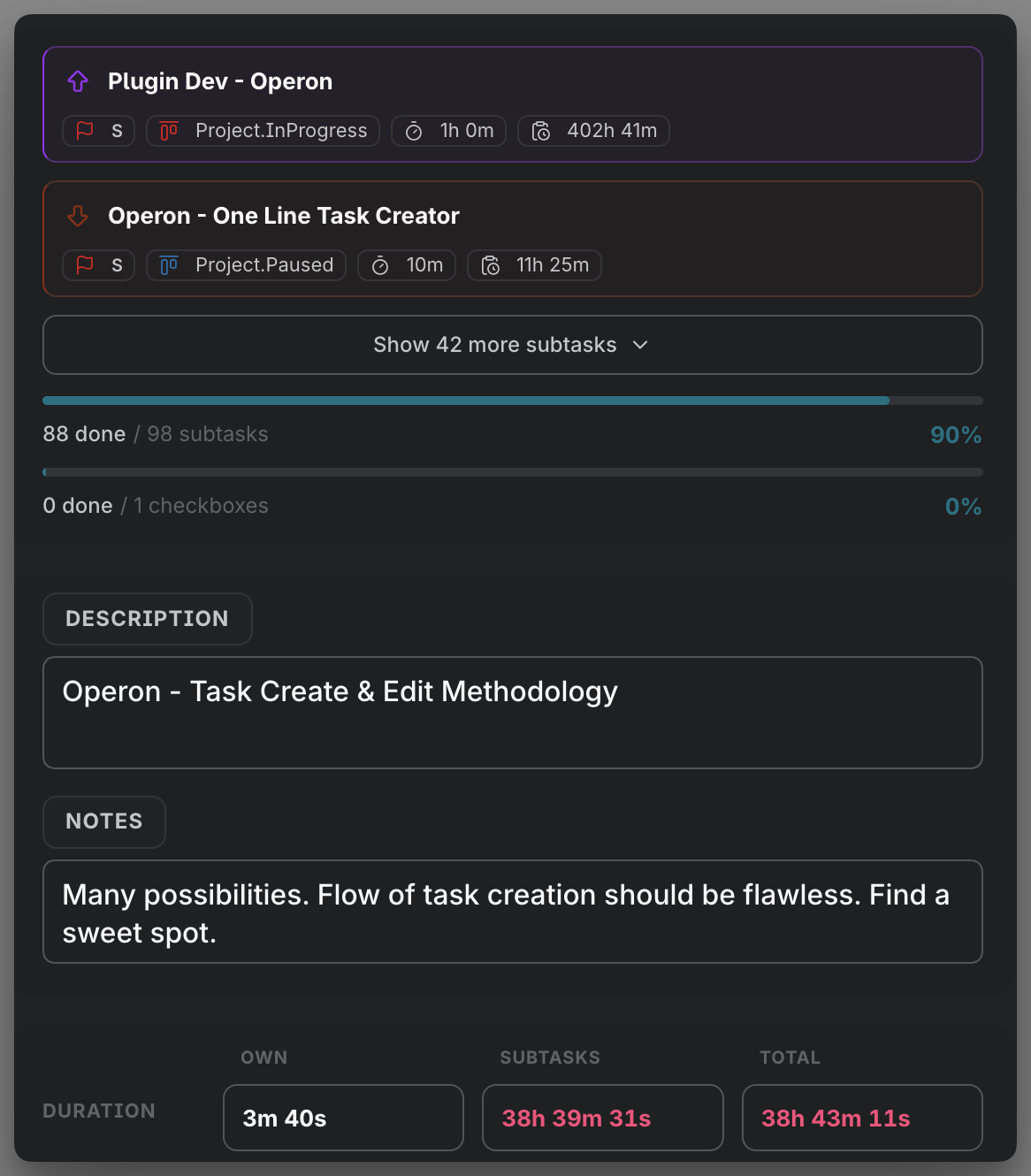
Operon keeps automatic counts and totals on the parent so you can see progress without opening every child. These are maintained for you, not set by hand:
- Direct child counts: how many subtasks exist, and how many are open or done.
- Whole-tree counts: the same, counting all descendants.
progress: completion percentage.totalEstimateandtotalDuration: the parent's own time plus its children's, so estimated and tracked effort add up across the tree.
This is what makes a file task usable as a small project: the parent becomes a live summary of the work beneath it.
MEDIA-DOCS-016-3: A parent task showing rollup counts, progress, and total time gathered from its subtasks.
Keep parent dates wide enough for the tree
Turn on Automatically expand parent task date range when a parent should cover the schedule of its descendants. After a child or deeper descendant changes, Operon can move the parent's Start Date earlier and its Due Date later, then continue the same check up the ancestor chain.
- A descendant's Start Date or Scheduled Date can move the parent Start Date earlier.
- A descendant's Scheduled Date, Due Date, or Completion Date can move the parent Due Date later.
- The automation only expands a valid range. It does not shorten dates that you set manually, create an inverted range, or use a cancelled task's own dates.
The setting is off by default. Enabling it reconciles existing parent trees once, and later task changes keep the wider bounds current. This is relationship automation, not field inheritance: it updates an existing parent from the whole descendant tree rather than copying a value into a new child. See Operon inheritance rules.
When a parent is removed
Removing a parent through the Task Editor also cleans the relationships that would otherwise point at a missing task. Each surviving direct child has only its parentTask link cleared and becomes a root task. A grandchild stays linked to its own direct parent, so the remaining lower part of the tree keeps its structure.
Operon also removes the deleted id from Blocking and Blocked By on surviving tasks. The confirmation tells you how many direct children will lose their parent link. If Operon cannot identify the parent or one of the affected task sources safely, for example because an id is duplicated or the task changed during confirmation, deletion stops without partially detaching the tree.
Subtasks or plain checkboxes?
Use the layer that matches the weight of the step:
- Subtasks are full tasks with identity, fields, scheduling, and a place in every view. Use them when a step is real work you may want to schedule, track, or find on its own.
- Plain checkboxes are simple in-file ticks with no identity. Use them for a short checklist inside one task. See Plain checkbox lists.
A good habit: checkboxes for "steps to finish this task," subtasks for "smaller tasks that belong to this project."
FAQ
Where do subtasks live? Anywhere. A subtask can sit in the parent's note body or in a separate note. The parentTask link is what connects them, not their location.
Do I have to update the counts myself? No. Counts, progress, and time rollups are maintained automatically as subtasks change.
Can a subtask have its own subtasks? Yes. The tree can go as deep as the work needs, and whole-tree rollups account for every level.
What happens to subtasks when I delete their parent? When you delete from Task Editor, surviving direct children become root tasks. Their own children remain attached to them, and surviving Blocking or Blocked By fields no longer keep the deleted id.
Does parent date expansion replace inheritance? No. Inheritance is a one-time copy when a subtask is created. Date-range expansion is an optional ongoing relationship automation for existing parents and descendants.
Settings
Operon settings for this live in Settings → Operon → Tasks → Relationships, which configures subtask creation, auto-parenting, and which fields a child inherits.