Mobile General
Operon runs the same way on a phone as on the desktop, with a few phone-first adjustments layered on top for touch. This page is the home for the general ones: the floating quick-create button, the two phone Task Editor layouts, tablet editing, and how touch menus behave. The two surfaces with the most mobile-specific behavior, the Calendar and the Kanban board, have their own pages.
Phone-specific settings do not change tablet or desktop layout selection. The desktop-style Task Editor on phones and tablets shares Sections and Order and Property Visibility & Order with desktop editing. The Layout and opening preferences for source panels, left/right placement, and lightbox controls apply only to desktop workspaces.
MEDIA-DOCS-101-1: A phone showing the floating quick-create button at the bottom-right corner.
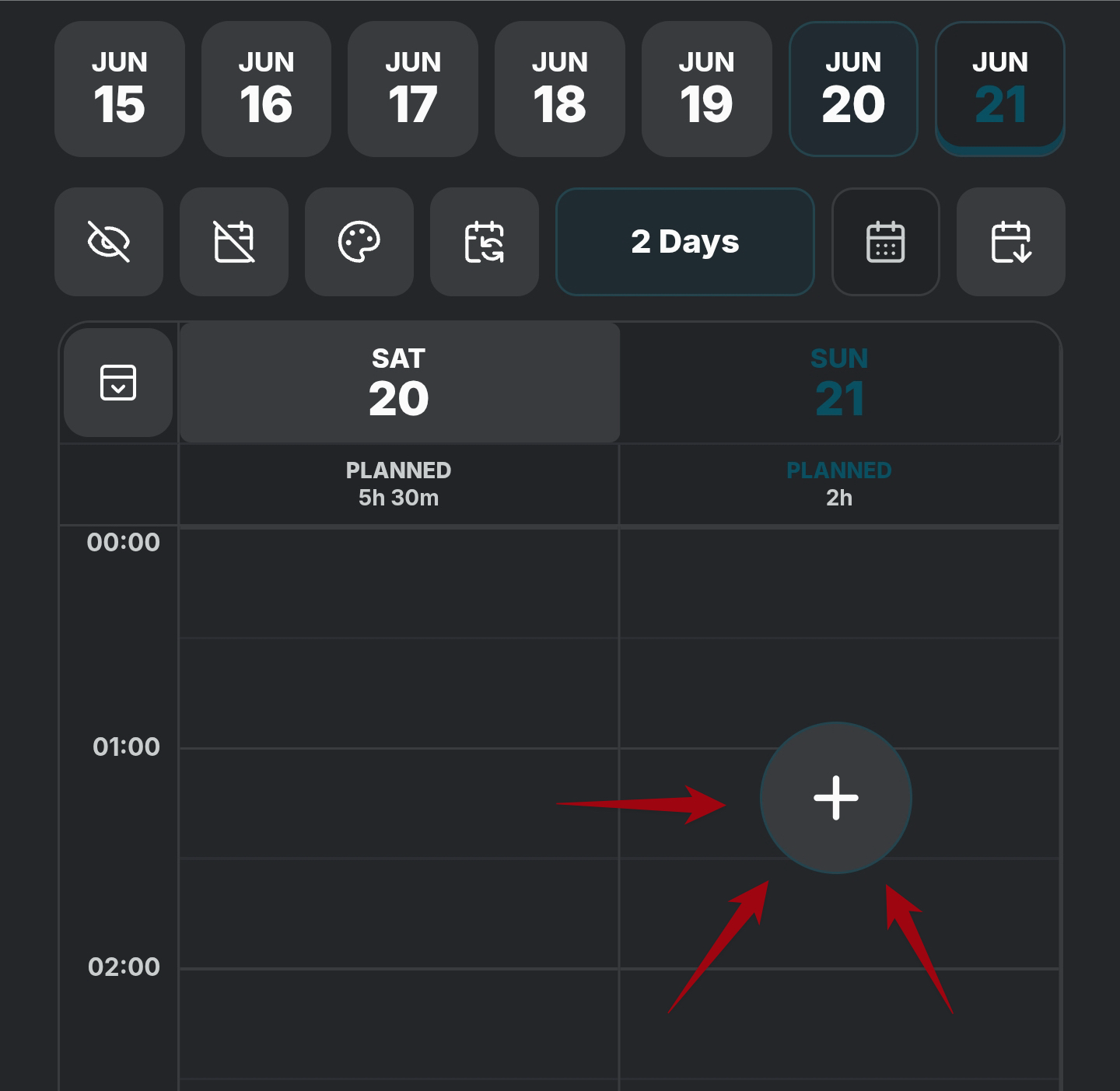
The quick-create button
On a phone, Operon shows a floating plus button that opens the Task Creator from anywhere across the mobile surfaces, so capturing a task is always one tap away. It is on by default. Three controls shape it:
- Show mobile quick-create button turns it on or off everywhere.
- Hide in Calendar and Hide in Kanban each suppress the button while that view is active, so you can keep it for general use but clear it off the surfaces where it would be in the way. Both are off by default, meaning the button shows everywhere.
- Reset position. You can drag the button to a spot that suits your grip; this puts it back at the default bottom-right corner.
Choose the phone Task Editor layout
At the top of Settings → Operon → Mobile → Task Editor, Use mobile Task Editor on phones chooses between two layouts. It is off by default, including when an older settings package has no saved choice.
| Device | Toggle off | Toggle on |
|---|---|---|
| Phone | Desktop-style editor with shared section and property preferences | Existing compact mobile editor and its mobile settings |
| Tablet | Desktop-style editor | Unchanged |
| Desktop | Desktop editor | Unchanged |
Close and reopen Task Editor after changing the setting. Each open editor keeps the layout it started with. Switching does not reset, copy, or overwrite the other layout's toolbar or workflow preferences; the compact mobile settings stay available even while that layout is off. This is a vault preference, not a separate per-device profile.
Phones and tablets do not include the desktop workspace that places native Markdown beside the Task Editor. The old embedded File Body button and panel have been retired. Task-property editing, Description/Notes, and the checkbox popover remain available. For the desktop source-and-editor workflow, see Task Editor.
Desktop-style editing with touch
The new phone layout and tablet editor keep action controls visible without hover, including property clear buttons, section actions, and Session editing. Independent action targets are at least 44 × 44 CSS px. In a main panel 420 px wide or narrower, property names sit above their values; wider panels use two columns. Long values and action groups wrap rather than shrinking the controls.
Tablets keep these touch sizes with a mouse, trackpad, or pen attached. Hover feedback and keyboard focus remain available, while the layout follows available panel width rather than the current pointer type.
Pickers adapt to the visible viewport and keyboard space. A wide tablet panel uses an anchored picker; a narrow panel uses the compact surface. Calendar grids retain seven columns with flexible widths and day targets at least 44 px high. Scroll to reach picker content when space is limited. See Date and time picker.
The mobile Task Editor toolbar
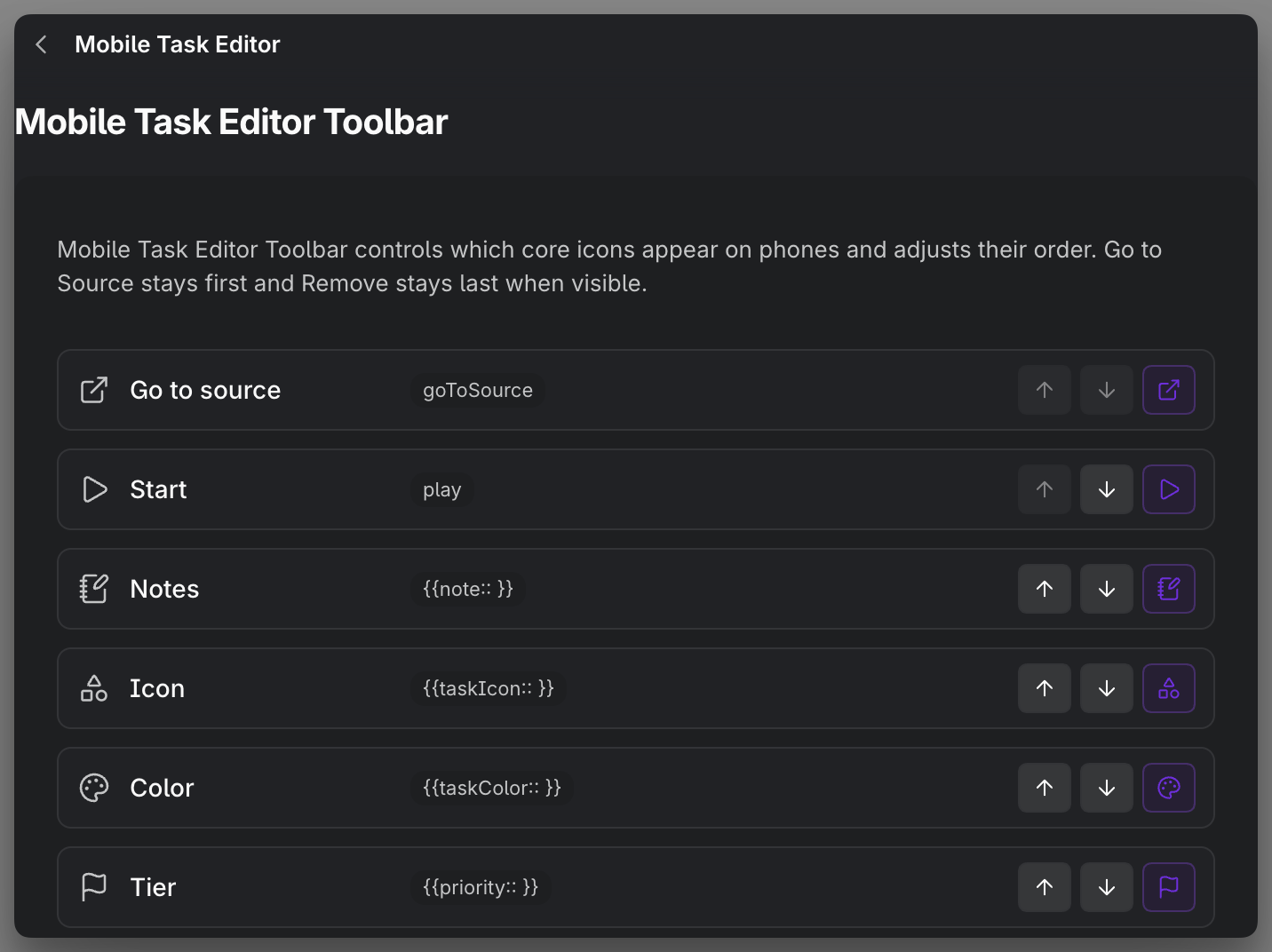
When Use mobile Task Editor on phones is enabled, the Task Editor shows the existing compact core toolbar of field and action buttons, the touch equivalent of the desktop editor's tools. Because a phone has little room, you decide which tools earn a place: each core tool can be shown or hidden, and you set the order they appear in, so the fields and actions you reach for most sit where your thumb lands first.
This is purely about the mobile toolbar's makeup. It does not change what the fields do or how the editor works, only which buttons are present and in what order on a phone.
MEDIA-DOCS-101-2: The mobile Task Editor toolbar settings, with core tools reordered.
Touch menus
Operon's contextual menu opens differently on touch, and on a phone it closes itself after a short while so it does not linger over your content. The mobile context menu auto-hide setting controls how long it stays after opening before closing on its own, from 1 to 30 seconds, defaulting to 7. Raise it if menus close before you reach them, or lower it if you would rather they clear away quickly.
Mobile-specific surfaces
Two views change enough on a phone to have their own pages:
- Mobile Calendar: a compact, phone-first Calendar with view modes you cycle through and a preset per mode.
- Mobile Kanban: a touch-first board with status snapping and a compact swimlane rail.
Several dialogs also adapt to a phone without needing a page of their own. The Task Creator, Task Finder, and Task Editor each open as a full, touch-sized dialog instead of the centered desktop window, and each tracks the on-screen keyboard: as the keyboard or a field picker opens and closes, the dialog resizes to the space that is left so the part you are working on stays in view rather than being pushed off-screen.
- The Task Finder sizes its results list to the visible area, so the list stays scrollable above the keyboard while you type a search.
- The Task Editor uses the layout selected above. The compact mobile toolbar appears only when the mobile-layout toggle is on; the default desktop-style layout uses its own sections and field preferences.
The quick-create button settings above are what let you hide the floating button on the Calendar and Kanban surfaces.
Settings
These live under Settings → Operon → Mobile. Mobile General → Quick Create Button holds the button visibility, per-view hiding, and position reset. Mobile General → Touch Menu holds mobile context menu auto-hide. Per-view hiding and reset controls are shown when the quick-create button is enabled. Mobile → Task Editor holds the layout toggle at the top. Its Toolbar Visibility & Order controls the existing compact mobile toolbar; its workflow preferences also remain independent of the desktop-style editor. The Mobile Calendar and Mobile Kanban pages are covered on Mobile Calendar and Mobile Kanban.
FAQ
The plus button is gone on one screen. It is likely hidden for that surface. Check Hide in Calendar and Hide in Kanban, or that the button is enabled at all.
I moved the button and want it back. Use Reset position to return it to the bottom-right corner.
My touch menu closes too fast. Raise the mobile context menu auto-hide time. The reverse lowers it.
Does the phone layout toggle change my tablet or desktop? No. It selects only the phone layout. Desktop-style section and property preferences are shared across the three devices; the desktop Layout and opening options do not add a source panel or change the editor's side on phones or tablets.