Time tracking
Time tracking records the actual effort you spend on a task, so you can compare what you planned with what it really took. In Operon, tracked time belongs to the task record itself, not to a separate timer log floating beside the work, which means effort becomes part of the task's history.
MEDIA-DOCS-034-1: A task with a running timer.
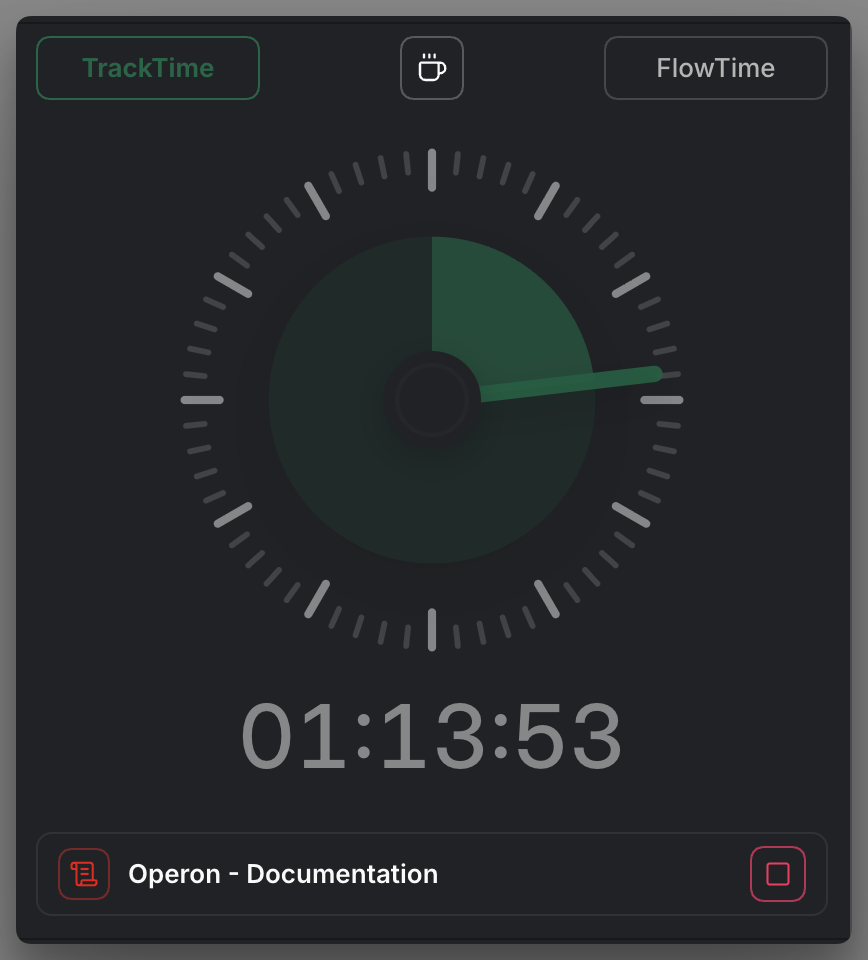
Start and stop
Run Start/stop time tracker on a task to begin timing, and run it again to stop. Run it on a different task to switch what you are tracking. You can also start or stop from a task's contextual menu.
In the contextual menu, the same action shows Stop Timer with a stop icon only for the task whose timer is running. Other eligible tasks still show Start Timer. Starting one of them uses the normal switch to that task; stopping the active task saves its session through the usual time-tracking flow. This behavior is shared by the supported menu surfaces, including task rows, cards, Tables, Calendar, and Kanban.
The menu reflects the task you opened it for. Stop checks that the same task and session are still active before saving. If tracking changes while the stop request is pending, that request leaves the newer session running. Existing task-state and surface restrictions still determine whether the timer action is offered.
Track from the Status Dock
On desktop, the Status Dock keeps Play/Stop and the active task available across main workspace tabs. Play/Stop does not automatically open FlowTime. Coffee finishes the current work session and starts a break shared with FlowTime. Play resumes the waiting task in a new session; ending the break alone does not restart work.
When idle, during a break, after a break, or while tracking without an assigned task, the available Finder and Creator controls let you choose or create a task to track. Calendar-task icons in the dock reveal Play on hover, while task-name clicks follow the dock’s source/editor opening preference.
The dock also offers Overdue and Happens Today lists when matching open tasks exist. Hover over a list card to reveal its Play/Stop control; using it keeps the list open.
A newly saved task session produces a temporary card while the dock is visible. Click its duration to open Edit session. The card waits while a task list is open; clicking elsewhere on the dock closes the list and runs the chosen action. See Time session history for other editing entry points.
Use Toggle status dock to hide or show this surface without stopping tracking. It is separate from the Pinned Task Dock.
The fields involved
Time tracking touches a few canonical fields:
estimate: how long you expect the task to take.duration: how long it has actually taken, accumulated from sessions.totalEstimateandtotalDuration: the same, rolled up across a task and its subtasks, so a project reflects the effort beneath it.- The individual sessions are stored on the task as tracked time ranges.
These are stored in seconds, but you set and read them through the editor and views rather than counting seconds yourself. See Inline task syntax.
You normally only set estimate; Operon fills duration as you track. A task with a one-hour estimate, ready to paste (3600 seconds is one hour):
- [ ] Edit the chapter {{operonId:: {{operonId}}}} {{status:: Project.InProgress}} {{estimate:: 3600}}
After you track ninety minutes against it, the same line carries a duration Operon wrote for you, here 5400 seconds:
- [ ] Edit the chapter {{operonId:: {{operonId}}}} {{status:: Project.InProgress}} {{estimate:: 3600}} {{duration:: 5400}}
The gap between the two, an hour planned against ninety minutes spent, is exactly the comparison time tracking exists to show.
Two modes: TrackTime and FlowTime
Operon offers two ways to time work:
- TrackTime: a count-up stopwatch. It simply records how long you spend, which is ideal for logging real effort.
- FlowTime: a countdown focus session with a target length, breaks, and an overtime notice. It is ideal for timeboxed, focused work. See FlowTime focus sessions.
Both feed the same task duration, so whichever you use, the effort lands on the task. Neither is a fixed Pomodoro cycle; FlowTime is a flexible focus session with a soft target, explained in FlowTime focus sessions.
Review a period
Add Tracked time → in the last X days → 7 to a filter to review today and the previous six days. Detailed views show the matching sessions; compact views and duration chips show their sum. The same period applies wherever you use that filter. For a specific day or a custom range, see Filter conditions and operators.
A session belongs to its local start date. A single session from 23:00 to 01:00 counts as two hours on the day it began. If it was already split at midnight, each part uses its own start date. A running timer is not included until it becomes a completed, saved session.
Duration shows the task's own selected sessions. Total duration adds the same period's sessions from all its subtasks, including those hidden from the results. Estimates stay unchanged.
Filtering never rewrites the saved history or stored durations. Remove the Tracked time condition to return to all-time values.
Review your sessions
Open the Time Session History panel to see and edit the sessions you have tracked. This is where you fix a forgotten stop, correct a session, or review where your time actually went. You can also log a planned time block as tracked time with the Log as tracked contextual action.
MEDIA-DOCS-034-2: The Time Session History panel listing tracked sessions for editing.

FAQ
What is the difference between estimate and duration? estimate is your plan; duration is the recorded reality. Comparing them is what makes planning more honest.
Do subtasks roll up? Yes. totalEstimate and totalDuration add a task's own time to its subtasks' time.
TrackTime or FlowTime? Use TrackTime to simply log effort, and FlowTime when you want a focused, timeboxed session.
Why does another task still show Start Timer while a timer is running? Start/Stop is specific to the task whose menu you opened. Only the currently tracked task shows Stop Timer; Start Timer on another task switches tracking to it.
Settings
Operon settings for this live in Settings → Operon → Tasks → Tracker, under Tracking behavior for midnight session splitting, Session History for the history range and task-description click action, and TrackTime & FlowTime for the timer panel and FlowTime preferences.
On desktop, timer controls are always part of the Status Dock; the former timer visibility toggle is removed. Mobile retains its native status-bar timer preference where supported.
To choose where the contextual action appears, use Interface → Context Menu. The single Start Timer row controls both Start and Stop appearances, their order, and their allowed surfaces; there is no separate Stop Timer setting. See Contextual menu actions.