Build your first filtered view
Creating tasks is only half of Operon. The other half is seeing the right ones together. A filter is a saved query over your task fields, and the Filter View is where its results appear. One good filter turns a scattered vault into a clear answer to "what should I work on?"
MEDIA-DOCS-010-1: The Operon Filter View open with a small list of tasks.
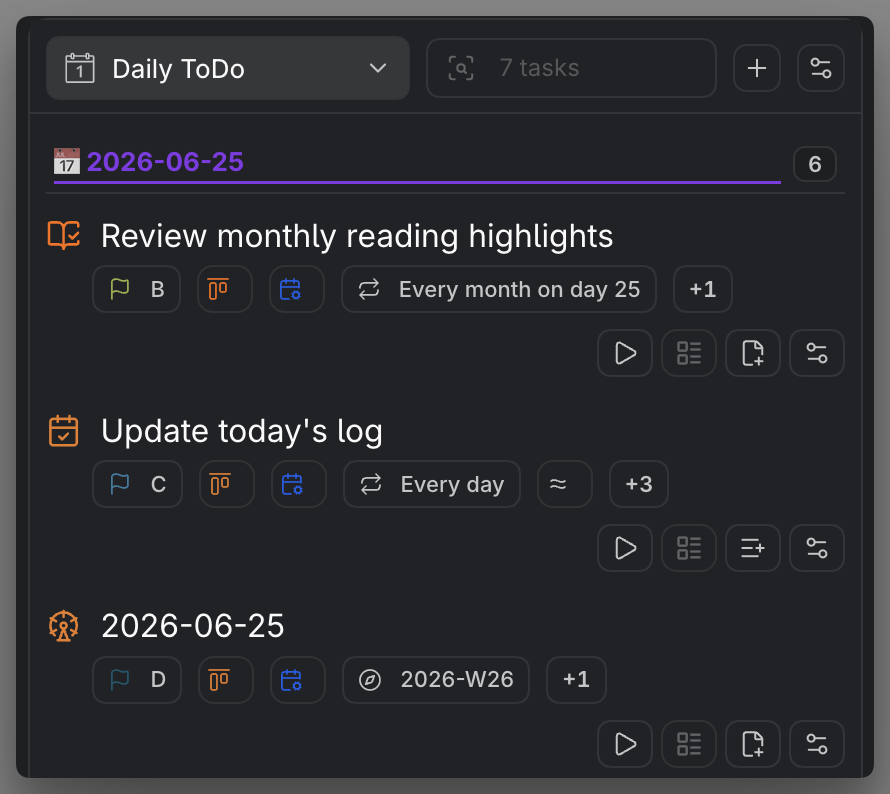
Open the Filter View
From the command palette, run Operon Filter View. This opens the surface that lists tasks across your whole vault. At first it shows a broad set; the point of a filter is to narrow it to what you care about right now.
Build one useful filter
A filter is a set of conditions over task fields such as status, priority, scheduled date, due date, and parent task. Start with a single condition and add more only if you need them. A strong first filter is usually something like:
Open tasks, priority high, scheduled this week
Add the conditions one at a time and watch the list shrink as each one applies. The goal is not a perfect query; it is a list short enough to act on.
MEDIA-DOCS-010-2: Building a filter by adding conditions, with the result list updating.

Save it
Once the list is useful, save the filter so you can return to it without rebuilding. Saved filters are stored with Operon's data in the plugin folder and become reusable views you open whenever you need that slice of work. Give it a name that says what it is for, such as "This week" or "High priority open".
A few starter ideas
Filters worth having early:
- Open tasks scheduled this week.
- High-priority open tasks.
- Everything under one project or parent task.
- Tasks in a specific folder.
Each is just a different slice of the same task records. The Filter View never creates a second copy of a task; it reveals the ones that match. See Operon core concepts for why every surface shows the same task.
Where to go from here
The Filter View is one of several surfaces over your tasks. When you want to plan by date, use the Calendar overview. When you want to move work through stages, use the Kanban overview. When you remember a task but not where it is, use Task Finder.
FAQ
Do filters change my tasks? No. A filter only chooses which tasks are shown. It never edits or moves them.
How many filters should I keep? As many as map to real moments in your work. A handful of well-named filters beats one giant query.