Welcome: new to tasks or plain checkboxes
This page is for two people who turn out to need almost the same start: someone brand new to task management in Obsidian, and someone who already scatters plain Markdown checkboxes (- [ ]) through their notes. Either way, you do not have a previous task plugin to migrate from, so your first move is simple: make one Operon task, or upgrade a checkbox you already wrote.
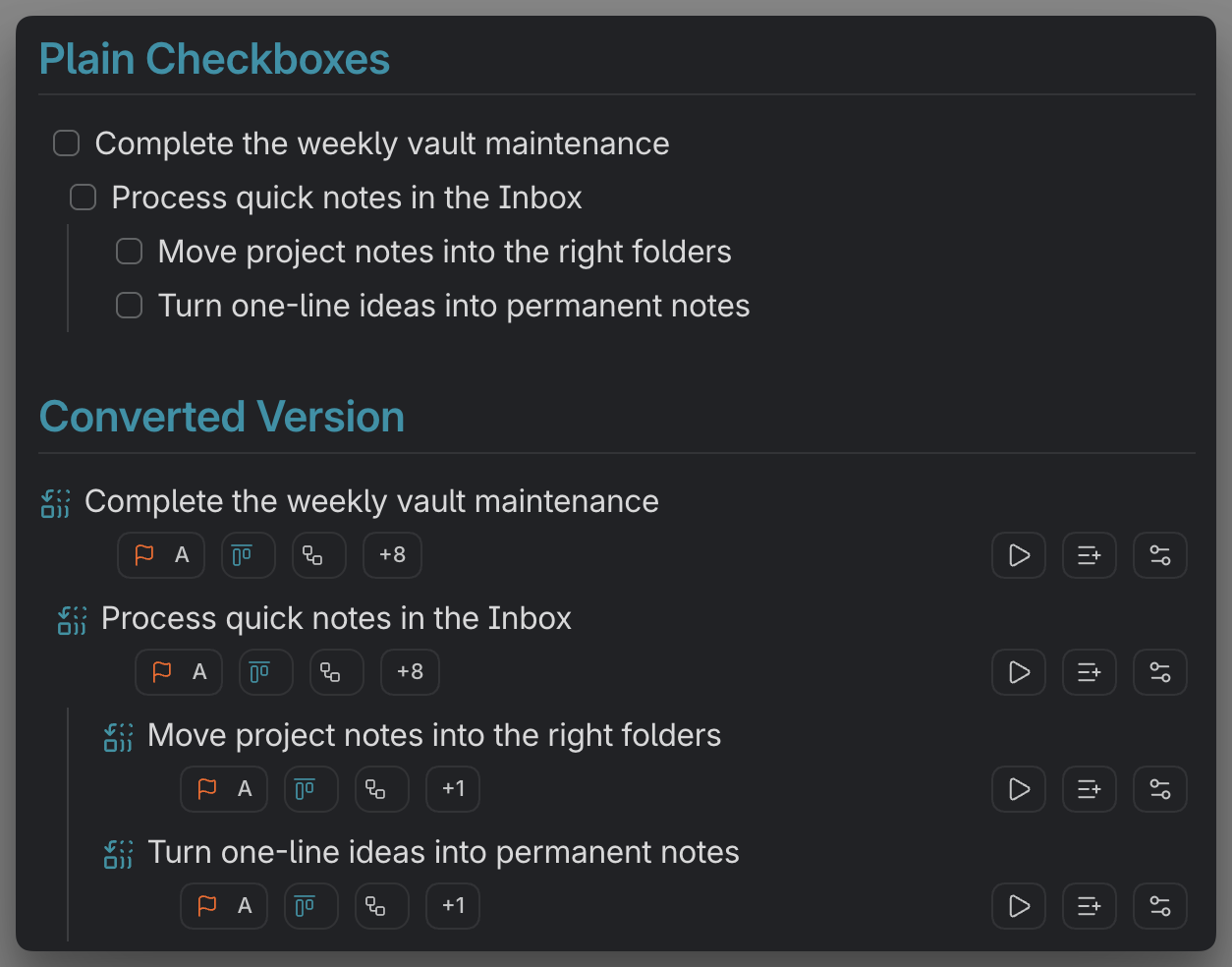
MEDIA-DOCS-076-1: A plain checkbox line and the Operon inline task it becomes after one command.
The one idea to hold
Operon keeps your tasks as plain text in your notes and adds structure on top. A task can take one of two shapes: an inline task (a single line, the light option) or a file task (a whole note that is itself a task, for work that needs room). You start with inline and grow into file tasks only when a task earns it. That is the whole model, explained in One workflow, two task shapes.
If you are brand new
Make one task and see it in one view. That is enough to be using Operon.
- Make a task. Run Create New Operon Task for a guided form, or Create or edit inline task on an empty line to write one in place. See Create your first task.
- Give it a date or a priority. Just enough so a view can sort it. You can skip this and add it later.
- See your tasks together. Open the Filter View and build one saved filter, like "open tasks this week." See Build your first filtered view.
That is the loop: capture, then look at the set. Add the Calendar, Kanban, recurrence, and time tracking when the work asks for them, not before.
If you already use plain checkboxes
You are closer than you think. A plain checkbox is already a task in spirit; Operon just needs to adopt it so it can be filtered, scheduled, and tracked. Adoption adds a small operonId and any fields you want, and the line stays readable.
- Upgrade one line. Put your cursor on a
- [ ]line and run Convert checkbox to Operon task, or Create or edit inline task, and the checkbox becomes an Operon inline task. Operon can also show a small square-plus icon on hover over upgradable checkbox lines in Live Preview, so you can convert with a click. - Bring a whole list over. Select several checkbox lines and run Convert Selection to Operon Tasks. Indented lines become parent and child tasks, so an outline keeps its shape. See Create tasks from selected text.
- Keep the rest as they are. Plain checkboxes that you have not upgraded still work as normal Markdown. Operon leaves them alone until you adopt them. See Plain checkbox lists.
No migration weekend
You do not have to convert everything at once. A freshly upgraded vault shows Operon tasks in views only after you adopt them, so the Filter View may look empty until you convert your first lines. That is expected. Convert the next useful checkbox when you meet it, and your filtered views fill up naturally over a few days.
Where to go next
- Plan by date: Calendar overview.
- Move work by stage: Kanban overview.
- Make a task repeat: Recurring tasks.
FAQ
Do I have to upgrade every checkbox? No. Upgrade the ones you want Operon to manage; leave the rest as plain Markdown.
Will adopting a checkbox change my note? It adds a small operonId and any fields you set, on the same line. The text stays readable.
My Filter View is empty. That is normal at the start. Views show Operon tasks, so convert a few lines first and they will appear.