Pinned Task Dock
The Pinned Task Dock keeps a chosen set of tasks always in view, so the work you care about most stays one glance away while you move around the vault. It is a small, persistent surface for "the few things I am actually on right now." You can pin inline tasks and file tasks together on the same dock, so your focus list is not split by how each task is written.
MEDIA-DOCS-032-1: Pinned tasks shown in the side panel.
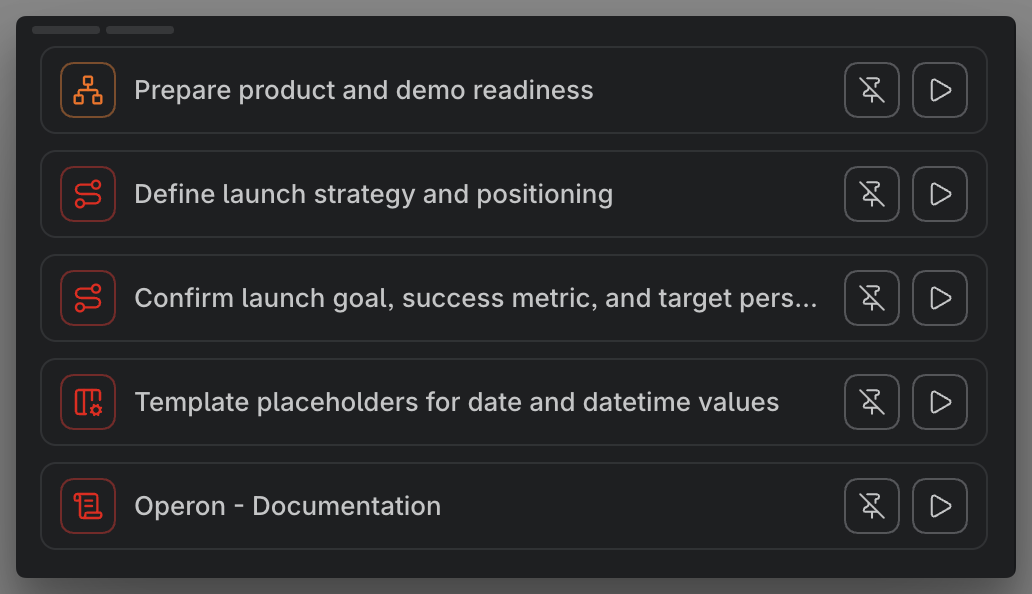
Pin a task
Pin a task from its contextual menu with Pin task, and remove it later with Unpin task. Pins persist across notes and sessions. You can unpin them manually; the automatic removal rule below can also remove finished or cancelled tasks.
Pinning automatically when a reminder arrives
A task can also arrive on the dock on its own. Turn on Pin task when its reminder time arrives, in Settings → Operon → Tasks → Reminders, and Operon pins a task as it processes one of that task's due reminders. It is off by default.
This turns a reminder from a moment into a state. A plain reminder tells you once and is gone; with this on, the task also lands on the dock and remains pinned subject to your automatic removal rule, which suits a nudge that means "this now needs to stay in front of me."
It only ever pins open tasks, and never pins a task that is already pinned, so a task with several reminders does not accumulate anything. The passing reminder time alone does not unpin it; finishing or cancelling the task can, if automatic removal is enabled. See Reminders.
Automatic pinning and removal
Open Settings → Operon → Interface → Pinned Dock → Automatic Pinning:
- Auto-pin active timer task pins a task when its timer starts. Stopping the timer does not itself remove the pin.
- Auto-unpin finished tasks removes pinned tasks when they reach a finished or cancelled state. Turn it off if you want to keep terminal tasks pinned until you remove them manually.
These rules apply to the shared pinned list, whether you use the floating dock or sidebar. Pinning when a reminder arrives is configured separately under Tasks → Reminders → Reminder delivery.
Two surfaces: floating dock or side panel
You can show your pinned tasks in either of two places:
- A floating dock over your notes. Toggle it with Toggle Pinned Tasks dock.
- A side panel, like a normal Obsidian sidebar view. Open it with Open Pinned Tasks.
Which one you get is a setting. Under Settings → Operon → Interface → Pinned Dock → Display, the pinned-tasks surface can be set to the dock or the sidebar, and when you use the sidebar you can choose the left or right side. On smaller screens the sidebar can be the more comfortable choice.
Acting on pinned tasks
The dock is not just a list. Each pinned task offers the same contextual menu as anywhere else, so you can open the Task Editor, change status, start a timer, or mark it done without leaving what you are doing. See Contextual menu actions.
Separately from that menu, each row also carries its own Unpin and timer icons directly on it. On desktop, these stay out of the way until you hover the row or reach it with the keyboard, so the task's description gets the full row width the rest of the time. On mobile, where there is no hover, the same icons stay visible all the time instead.
Click a pinned task to open it in the Task Editor. Hold Cmd (macOS) or Ctrl (Windows and Linux) and click to open the task's source in a new Obsidian tab instead: the note for a file task, or the exact line for an inline task, the same convention as opening a link in a new browser tab.
FAQ
Do pinned tasks stay after I close Obsidian? Yes. Pins persist across sessions, subject to manual unpinning and the automatic removal rule.
Can I move it to the sidebar? Yes. Set the pinned-tasks surface to the sidebar in settings, and pick the left or right side.
Is pinning the same as priority? No. Pinning is a personal "keep this in front of me" choice. Priority is a task field used for sorting and filtering. See Task priorities.
A task pinned itself. Why? Either Auto-pin active timer task is enabled and its timer started, or Pin task when its reminder time arrives is enabled and a reminder came due. See Reminders.
Does an auto-pinned task unpin itself later? It can. With Auto-unpin finished tasks enabled, reaching a finished or cancelled state removes the pin. Stopping a timer or letting a reminder pass does not itself unpin it.
Settings
Operon settings for this live in Settings → Operon → Interface → Pinned Dock, under Display, Appearance & Order, Automatic Pinning, Sidebar, and Floating Dock. These configure the shared pinned list and its two display surfaces. The Pin task when its reminder time arrives automation is set separately, in Settings → Operon → Tasks → Reminders.