Task Editor
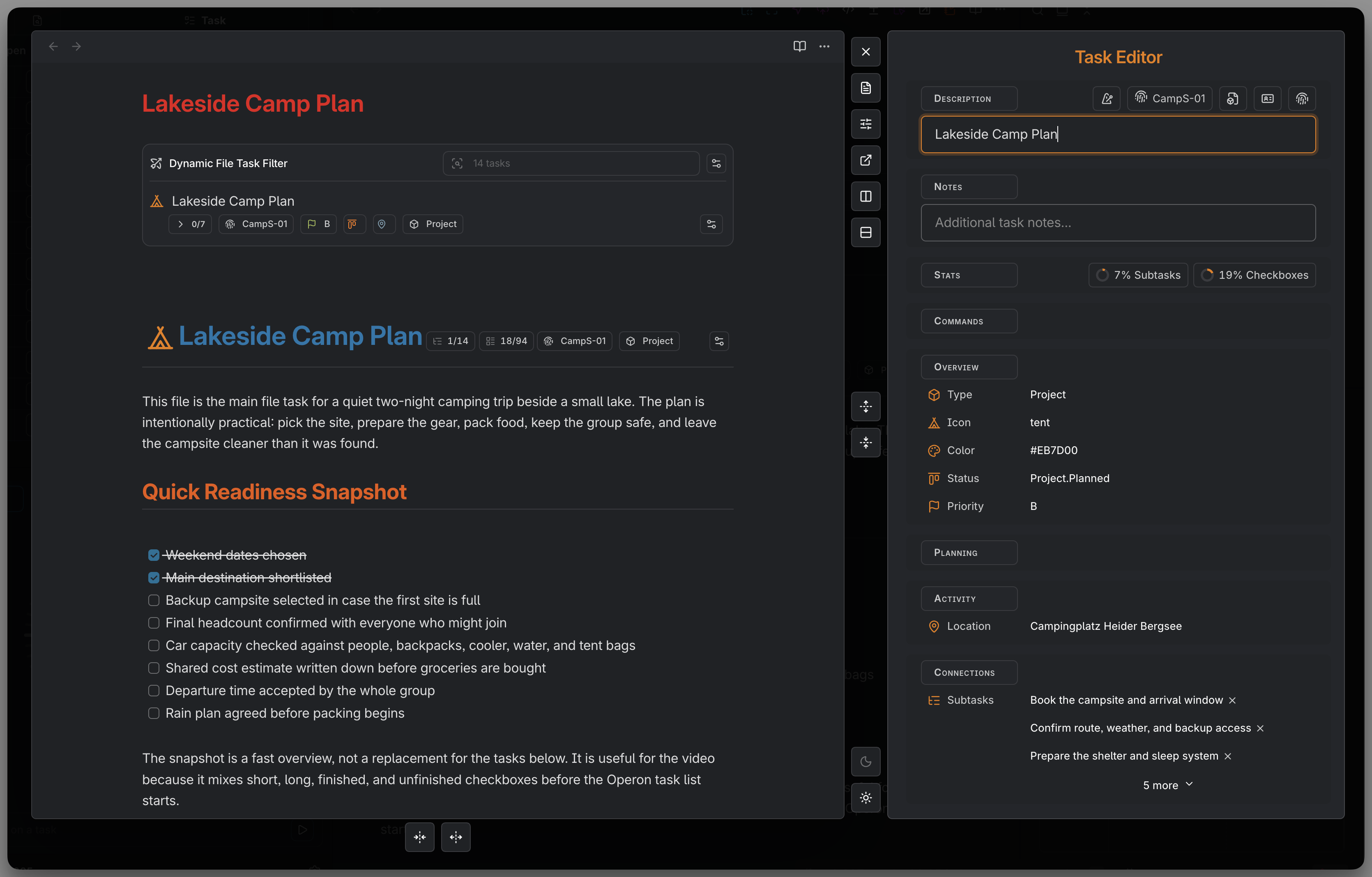
The Task Editor is where you view and change a task's structured fields without editing Markdown by hand. Inline and File tasks share the structured editing workflow. On desktop, an existing Markdown task can open its native source alongside those fields in one workspace.
MEDIA-DOCS-021-1: The Task Editor open on a task, showing its fields and, for a file task, the Markdown body.
How to open it
- On an existing inline task, run Create or edit inline task.
- On a file task or a note with task fields, run Edit or convert to file task.
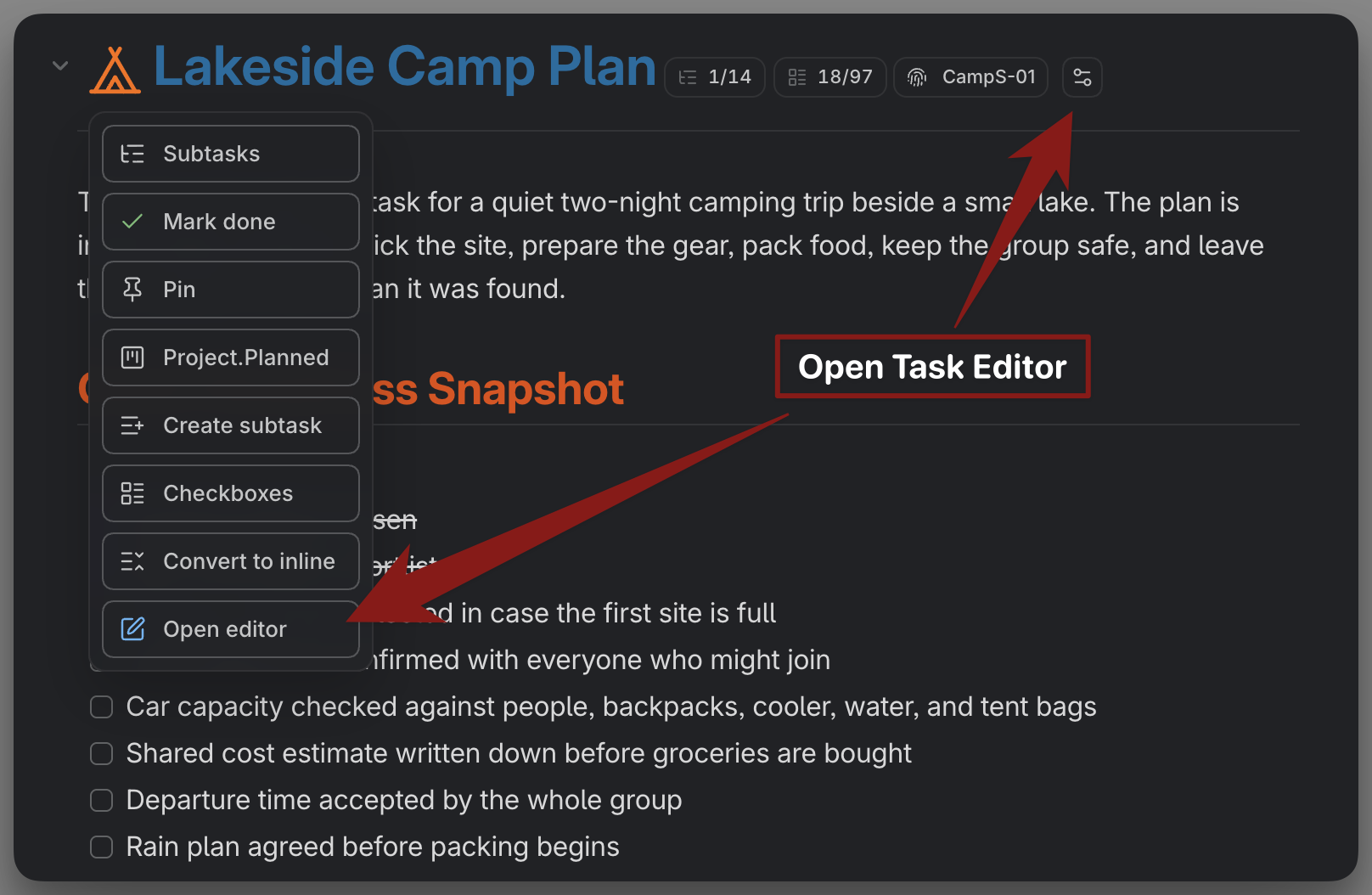
- From any Operon surface, open a task's contextual menu and choose Open editor. See Contextual menu actions.
From a Canvas Task Card, select the card and use Open editor, or choose it from the task icon's contextual menu. From an Embedded Task Card in a note, click the task title.
The same command that creates an inline task also edits one, so the editor is never more than a keystroke away from the task.
MEDIA-DOCS-021-2: Opening the Task Editor from a task's contextual menu with Open editor.
What you can change
The Task Editor exposes the canonical fields as proper controls:
- Status and priority.
- Dates: due, scheduled, started, and timed start/end blocks.
- Parent task and dependencies.
- Recurrence. See Recurring tasks.
- Reminders, both kinds. See Reminders.
- Pinning. See Pinned Task Dock.
- Time tracking, including session history. See Time tracking.
- Icon, color, and a Note that can contain multiple lines.
- Task Type as a user-managed Text classification.
- Task Image as one media reference and Task Gallery as an ordered list. See Task images and galleries.
The editor can also Show checkboxes for the task's plain checklist. Description, Notes, and the checkbox popover keep their own editing controls; they are separate from the native source panel described below.
The editor's Date and Date & time controls follow Settings → Operon → Core → General → Language & Formats → Date format for their visible date part, while timed values also follow the separate Time format setting. This does not change the value passed to the picker or written back to Markdown; task dates remain canonical ISO values. See Date and time picker.
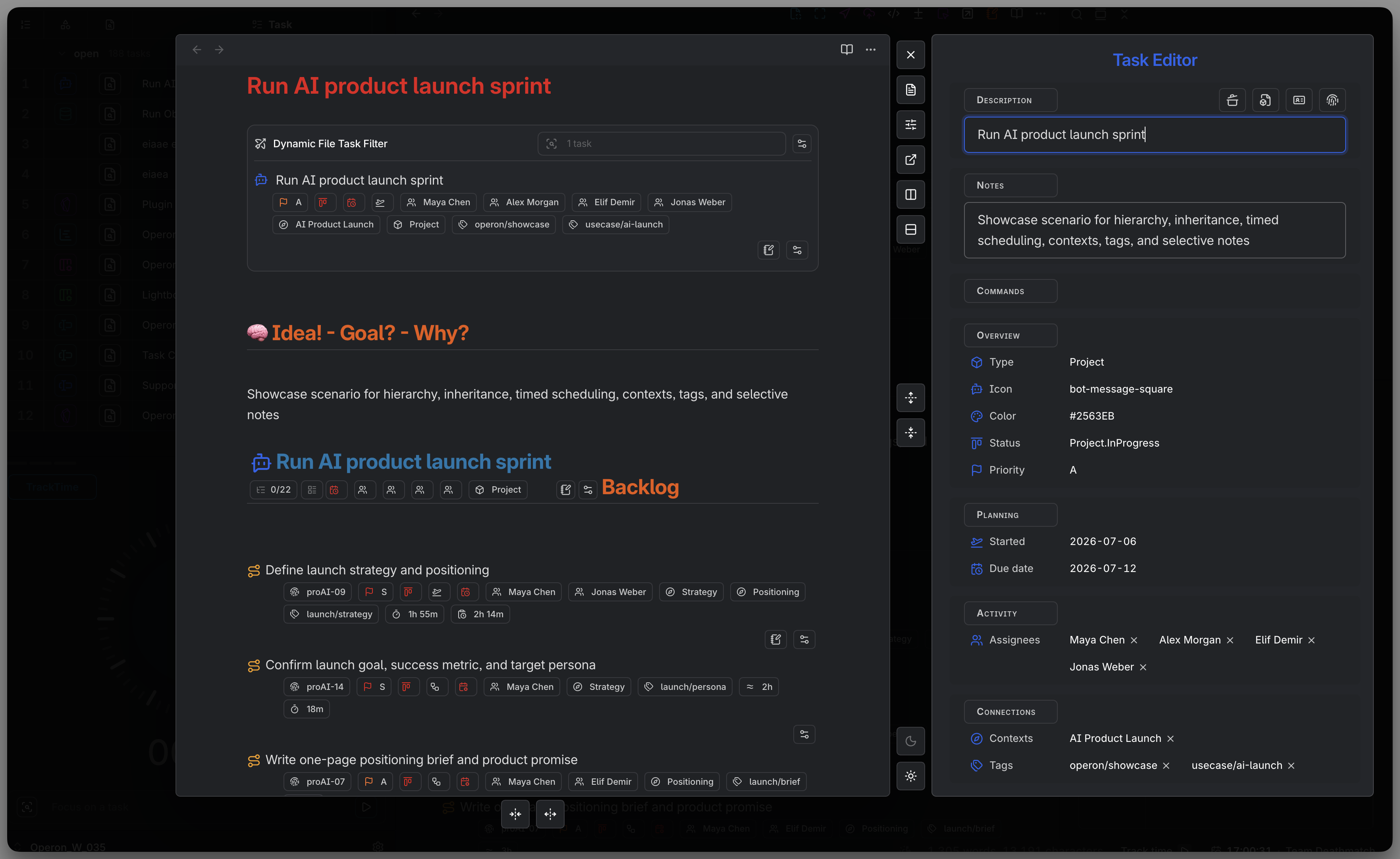
MEDIA-DOCS-021-3: The Task Editor on a file task, the fields beside the Markdown body.
Native Markdown alongside the editor
For existing Markdown tasks on desktop, the Task Editor and source share one lightbox level. By default, a File task opens both panels and an Inline task opens only the Task Editor. Show source adds the source to an editor-only workspace. Inline source opening goes to the selected task's current position.
For a Markdown task, Open Source starts with only Markdown, independently of the editor's opening preferences. A Show task editor button appears when that source has a suitable task context. The editor does not open automatically as you browse until you choose that button. Task Finder can choose a different starting combination for its own results; see Task Finder.
When both panels are visible, Hide source and Hide task editor let you work with just one. Hiding a panel keeps its draft and scroll position in the same workspace; showing it again resumes that panel. You cannot hide the last visible panel. Source size and tab/split controls are available only while the source is visible.
The source is Obsidian's native Markdown view, with Reading, Live Preview, and Source modes. The lightbox shows the body while hiding Properties and a closed opening YAML block. The YAML stays in the file, and File task field edits can still update it. Inline task field edits update the task's own line. To edit the frontmatter directly, open the file in a normal Obsidian tab. See Lightbox for source positioning, controls, and save protection.
The panels start at the same top edge. The editor fits its content up to its available height, then scrolls internally. When shown alone, it stays on the selected side and keeps the top position determined by the source height preference instead of centering itself vertically. In a window too narrow for both panels, the source hides temporarily and returns when space permits. This does not change the saved source size or your panel visibility choice.
If you navigate the source to another File task, the enabled editor follows that task. A normal note hides the editor; returning to a File task shows it again unless you hid it yourself. Moving to a heading or switching Markdown mode within an Inline task's source keeps the selected task. Operon follows task identity rather than choosing a different task from its line number or position in a list.
Opening another task editor or supported preview from this workspace creates a new level above it. The previous level remains visible but cannot receive input until you return. The two panels together count as one level for Background dimming. Closing the upper level restores the previous workspace and focus.
This shared source-and-editor workspace is desktop-only. Phones, tablets, new-task forms, special recurrence-instance editors, and Excalidraw task sources keep their existing editing routes. The retired File Body panel is no longer part of the Task Editor.
Sections and property rows
The desktop-style editor organizes work into sections, with property names and values presented as rows. Under Interface → Task Editor → Sections and Order, configure section names, visibility, and order. Property Visibility & Order controls the configured property rows. These desktop preferences also apply to tablets and to phones using the desktop-style layout.
Open an editable property's name or value to use its control. On a mouse, the row's interactive styling helps show the target; on touch, action and clear controls remain accessible without hovering. Visibility settings change the presentation, not the stored task values.
Text and List property controls reuse the shared suggestion pool from task chips and Tables, including values used only on Inline Tasks and compatible frontmatter values. A field does not need a current value to offer existing choices. Opening the picker again uses the current available pool; type conflicts and unavailable sources remain protected. See Custom field pickers.
Additional properties
Additional exposes supported Vault Properties on the current task alongside the mapped fields. It also works in the desktop-style phone layout. Use the section's add control for supported properties and each value's control to edit it. Unassigned Automatic types, unsupported values, and conflicts can remain read-only or unavailable; not every frontmatter value is a writable field. See Task properties, Custom field pickers, and Vault Properties.
Add existing property lists eligible custom keys enabled for the editor even before they have been used in a note, alongside supported normal properties used in the vault. An unused property does not return to this list solely because an old type declaration remains after its custom key was deleted. Properties already present on the task or in the current draft remain available. Operon fills missing type declarations for eligible custom keys and uses their configured icons; explicit type conflicts and incompatible values remain protected. See Custom keys.
Checkbox property icons reflect their value: true uses a checked box, false an empty box. An unset checkbox uses its configured property icon, whose default is a dashed square. Existing custom icon choices are retained for that unset state; true/false indicators are automatic.
Finish the current task
In the desktop-style layout, the action immediately before the Description copy controls completes the current task. Its icon follows the current pipeline status icon when one is configured, otherwise the task-state fallback; it uses the editor's action styling. The tooltip says Click to finish until completion. Clicking a completed task again does nothing—it does not reopen it or cycle statuses.
This uses the normal completion rules, including applicable workflow and recurrence behavior. It is separate from opening the status picker to choose an arbitrary status.
Sessions in the editor
The Sessions section shows recorded time ranges. In the desktop-style layout, click or tap either a session's duration or its pencil to open the same Edit session window. With a mouse, the duration has an underline on hover; touch does not require that hover first. See Time session history for corrections and other entry points.
The desktop-style Sessions header uses a clock-plus button for Add session, with a tooltip and accessible label. It opens the existing time-range dialog with the task title for context; Start and End controls edit the same saved time range. The compact mobile layout keeps its own labeled action.
Phone and tablet layouts
Phones use the desktop-style editor by default. To use the existing compact mobile editor instead, enable Mobile → Task Editor → Use mobile Task Editor on phones. The choice applies when the next editor opens; an already open editor keeps its layout. The compact layout retains its own mobile toolbar and workflow preferences.
Tablets always use the desktop-style layout. Its touch controls stay the same size when a mouse or trackpad is attached. On phone and tablet, property names move above values when the main editing panel is 420 px wide or narrower; a wider panel uses two columns. This follows the available panel width, including a tablet's split view. Neither device uses the desktop native source-and-editor workspace or the retired File Body panel. Task-property editing, Description/Notes, and the checkbox popover remain available. See Mobile General for the device comparison.
Copy a task wikilink
Use Copy task wikilink, the file-box button at the left of the header's copy controls, to copy a link to the current task. Paste it wherever you want to refer to that task. It copies a link, not a new task or a Task Card embed.
A File Task uses a normal note link. An Inline Task adds its Operon ID to the source note's name, using the Task Wikilink Overlay link format:
[[Project plan]]
[[Daily notes#-abc1234]]
The first example links to a File Task named Project plan. The second links to the inline task with ID abc1234 in Daily notes. Operon copies the current task's actual note name and ID for you.
Copy a task card into a note
Use Copy task card embed, beside Copy operonId, to copy a ready-to-paste block for the current task. Paste it into a note to display an interactive card in Live Preview and Reading view. The block includes the existing task ID and current card layout options; it does not create another task.
The task must be indexed with a valid, unique ID. The original Copy operonId control still copies only the ID. For local width, alignment, text wrapping, and visibility options, see Embedded Task Cards.
Parent and subtask cards
When a task has a parent, its own direct subtasks, or both, the editor shows them as small cards near the top, above the fields, so you can see the immediate family without leaving the task you opened. See Parent and sub-tasks.
- A parent card is navigation only. Click it to open the parent's own editor; there is nothing to complete from here.
- A subtask card for an open subtask offers a complete action on hover or keyboard focus, so you can check off a direct subtask without leaving the parent task's editor. A finished or cancelled subtask's card has no such action.
Date chips shown on these parent and subtask cards use the same General Date format as the editor fields. Their urgency color and the task data behind them still use the original canonical date, so changing the display format does not change scheduling or date comparisons.
This shows only direct parent and children. For a task's whole subtree, run Subtasks from its contextual menu to open the Dynamic Subtasks Filter instead.
Remove a task without broken relationships
The Task Editor's Remove action deletes the selected task and cleans references to it as one guarded operation. The confirmation names how many surviving direct subtasks will become root tasks before you continue.
- Each surviving direct child's
parentTaskfield is cleared; the child's other fields and identity stay unchanged. - A grandchild remains attached to its own direct parent, so only the deleted level of the tree is detached.
- Surviving tasks remove the deleted id from their Blocking and Blocked By fields.
- Removing an inline task leaves its source line empty. Removing a file task uses Obsidian's trash behavior; tasks that disappear with that file do not need a separate relationship rewrite.
Operon stops before deleting anything when it cannot safely match the current task and affected sources, including duplicate identities or changes made after the confirmation was prepared. Review the task and try again after resolving the conflict rather than expecting a partial cleanup.
Reminder rows
Reminders get their own rows, one for ReminderDatetimes and one for ReminderRules, and they behave a little differently from a single-value field. Each reminder on the task appears as its own chip in the row, so a task with three reminders shows three chips rather than one crowded value.
- Add one from the row's own control, which opens the picker for that kind of reminder.
- Edit or remove one by clicking its chip, which reopens the same picker loaded with that reminder.
- The ReminderRules control is disabled when the task has no date a rule could attach to, since there would be nothing for an offset to count back from. Give the task a due, scheduled, or start date, or a timed block, and it becomes available.
Both rows are hidden by default. Turn them on in Settings → Operon → Interface → Task Editor, under Property Visibility & Order, which is also where you set the order of the editor's picker rows. Hiding a row never changes the reminders stored on a task. See Reminders.
Saving is automatic
The Task Editor autosaves your changes two seconds after your last edit, so you do not press a save button while working through a task's fields. Closing the editor, with its close control, a keyboard shortcut, or the backdrop, saves any pending change immediately rather than waiting out that two seconds. This timing is fixed and not a setting.
For the same task, source changes refresh fields you have not edited. If the same field changes in the source while you have an unsaved Task Editor edit, your local draft is kept and the next normal save applies it. Changes to other source fields are preserved. Refreshing from the source does not itself mark the editor as changed or start another save.
The desktop workspace also saves pending Task Editor changes before navigating to a different note or transferring the source to a tab or split. Hidden panels participate in that save. A failed save or a new edit made during the save keeps the current context and draft available rather than silently discarding it. Native source edits continue through Obsidian's own save path, including content not yet written to disk.
Task identity is checked when saving, including after a file moves or is renamed. If the task is missing or its identity is ambiguous, Operon keeps the draft instead of writing to an old location or recreating the task.
Description and Notes
The Description is the task's one-line title. Notes are a separate multiline field for the detail that belongs with the task but does not belong in its title. In the Notes control, use Shift+Enter to insert a line break; pasted multiline text and intentional blank lines are kept. Normal Enter keeps the existing action for the surface instead of becoming a second line-break command. On phones, normal Enter keeps its one-line behavior by inserting a space, while Shift+Enter inserts a note line break.
For an inline task, those visual line breaks are stored as \n escapes inside the note field, keeping the entire task on one physical Markdown line. A literal \n is written as \\n. See Inline task syntax for the on-disk form and Text field editor popover for the shared compact editor.
Default and six-color highlights retain their source Markdown. In the Live Preview-style editor, editing a colored highlight exposes Obsidian's color control where supported, rather than hiding it as a read-only display would. Phone textareas can edit the source syntax directly. See Text field editor popover for the color markers and examples.
Why edit here instead of in Markdown
You can always edit the raw {{key:: value}} text, and Operon will read it. But the Task Editor is safer: it writes fields in the right format, keeps operonId intact, and updates rollups and links for you. Hand-editing is best for quick text tweaks; the editor is best for anything structural. See Task identity and operonId.
FAQ
Is the editor different for inline and file tasks? Both use structured fields. On desktop, File tasks open with their native source by default, while Inline tasks start with only the editor. You can change these starting choices independently. Phone and tablet editing does not include this shared source panel.
Will editing here change my Markdown? Yes. The Task Editor writes back to the task's Markdown, inline line or file frontmatter, so your notes stay the source of truth.
Do I need to save before closing the Task Editor? No. It autosaves two seconds after your last edit, and closing it saves any pending change right away.
Why can I not add a reminder rule to this task? A rule counts back from one of the task's dates, and this task has none yet. Add a due, scheduled, or start date, or a timed block, first.
I do not see reminder rows in the editor. They are hidden by default. Turn them on under Settings → Operon → Interface → Task Editor, in Property Visibility & Order.
Can I write a multiline description? No. The Description remains the task's one-line title. Use Notes for line breaks, paragraphs, and pasted multiline detail.
What happens to children and dependencies when I remove a task? Surviving direct children become root tasks, deeper descendants stay linked to their own direct parent, and surviving Blocking and Blocked By fields drop the deleted id.
Settings
Open Settings → Operon → Interface → Task Editor. Layout and opening appears before Sections and Order:
| Setting | Choices | Default |
|---|---|---|
| Task Editor position | Right / Left | Right |
| Open source with file task editor | On / Off | On |
| Open source with inline task editor | On / Off | Off |
These preferences apply to newly opened desktop workspaces. Open levels keep their position and starting preferences; changing a setting does not rearrange them. Turning a source-opening option off starts with only the editor, and Show source remains available. The position preference also mirrors the controls on other desktop lightboxes. It does not reverse actions such as Open to the right.
Sections and Order configures the desktop-style sections. Property Visibility & Order, previously called Workflow Pickers, controls property visibility and ordering. The old File Body, Show line numbers in Task Editor, and Highlight active line in Task Editor controls are no longer offered; the source uses Obsidian's native editor preferences and theme styling.
The phone layout selector and compact layout preferences are under Mobile → Task Editor. Selecting one layout does not overwrite the other's preferences. The desktop Layout and opening options do not change phone or tablet editing.