Table presets
A preset saves a table layout and scope. It bundles which tasks appear, which task-field columns show and in what order, how the rows are grouped and sorted, which summaries roll up, how dense the rows are, which Task Tree occurrences are expanded, which search scopes are saved, and how Gantt opens beside the Table, all under a name. Presets are what let you keep several tables for different questions and switch between them from the toolbar, and the default preset is the one a new table opens with or the Insert Operon Table embed command uses.
Each preset is a real file in your vault, with a .table extension. That file is the preset's single source of truth, and editing a preset here writes straight to it. Settings lists only files that parse successfully and carry a unique preset id. An unavailable or invalid file stays out of the editable list, but a scan that cannot read it does not erase its saved favorite, order, or default preference. New files use the configurable Table default folder in Settings → Operon → Views → Tables: Operon/Tables is the historical default, and a blank setting means the vault root. Changing that destination affects only files created afterward; it does not move any existing preset. See Table files for the file itself: where it lives, what happens when you rename or move it, and how invalid or duplicate files are reported.
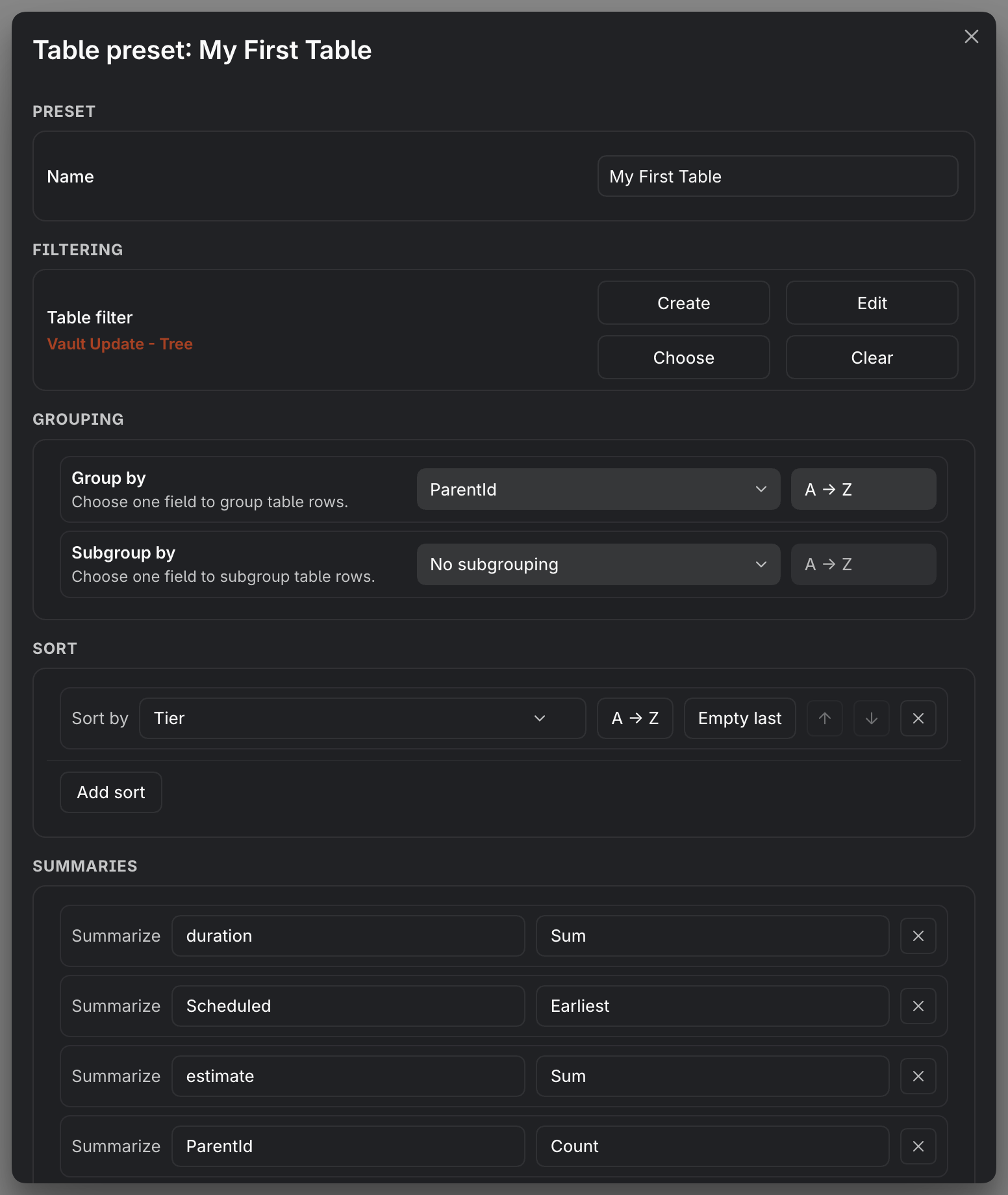
MEDIA-DOCS-109-1: The table preset settings, with the Filtering, Grouping, Sort, Summaries, Display, and Columns sections.
What a preset holds
A preset stores the parts of a table that define the reusable view:
- The filter that decides which tasks appear.
- The columns, their order, width, alignment, color, and format. See Table columns.
- The Countdown target, when that column is present: Earlier date, Scheduled, or Due.
- The grouping and sorting of the rows. See Table grouping and sorting.
- The summaries at the foot of each column. See Table summaries.
- The display density.
- The search scope choices, such as project scope, Overdue, Happens Today, and whether finished or cancelled tasks are included.
- The Task Tree expansion state for each visible hierarchy occurrence.
- The Gantt layout: whether it opens, the Table pane width, timeline scale and unit width, bar color source, and weekend shading.
The line number, task icon, and Task Data Type helper columns are global Table settings, not normal preset columns. Task Data Type is the read-only inline-or-file helper, not the editable Task Type property. Because the reusable layout lives in the preset, two presets never step on each other: change the columns on one and the others keep their own layout.
Editing a preset
Open a preset's full settings with Edit preset, from the settings button on the toolbar or from any column header's menu. The settings are organized into sections:
| Section | What it sets |
|---|---|
| Preset | The preset's name |
| Filtering | Which tasks appear, a FilterSet or All Tasks |
| Grouping | The group and subgroup fields and their order |
| Sort | The sort rules, their direction, and where empty values go |
| Summaries | The per-column summaries |
| Display | The row density, compact or comfortable. This is separate from a column's detailed or compact cell mode; see Table cells: display and behavior |
| Columns | Which fields are columns and their order |
| Gantt | Whether the timeline opens and its split, scale, width, bar color, and weekend presentation |
Most of these also have quicker paths: columns from a header menu, grouping and sorting from Group & Sort, and a summary from a header. The preset settings gather them in one place, plus the options that live only here, such as a sort rule's empty placement.
Save a Countdown target
Add Countdown like a normal preset column. A newly added column uses Compact, Center, and Earlier date. Its header menu shows Earlier date, Scheduled, and Due together below Add column to right...; choosing one saves the target in that preset, along with the column’s layout and display preferences.
Table views and embeds using the same preset use that saved target. Other presets keep their own choices. This preference does not write a date or a countdown property onto the task. See Table columns for how the target is resolved.
Choosing which tasks appear
The Filtering section sets the table's scope: choose a saved FilterSet to show only the tasks it matches, or All Tasks to show everything. This is the same FilterSet mechanism the Filter View, Calendar, and Kanban use, which is why a table can share its filter with a related Calendar or Kanban through the related views control. See Filter View.
Use Choose to find a saved filter by name. The picker marks the current selection and includes a no-filter choice. Selecting another filter changes which saved filter the preset uses; it does not edit that filter's conditions or reset the other preset options. You can also choose or edit the filter from the Table toolbar.
Switching presets with Vault Properties
A preset can combine mapped fields with Vault Properties. Both use the shared persistent task index; adding a native column does not create a second per-preset index or require a manual reindex.
Each table can reuse its last successful native-property snapshot when returning from a preset without native fields, provided the task scope and indexed data are still valid. Property changes, different task identities or ordering, source moves, and type/mapping changes invalidate stale preparation. This reduces repeat work without treating old values as current.
A real pending source or first-time index build can still require waiting. A column header appearing before rows does not alone prove a full reindex is running. For update/startup behavior and diagnostics, see Plugin data and state files.
When a task changes within the same preset and column layout, the table keeps its existing structure and reuses unaffected rows. A pending source can still show a brief updating state; see Table cells: display and behavior for which rows and actions remain available.
Favorite presets
Any preset can be marked a favorite with the star toggle, from its Edit preset settings or its row in the Table Presets list under Settings → Operon → Views → Tables. Favorites are about quick access, not defaults: the toolbar's centered preset shortcuts show only your favorites, so that row stays short even with many saved tables, while the toolbar's preset picker still lists every preset, favorite or not. A preset's favorite status is independent of the default preset described above; a preset can be one, both, or neither.
A temporary read failure, startup scan, or sync gap does not remove a saved star. The preset must become readable and valid again before it is usable; preserving its favorite does not turn an unavailable file into an editable preset. Explicitly deleting a preset is different. See Table files.
Managing presets
The footer of the preset settings carries the management actions:
| Action | What it does |
|---|---|
| Save | Saves your changes to the preset |
| New | Creates a fresh preset from the current one, as a new .table file |
| Duplicate | Makes a copy of the preset, as a new .table file with its own id |
| Favorite / Unfavorite | Toggles the preset's favorite star |
| Copy embed code | Copies the code block that embeds this table in a note. See Embed a table in a note |
| Delete | Sends the preset's file to Obsidian's Trash, disabled when only one preset remains |
The footer has no "set as default" action: the default preset is chosen from the dropdown in Settings → Operon → Views → Tables, where the Table Presets list also has an Add Table Preset button, each row opens the same settings, and the current default carries a Default label.
Add Table Preset, New, and Duplicate create a new .table file and register it as one serialized operation, so a preset that appears successfully remains available after restart. On a genuinely uninitialized profile with no Table file to adopt, Operon creates a fresh Default table.table from the current defaults instead of converting an old Settings entry. After Table files have been initialized, deleting the last file or briefly making the files unavailable does not silently recreate that default.
The default preset and saved state
The default preset is chosen in Settings → Operon → Views → Tables. A newly opened Operon Table starts with the default preset, unless that table already has its own saved state. The same default preset is used when the Insert Operon Table embed command creates a new embed block; if that default is unavailable, Operon falls back to the first available Table preset without treating temporary unavailability as a request to erase the saved default. The preset stores the reusable table shape, saved search scopes, collapsed groups, Task Tree expansion, and Gantt layout. Each open table tab then remembers session state such as its current preset, typed search text, and scroll position, so reopening it or switching back finds that tab as you left it.
Tips
One preset per recurring question
If you keep re-sorting or re-filtering the same table, save it as a preset. Give each one a plain name, such as "Overdue", "This sprint by assignee", or "Unestimated backlog". Next time you need that view, pick it from the selector and the table is ready, with no rebuilding.
FAQ
How do I make a new table? Open the preset settings and choose New or Duplicate, or add one from Settings → Operon → Views → Tables.
How do I switch tables? Use the preset selector on the toolbar.
What does the default preset do? It is the preset a freshly opened Operon Table starts with, unless that table already has its own saved state.
Do my columns and grouping affect other presets? No. Each preset stores its own filter, columns, grouping, sorting, summaries, and density.
Does each preset keep its own Gantt layout? Yes. Whether Gantt opens, the split, scale, unit width, bar color, and weekend presentation are saved in that preset's .table file. Global Gantt settings supply defaults and shared interaction behavior. See Gantt view.
Where is a preset actually stored? As a .table file in your vault, by default under Operon/Tables. See Table files.
What is the difference between a favorite and the default preset? The default is the one preset a new table or embed starts with. A favorite is a preset pinned to the toolbar's short list for quick switching. A preset can be either, both, or neither.
Can I put a preset's table inside a note? Yes. Use Copy embed code, the Table export menu, or Insert Operon Table embed. Existing embeds can also switch preset from their own toolbar. See Embed a table in a note.
Settings
Table presets and the default preset live in Settings → Operon → Views → Tables, alongside the destination for new Table files, the maximum visible rows and default width for embedded tables, and the toggles for the line number, task icon, and Task Data Type columns. The Table-file destination is applied only when Operon creates a new .table file; leave it blank for the vault root, and changing it never relocates an existing preset. Each preset's own filter, columns, grouping, sorting, summaries, density, and Gantt layout are edited from the preset settings, reached with Edit preset. Shared Gantt behavior and new-preset defaults live under Settings → Operon → Views → Gantt.