Task Finder
Task Finder is for the moment you remember a task but not where it lives. It is a fast search box over your whole vault that takes you straight to a single task, whether that task is an inline task on a line or a file task in its own note. Where the Filter View is for seeing a set of tasks together, Task Finder is for recovering one task by its words.
Open it with Task Finder from the command palette.
MEDIA-DOCS-027-1: Task Finder open with a search term and a list of matching tasks.

Search and jump
Type part of a task's text and the list narrows as you go. Click a task result or select it with the keyboard and press Enter to open it. Both use the same result-opening preference. It is the quickest path back to a task you can describe but cannot find by browsing.
The matching and ranking rules below explain which tasks appear and how they are ordered.
Result Behavior
Choose what opens from a normal Task Finder result under Settings → Operon → Interface → Task Finder → Result Behavior. File and Inline tasks have independent dropdowns:
| Setting | Default |
|---|---|
| File task results | Source File + Task Editor |
| Inline task results | Task Editor Only |
Both dropdowns offer the same three choices:
| Choice | What opens on desktop |
|---|---|
| Source File Only | The native source lightbox, without opening Task Editor |
| Source File + Task Editor | The source and Task Editor together in one workspace |
| Task Editor Only | Task fields alone; use Show source later if needed |
These choices reuse the existing source lightbox and Task Editor workspace. An Inline task's source opens at that task's current position. A source-only result can offer Show task editor for its task, and a paired workspace keeps the normal show/hide controls, saving, and navigation behavior.
For that Finder opening, the chosen combination takes precedence over Open source with file task editor or Open source with inline task editor. It does not change those settings or editor openings from other places. Left/right placement still follows the shared Task Editor position preference. Changing a Finder preference affects subsequent result selections, not workspaces already open.
The panel choices apply to the supported desktop Markdown workspace. Phone/tablet openings and special source/editor routes keep their existing behavior. When Finder is being used to choose a task for another action, such as adding a Canvas card or inserting a task link, it completes that action instead of applying Result Behavior.
Result chips
Choose visible metadata and its order under Interface → Task Chips → Task Finder Chips. Project Serial starts first and visible; Source starts last and hidden. Source shows the file name and, for an Inline Task, its one-based line. Both remain Detailed, informational chips: clicking them keeps the result's existing selection action rather than opening a separate preview.
Normal results follow the saved chip order. In Overdue and Happens Today, a visible, populated Serial appears first, followed by the mode's priority date chips and then the remaining chips in their saved relative order. This temporary order does not change your settings. See Task chips.
On desktop, the modal uses the shared Background dimming preference. It does not gain the Lightbox side controls.
Choose a task for Canvas or Excalidraw
Use Canvas and Excalidraw Task Pool when gathering tasks for a visual plan. It stays beside the board while you search and add cards.
Task Finder is an alternative for choosing one task. With an editable Canvas active, run Add task to Canvas. With an editable Excalidraw drawing active, run Add existing task to Excalidraw. In these picker contexts, selecting a result adds its card regardless of Result Behavior. The task stays in its original Markdown location.
How matching and ranking work
When you type, Task Finder does two separate things: first it decides which tasks match, then it decides what order to show them in. Knowing the split explains both why a result appears and why it sits where it does.
What gets matched (a wide net)
Task Finder does not look only at a task's title. For each task it gathers a broad set of text and matches your query against all of it:
- the task's own words (its description) and its id
- its note
- its tags, contexts, assignees, and priority
- its dates (due, scheduled, started, completed, cancelled)
- its custom field values
- the name of its parent, and the names of its sub-tasks
- the names of related tasks it blocks or is blocked by
So you can find a task by something around it, not just its own title: type a parent project's name and its children surface; type a context or an assignee and the tasks carrying it appear.
Two rules govern a match:
- Every word must match. Type two words and a task has to match both, in any order, so adding words narrows the list.
- Words match from the start of a word.
repmatches "report" and "repeat", butportdoes not match "report". A purely numeric word must match a whole number in the text, so3finds a task tagged3rather than every task with a3buried in a date.
What drives the order
Among the tasks that match, Task Finder scores each one and shows the strongest first. Not every matchable field counts the same for ranking:
- A hit in the description or id counts most, and an exact or start-of-text hit beats one in the middle.
- Then status and priority, then file path, note, and custom fields, in decreasing weight.
- Open tasks rank above done and cancelled ones, and among equal scores the most recently modified comes first.
The key point: the set of fields you can match on is wider than the set that lifts a task up the list. A task found only through a sub-task's name or a context still appears, but it ranks below one whose own description matches your query. That is usually what you want, the task you named directly comes first.
| What your query matches | Gets the task listed | Lifts it up the ranking |
|---|---|---|
| Description (the task's words) | Yes | Strongest |
| Id | Yes | Strong |
| Status, priority | Yes | Moderate |
| File path, note, custom fields | Yes | Light |
| Tags, contexts, assignees, dates | Yes | No, match only |
| Parent, sub-task, or related task names | Yes | No, match only |
With an empty box
With nothing typed there is nothing to score, so Task Finder falls back to a sensible default: open tasks first, most recently modified at the top. That is why it opens showing what you touched last.
The same matching also powers the search box on the Kanban board, and the commands that pick a task before acting on it, such as Move an inline task here and Add Task Wikilink Overlay, which opens Task Finder to choose the task to link.
Scopes
Task Finder starts by searching your open tasks, in both inline and file form. Scopes aim that pool: the first five narrow it to a slice, and the rest change which kinds of task are in it. Each scope has a button and a default dot shortcut, the digits 1 to 9 in the order below.
MEDIA-DOCS-027-2: The Task Finder scope toggles, with a project scope and Happens Today active.
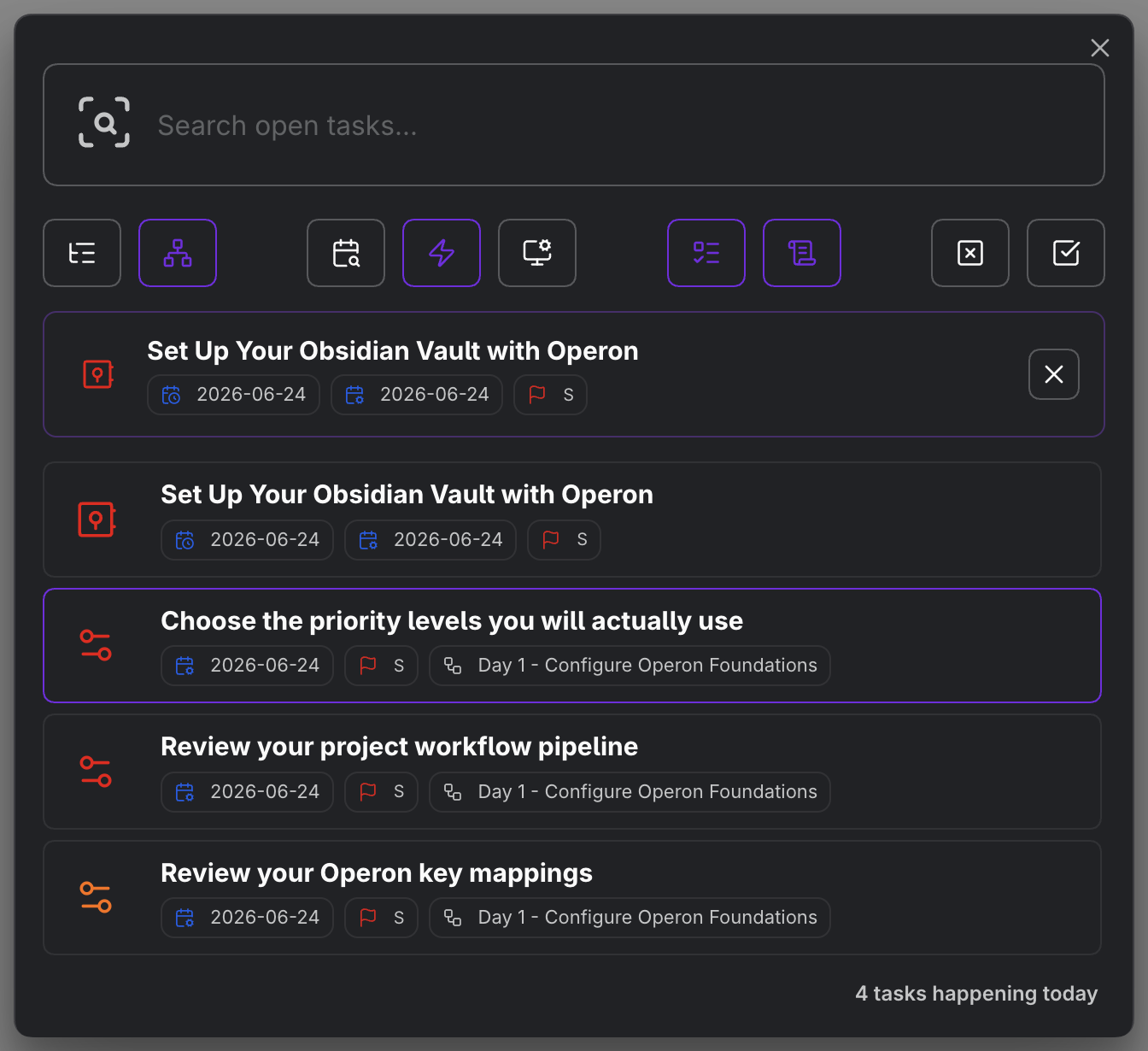
Project Tasks (.1)
Lists your parent tasks; choose one to search within just that parent and its direct children. Use it to focus on a single project's immediate tasks without the rest of the vault in the way.
Project Tree (.2)
Like Project Tasks, but a chosen parent searches its whole subtree: every descendant, however deep. Use it to search across an entire project, including its sub-projects.
Overdue (.3)
Narrows to tasks whose scheduled or due date is already in the past. Use it to catch what slipped and jump straight to it.
Happens Today (.4)
Narrows to tasks dated today, taken in order of due date first, then scheduled, then started. Use it to pull up today's work.
Recently modified (.5)
Narrows to tasks changed recently, within a window you set in settings, newest first. Use it to jump back to something you were just editing.
Choosing which tasks are included (.6 to .9)
The remaining toggles decide which kinds of task are in the pool, rather than narrowing by project or date:
- Include inline tasks (.6) and Include file tasks (.7) are format filters. Both are on by default, so the search covers inline and file tasks together; turn one off to restrict the search to the other.
- Include cancelled tasks (.8) and Include finished tasks (.9) add state. By default Task Finder shows only open tasks; turn these on to bring cancelled or completed work into the results.
These combine with the narrowing scopes above. Overdue with Include finished left off, for example, keeps you on open, past-due work.
Dot shortcuts
To switch a scope without leaving the keyboard, type its dot shortcut in the search box, such as .1 for Project Tasks. Each shortcut toggles its matching scope button. The defaults are the digits above, but you set your own: a shortcut is one to three lowercase letters or numbers, stored without the dot, so you can rename the scopes you use most to something like .pt or .od.
FAQ
How is this different from the Filter View? Task Finder finds one task fast and jumps to it. The Filter View shows a saved set of tasks to work from. Different jobs: recover versus review.
Why did a task show up when my words are not in its title? Because matching looks beyond the title, at the task's fields and at the names of its parent, sub-tasks, and related tasks. Such a task still appears, but it ranks below tasks whose own description matches.
Why is one result above another? Ranking: hits in the description or id count most, status and priority next, and open and recently modified tasks float up. Type more of the exact words to push the one you mean to the top.
Can it search finished or cancelled tasks? Yes, if you include them in the scope with .8 and .9. By default it focuses on open tasks.
Do I have to click the scope buttons? No. Dot shortcuts like .1 toggle them from the search box.
Can File and Inline results open differently? Yes. Set each dropdown independently under Result Behavior. The defaults open File tasks with source and editor together, and Inline tasks with only the editor.
Settings
Operon settings for this live in Settings → Operon → Interface → Task Finder. Result Behavior chooses how File and Inline results open. Search Behavior controls visible result count, the recently modified window, and remembering the last scopes. Scope Shortcuts sets the dot shortcut for each scope. Search Settings for File task results, Inline task results, Scope Shortcuts, or a scope name to reach the relevant controls.