Contextual menu actions
Wherever a task appears, Operon offers a contextual menu of actions on it: from a filter row, a Calendar item, a Kanban card, a pinned task, a Status Dock task-list or recent-session card, an Upcoming Tasks card, a Canvas Task Card, an Excalidraw Task Card, an Embedded Task Card, or an inline task. Task icons also expose contextual hover menus across supported surfaces, including Calendar and the task icon column in the Table. It is the mouse-friendly counterpart to the command palette.
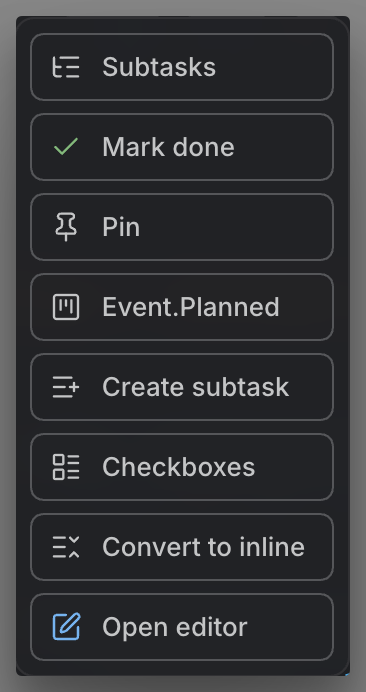
The menu is context-aware: an action only appears when the current task and surface actually support it. A scheduled task offers Unschedule; a recurring occurrence offers Skip this occurrence; a task with no due date will not show Clear due date; the Subtasks action shows only on an open task that actually has subtasks.
MEDIA-DOCS-042-1: A task's contextual menu open, showing the available actions.
The actions
Grouped by what they do:
- Open and inspect: Open editor, Open Source (preview the task's current source on desktop), Copy operonId.
- Status and completion: Task status, Mark done, Cancel task.
- Structure: Subtasks (open the task's Dynamic Subtasks Filter, a live filtered window of just this task's subtree, locked to its
operonId; appears only on an open task that has subtasks), Create subtask, Checkboxes (open or create plain checkboxes). See Dynamic Subtasks Filter. - Convert: Convert to file, Convert to inline. See Converting inline and file tasks.
- Scheduling: Unschedule, Clear due date, Skip this occurrence.
- Pin and time: Pin task / Unpin task, Start timer / Stop timer, Log as tracked (record a planned block as tracked time).
- Reminders: Fixed Reminder opens the ReminderDatetimes picker, Relative Reminder opens the ReminderRules picker, each icon following its own canonical property. See Reminders.
- Remove: Delete task.
On desktop, Open Source opens the shared lightbox. For a Markdown task, it starts with only the source, independently of the editor's source-opening preferences. For an Inline task, it resolves the current line and places the caret immediately after the description in the editable Markdown view, without selecting text. A File task opens its source file normally. This is navigation, not a task edit; mobile source navigation keeps its existing behavior.
Open editor follows the normal Task Editor opening preferences. Task Finder's separate Result Behavior settings do not change this explicit menu action.
Start and stop the current task's timer
The timer action uses one menu position. When that task's timer is running, it shows Stop Timer with the stop icon. Other eligible tasks still show Start Timer, even while another task is being tracked. The label reflects the task whose menu you opened, not a global stop command.
Stopping uses the existing time-tracking save path for that task's session. Starting another task uses the normal timer-switching behavior. Stop checks that the same task and session are still active before saving; a change while the request is pending leaves the newer session running. These rules apply across the supported contextual menu surfaces; see Time tracking for session behavior.
Interacting with an open menu
Clicking a task icon follows the global Task icon click action preference; choosing an explicit menu action such as Cancel task keeps that action’s own meaning. See State Icons for the two icon modes.
When a task’s status or state changes and the task remains on the same surface, the hover menu stays open and updates its available actions in place rather than closing and reopening during the save. If the task disappears from that surface (for example, a completed task is removed from a filtered list), the menu can close. This keeps the menu attached to the task you were using.
On mobile, enable Mobile touch menu to open the menu with a long press. Releasing that press does not also activate the task icon. A short tap keeps the icon’s normal click behavior.
Task Card menus
Hover over a Task Card's task icon to open its contextual menu. With the icon focused, the Context Menu key or Shift+F10 also opens it. Use Open editor, Open Source, or another available action without leaving the card's task context.
Menu actions operate on the source task. On Canvas and Excalidraw, they respect the surface’s write permissions and applicable element locks; enabling an action in the matrix does not bypass that lock or make an unavailable task editable. The separate Task Card Actions settings control the card's inline buttons, not this menu.
The shortcuts below a selected Canvas or Excalidraw task card are separate from the task-icon menu. Relationship controls on a selected connection or arrow are another set of controls: they set parent/child and blocking relationships between the connected tasks. See Canvas Task Cards and Excalidraw Task Cards for those controls.
FAQ
Why do I see different actions on different tasks? The menu is context-aware. It hides actions that do not apply to the current task or the surface you are on.
Can I reorder the actions? Yes, in the Context Menu settings. Order and visibility are both yours to set.
Settings
You control the menu in Settings → Operon → Interface → Context Menu:
- Hover Menu sets the hover-open delay.
- Mobile Touch Menu enables long-press menus and sets the long-press delay, transition grace period, and auto-hide time. The three timing controls are hidden when the menu is disabled; their saved values remain.
- Menu Actions & Order enables actions and sets their order. Enabled actions still appear only when the task and surface support them.
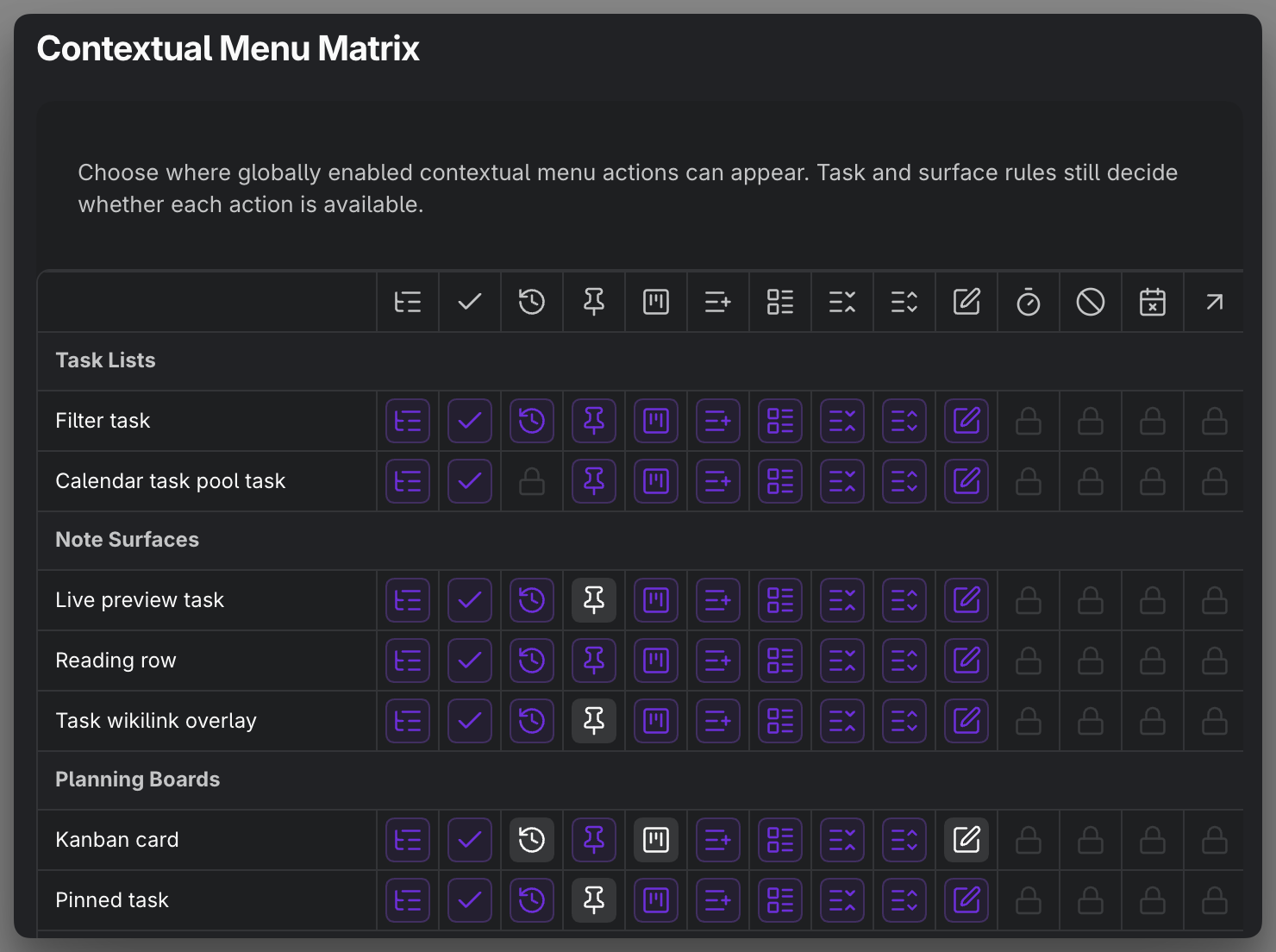
- Action Visibility by Surface, also called the Contextual Menu Matrix, selects where each enabled action may appear.
The Start Timer action row controls both its Start and Stop appearances. There is no separate Stop Timer row to enable, order, or configure in the matrix. The same enabled state and surface permissions apply in either case.
Keep an action's position
Turning an action off leaves its row in place and hides its matrix column. The up/down arrows can move both enabled and disabled actions. Re-enabling an action restores it at its saved position, with its previous surface selections. The live menu and matrix follow the enabled actions in that order; disabling an action does not move it into a separate group.
Read the matrix
Rows represent surfaces and columns represent globally enabled actions. A selected cell allows the action on that surface; an unselected cell hides it there. Locked cells mean that the surface does not support that action. No selection bypasses task-specific availability or read-only restrictions.
Upcoming Tasks and Status Dock are under Task Lists; Task wikilink overlay is under Note Surfaces. Task Cards covers the task-icon menus shared by Canvas and embedded cards, separately from Kanban. Excalidraw has its own surface selection, so its task-icon actions can be configured independently. Calendar timed items and Calendar task pool tasks appear in the Calendar group. Time Session History appears under Time Tracking.
The Status Dock row controls hover-menu actions on its Overdue and Happens Today cards and its recent-session card. It is independent of the other task-list rows. It does not control the dock's scope icons or its cards' inline Play/Stop control; task-specific availability still applies.
A disabled action's column disappears without deleting its surface selections. Surface rows remain present. If every action is off, the section asks you to enable an action instead of showing an empty table.
Settings search treats the matrix as one result, reachable by either Action Visibility by Surface or Contextual Menu Matrix. Each menu action has its own result targeting that action's row; there are no separate results for individual matrix cells.
Tune this once to keep the menu short and relevant to how you work.
MEDIA-DOCS-042-2: The Context Menu settings, enabling actions and setting their order.