Task chips: display and behavior
A task chip is a small badge that shows one of a task's fields at a glance: its priority, its due date, its assignees. Chips are how a task wears its metadata where you see it, without opening the task. This page covers both halves of that: what chips show and where, and how each one behaves when you click or hover it, because a chip is not just a label, it is a control.
MEDIA-DOCS-041-1: A task displaying several chips: status, priority, due date, and assignees.
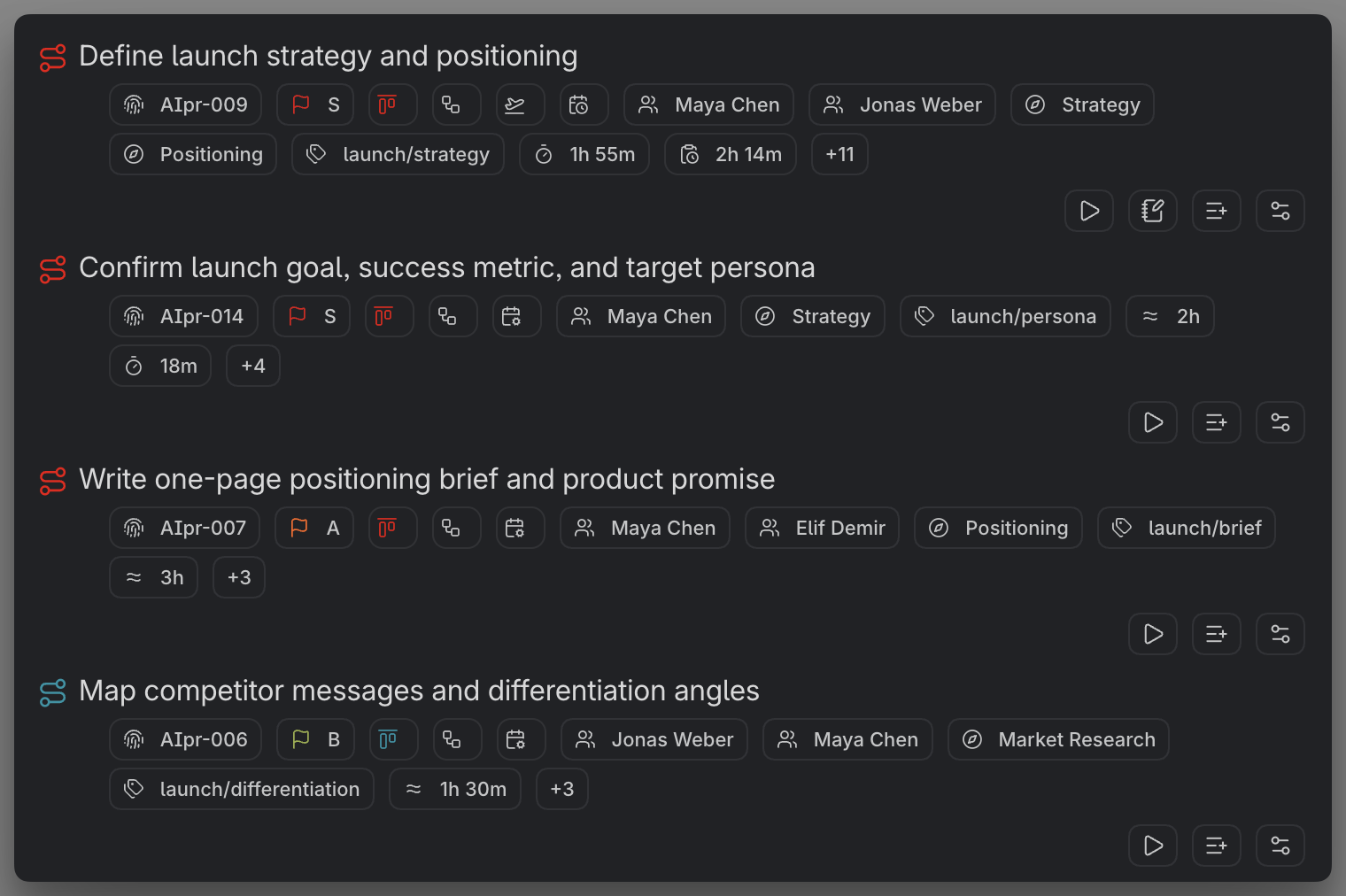
What chips can show
Chips cover the fields you most often want at a glance:
- Status and Priority.
- Dates: Due, Scheduled, Start, and the completion and cancellation dates.
- Assignees and Contexts.
- Task links: Parent, Blocking, and Blocked by.
- Estimate and Duration, and their rolled-up totals.
- Recurrence, showing the current task's recorded occurrence date, with its pattern in the tooltip.
- Reminders, one chip per reminder, from either reminder field. See Reminders.
- Location, shown as a small map chip.
- Tags and external Links.
- Task Type, a user-managed task classification.
- Source and Project Serial, optional task information rather than editable properties.
- Task Image and Task Gallery, as one or several media-reference chips. See Task images and galleries.
Your own custom keys can appear as chips too, when you turn on "Show in chips" for them, so the row can carry exactly the fields your workflow cares about.
Each surface is configured separately
Chips follow a task across several surfaces, and each surface has its own chip configuration: which chips show, in what order, and whether any is Icon Only. So a busy Filter View can carry a shorter set than an inline row, arranged differently. The six surfaces, each with its own settings page under Settings → Operon → Interface → Task Chips, are:
-
Inline Task Chips: the compact chip row on inline tasks in Live Preview and reading view.
-
Filter Task Chips: the chips on rows in the Filter View.
-
Task Finder Chips: the chips in Task Finder results.
-
Kanban Task Chips: the chips on main cards in the Kanban.
-
Task Wikilink Overlay Chips: the chips on a task wikilink overlay, which now decorates both file-task links and inline links written as
[[File#-operonId]]. See Task Wikilink Overlay. -
Task Card Chips: the shared chip configuration for Canvas Task Cards, Excalidraw Task Cards, and Embedded Task Cards in notes.
Because each is independent, you tune the chip row per place rather than once for everything.
Source and Project Serial
Both information chips share the normal visibility and ordering controls, plus Icon Only where the surface supports it. They have no canonical property-key label in Settings and do not add a property to task files.
- Project Serial is first, visible, and Detailed when initially added. It shows the existing assigned serial, using the configured operonId icon or the fingerprint fallback and its subtle identity styling. No serial means no chip. It has no independent click action; Icon Only retains the full serial in its tooltip.
- Source is initially last, after Custom Keys, hidden, and Detailed. File tasks show a file icon and
File.md; Inline tasks show a text-cursor icon and a one-based position such asFile.md:37. Long labels shorten in the row; the tooltip carries the complete path and position. On interactive desktop surfaces, it opens the current source through the lightbox, including the Inline task's current line.
These are initial choices, not a reset on every opening. Your saved order, visibility, and display mode remain in effect. A Custom Key called Source or Project Serial is still a separate field; on Obsidian 1.14+, the Settings rows also keep separate identities without changing their visible names.
In Task Finder, both chips remain informational and selecting a result keeps the usual Finder action. Normal results follow the saved chip order. Today/Overdue temporarily show a visible, populated Serial first, then the priority date chips, then the remaining chips in their saved relative order. This does not rewrite your preferences.
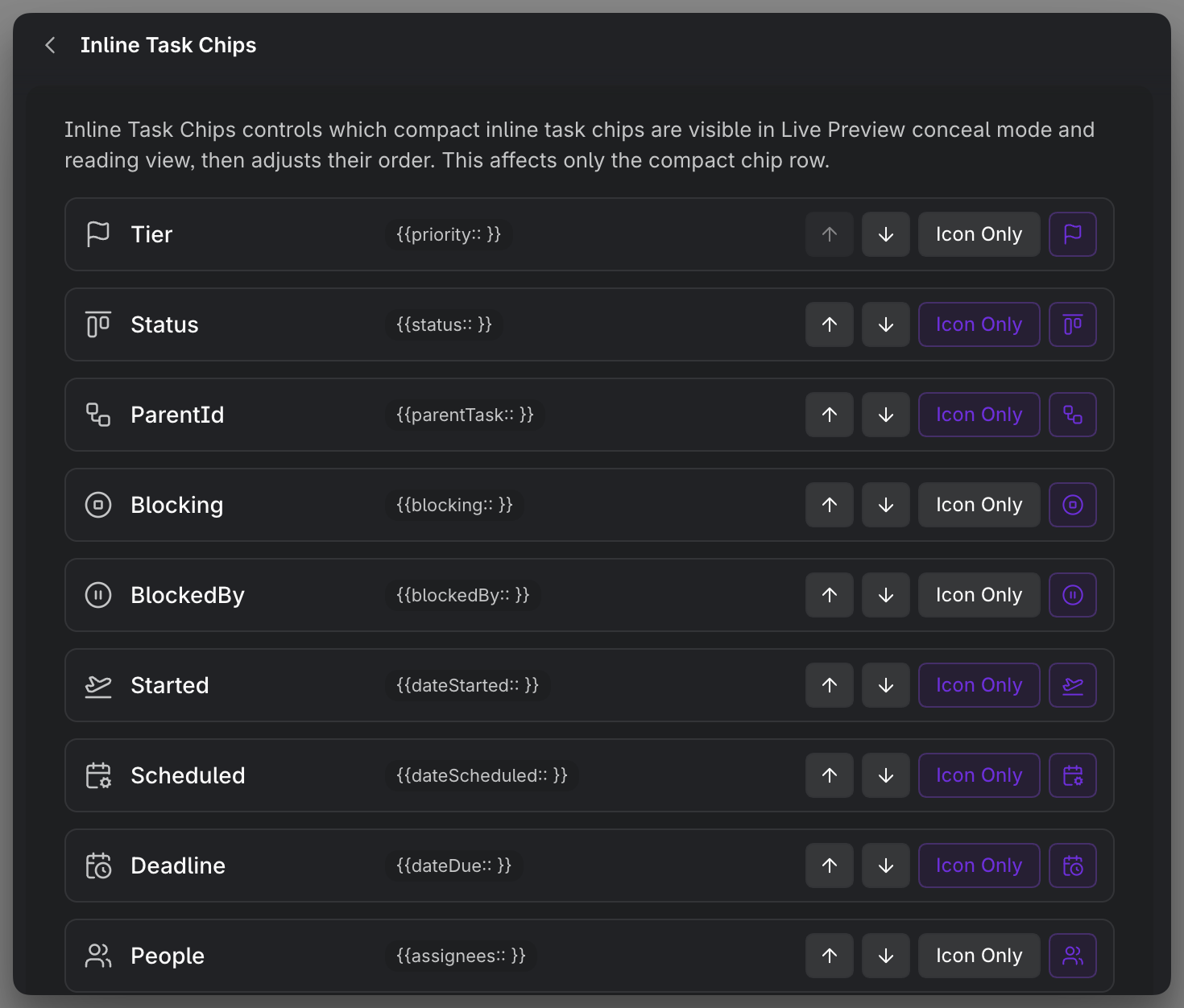
MEDIA-DOCS-041-2: The Task Chips settings for one surface, toggling visibility, reordering chips, and setting Icon Only.
Source action
The Source action is a separate desktop control from the Source metadata chip above. It is enabled by default on Inline Task Chips, Filter Task Chips, Kanban Task Chips, Task Wikilink Overlay Chips, and Task Card Chips. Turn it off independently in the Actions section of each surface's settings page. Task Finder and Task Creator do not gain this action.
The button follows the row's hover/focus visibility, like other task actions, rather than remaining permanently visible. It sits immediately before Note when that control is present; otherwise it is last in the configurable action group, before the fixed Open editor control. These visibility toggles do not reorder the other actions.
Its Open Source action opens the current source in the lightbox; Cmd/Ctrl-click opens a focused Obsidian tab. Inline source opening places the caret at the end of the current description without selecting text. Both controls keep their own visibility setting.
Task Creator Chips
Settings → Operon → Interface → Task Chips → Task Creator Chips configures the permanent field controls and their order in Task Creator. These creation controls are separate from the six saved-task chip surfaces above and their Icon Only options.
If you often use templates, keep this permanent set small: enable fields you regularly add outside templates. Selecting a template exposes its supported fields in the current draft, including empty properties, so you can review and edit them before creation without enabling every possible control. This does not rewrite your saved chip preferences. See Using inline task templates.
Showing, hiding, and Icon Only
For each chip on each surface you can turn its visibility on or off, and set it to Icon Only, which drops the text and shows just the icon, a tidy way to keep a busy row compact while still signalling the field. Some Icon Only chips expand their content on interactive surfaces. A supported single navigation target opens directly instead; hiding its text does not add an extra preview-expansion click. Hover provides the complete value. Task Finder keeps Detailed, informational chips.
Table columns have a separate compact mode. Their duration and estimate cells keep an abbreviated time value; that does not change Icon Only for task chips. See Table cells: display and behavior.
Assignee images
An assignee linked to a person note can show an image in place of the usual assignees icon. Open Settings → Operon → Interface → Task Chips → General Chip Settings → Assignee Images, on the last Task Chips subpage, and enter the property name in Assignee image property. You can type any name or choose a suggestion from the vault's property names. Leave it blank to keep the usual icons.
The image comes from that property in the linked person's note, not from an upload to Operon. For example, assign [[Bobby]] and give Bobby's note a photo property containing an image reference. Plain Bobby text does not resolve a person note. Missing or unreadable images keep the usual icon, and the person's name and click behavior stay the same. See How to show assignee images for the setup and supported values.
Date and time on chips
Built-in and custom task fields typed as Date follow Settings → Operon → Core → General → Language & Formats → Date format. The same choice is used on Inline Task Chips, Filter Task Chips, Task Finder Chips, Kanban Task Chips, Task Wikilink Overlay Chips, and Task Card Chips, so a date keeps the same visible order as the task moves between surfaces.
A Date & time chip stays compact by showing only its time in the row. Its tooltip shows the complete value: the date follows Date format, and the time follows the separate 12-hour or 24-hour Time format setting. These are display choices only; the chip still opens and writes the task's canonical date or datetime value.
On views using a Tracked time filter, Duration and Total duration chips use the selected period, just like the view's session list. The task's saved history and estimates stay unchanged. See Time tracking for period totals.
Kanban card chips
Kanban cards use the Kanban Task Chips surface. On desktop, Kanban chips behave like the same chips elsewhere: editable chips open their pickers, link-like chips open or preview their target, and location chips open the map popover. A card only shows the chips you chose to display, with nothing standing in for the ones you hid.
The end of the Kanban Task Chips page also has Kanban Task Actions. These control the trailing action chips on Kanban cards, such as Play, Pin, Source, Note, Add subtask, and Open checkboxes. When the Play action is enabled, it turns into Stop while that task's timer is running.
On mobile Kanban, the same chip area stays visible but read-only. Tapping chips or action chips does not open pickers, links, previews, map popovers, or actions, so card tap, scroll, and long-press drag remain the main touch gestures. Project Serial follows the Kanban Task Chips visibility and order preferences and remains informational. Descendant preview cards do not show chip rows.
Task Card chips and actions
Canvas, Excalidraw, and Embedded Task Cards share Task Card Chips. Their field visibility, order, and Icon Only choices are independent of Inline, Filter, Task Finder, Kanban, and Task Wikilink Overlay chips. Editing a field through a card updates the same source task shown in those other surfaces.
The Task Card Actions controls on that settings page choose whether cards offer Play, Pin, Source, Note, Add subtask, and Open checkboxes. Play becomes Stop while the task is being timed; each action appears only when enabled and applicable. These controls are separate from the task icon's contextual menu configuration.
The whole chip section can also be shown or hidden under Settings → Operon → Views → Task Cards → Card Sections and Order. A note embed may override that section's visibility with chips: true or chips: false; it still uses the same configured field list. Images and progress are separate card sections, so hiding chips does not hide those sections.
On a read-only Canvas or Excalidraw drawing, task-changing card controls are unavailable. Excalidraw also respects the target element’s lock. The mobile Kanban restriction described above belongs to Kanban cards; it is not the setting for Canvas, Excalidraw, or embedded Task Cards. For card layout and interaction details, see Canvas Task Cards, Excalidraw Task Cards, and Embedded Task Cards.
How a chip behaves when you click it
On interactive desktop surfaces, these are the field actions. Task Finder chips stay informational, and mobile behavior is unchanged.
| Chip | Clicking it |
|---|---|
| Status | Opens the status picker with the current text selected; checkbox and explicit cycle commands keep their own actions |
| Priority | Opens the priority picker |
| Due, Scheduled, Start, and the other dates | Opens the date picker |
| Estimate | Opens the estimate picker |
| Recurrence | Opens the recurrence picker |
| Reminder | Reopens that reminder's picker, to change or remove it |
| Assignees, Contexts | A complete, existing wikilink item opens the lightbox; other items open the field's picker |
| Task Type, Custom Text | A complete, existing wikilink opens the lightbox; other values open the Text/Type picker |
| Custom List | Each existing wikilink item opens the lightbox; other items open the list picker |
| Parent | Opens the current parent's source in the lightbox, at the task line for an Inline parent; an unresolved parent returns to its picker |
| Blocking, Blocked by | Keep their existing dependency actions; they are not part of the general wikilink exception |
| Tags | Opens the task's tag picker |
| Links | Opens an HTTP/HTTPS link through the shared desktop lightbox rules |
| Source | Opens the task's current source and Inline line in the lightbox |
| Project Serial | Informational, with no independent action |
| Location | Opens the map popover (see below) |
| Task Image, Task Gallery | Opens the selected supported media in the shared lightbox; normal hover retains the small media preview |
Creator and Task Editor field controls remain editors. To change a valid linked value that now opens a preview, use Task Editor; in Tables, the editable cell area outside the link remains available. Independent Vault Properties are not added to the chip catalog.
When Add subtask is enabled, a File task offers separate File and Inline subtask actions; an Inline task offers only Inline. This applies across Inline, Filter, Overlay, Kanban, and Task Card action profiles, subject to their existing availability rules.
Web links in a lightbox
Interactive Links chips use the shared desktop lightbox: click to preview, Cmd/Ctrl-click for an Obsidian tab, or middle-click an HTTP/HTTPS link for the system browser. Supported YouTube video links open the embedded player without Web Viewer, preserving a supported start time. Other web-page previews and Obsidian web tabs require the core Web Viewer plugin; middle-click does not. Cmd/Ctrl and middle-click keep the original URL. The Lightbox guide covers size profiles, controls, nested previews, and save protection.
This shared flow also serves the supported Description links and Description/Note popovers, not just the Links field. It does not enable links on passive Finder results, replace general Markdown navigation, or change mobile behavior. Table-specific editing is covered in Table cells.
Task media preview and lightbox
Plain-hover a Task Image or Task Gallery chip for its small media preview. A named Markdown link keeps its label while opening the underlying target. Click the preview header/open control or its image once to open the lightbox; the chip itself also targets its selected media.
Local modifier-hover follows Page Preview preferences and avoids showing both previews together. See Task images and galleries for formats, zoom, pan, and playback, and Lightbox for shared opening and window controls. Previewing does not edit the media reference or gallery order.
Wikilink chips: open and preview
Assignees, Contexts, Task Type, and Custom Text/List use the wikilink exception only when the whole value or list item is an existing wikilink. Plain text, mixed text, and missing wikilinks keep their picker path; an ordinary HTTP Text value is not turned into a web link. No missing note is created by this preview action.
Parent and Source resolve the current task relationship or source before opening, rather than treating the visible label as a file path. A missing Source reports that the target could not be found. Local modifier-hover uses the existing Page Preview preferences. The common click, tab, and hover rules are in Lightbox.
Date chips change color
The Due and Scheduled chips signal urgency by color, so a glance tells you what is pressing:
- Overdue (the date is before today): the chip turns red.
- Today (the date is today): the chip turns blue.
- Otherwise it stays neutral.
Once a task is finished or cancelled, its date chips drop the color, because the deadline no longer presses. The recurrence chip uses the same red/blue rule for its icon, based on the recorded occurrence date. Other date chips stay neutral.
The recurrence chip
A recurring task's recurrence chip shows its own recorded occurrence date, using the same Date format as Scheduled and Due. It does not advance to the date of an uncreated successor. The tooltip is headed Recurrence Rule and shows the readable pattern plus its end date when set. Clicking the chip opens the recurrence picker.
With a valid rule but no valid recorded occurrence date, the chip shows No occurrence date with a neutral icon. An unsupported rule keeps its raw text available with an explanatory tooltip. Neither case invents a date from Scheduled, Due, or today. The date is also available as Task Occurrence Date in filters, sorting, and Tables; see Recurring tasks.
Reminder chips
Reminders differ from every other field here in two ways.
One chip per reminder, not per field. A task with two fixed reminders and a rule shows three chips, each carrying its own value, rather than one chip holding a list. Clicking a chip reopens that reminder's own picker so you can change or remove it. A fixed reminder shows just the time when it falls today and the date with the time otherwise; a rule shows itself in words, as 1d before Due date.
They are hidden by default on every surface. Most tasks carry no reminders, so the chips stay off until you ask for them, on each surface separately like any other chip. Turning them off is purely visual: the reminders stay on the task and keep firing regardless.
A chip also carries the reminder's state, which is how you spot one that will not fire:
| State | What it means |
|---|---|
| Normal | Scheduled, still ahead |
| Past reminder | Its moment has gone by |
| Unresolved reminder | A rule whose reference date is missing, so nothing is scheduled |
| Invalid reminder | The stored value could not be read |
See Reminders for what the two reminder fields are, and Reminder rules for how a rule resolves.
The location chip
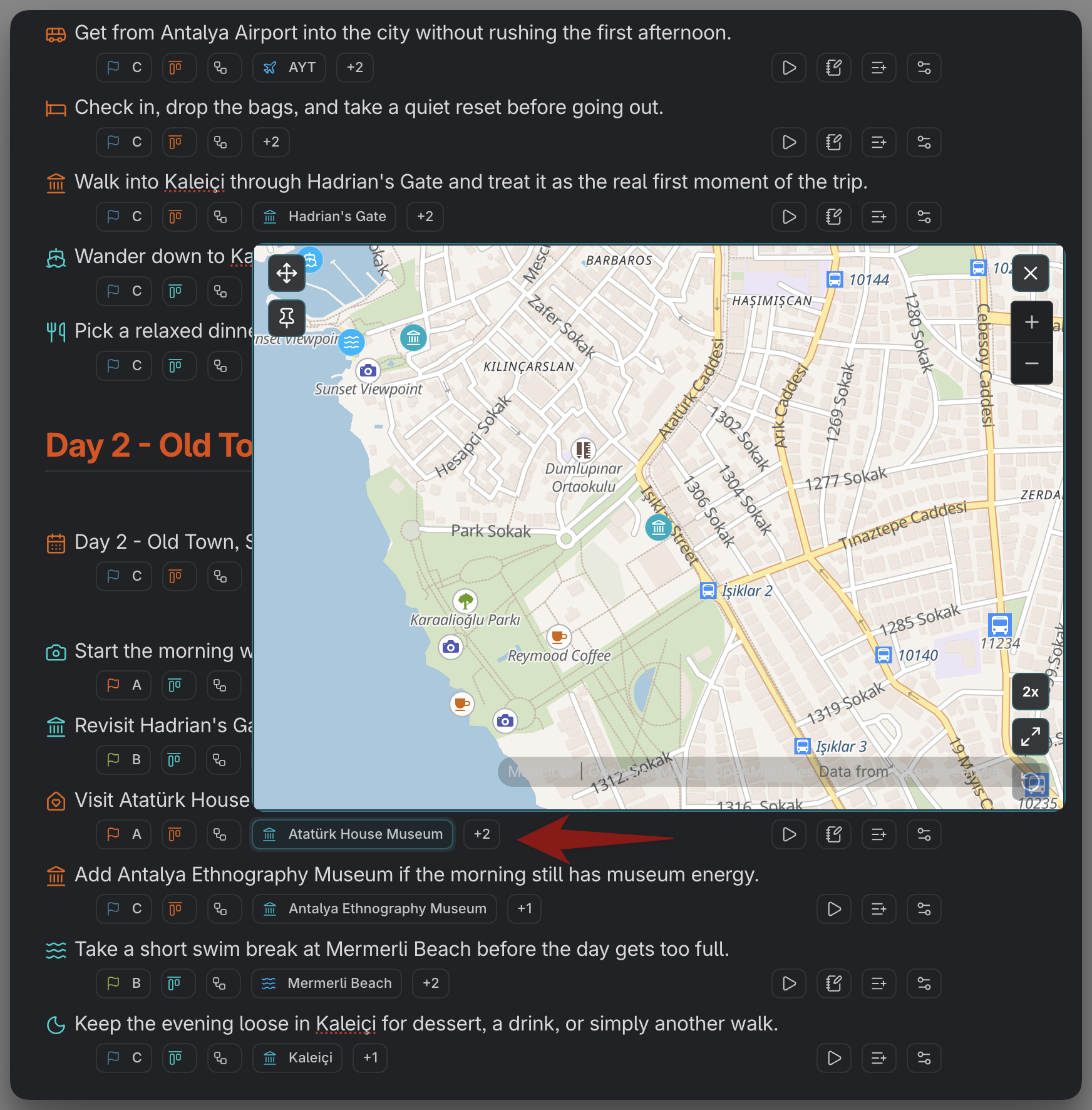
Location is a special chip. The location field stores coordinates as latitude, longitude, and Operon shows it as a map chip rather than plain text. Clicking it opens a small map popover you can pan around. Drag the map and the popover pins open, staying in view for continuous reference instead of closing when you move away; a pin control toggles that state.
The chip works on its own from your coordinates or a place note. If the community Maps plugin is enabled, the popover gains a rendered map; without it you still get a working location chip and popover, just without the drawn map. A place note can also supply the marker's icon and color. See Location picker.
MEDIA-DOCS-041-3: The location chip's map popover pinned open after dragging the map.
Custom-key chips behave like their type
Custom fields retain their type-appropriate editing controls. On interactive desktop chip surfaces, a complete, existing wikilink in a custom Text value or one List item uses the navigation exception above. Other values, including missing targets, open the existing picker. Editing through Task Editor is still available. See Custom field pickers and Custom keys.
FAQ
Can I show only icons to save space? Yes, on supported surfaces. Hover reveals the value; supported navigation icons open their target directly, while other chips keep their field action. Finder stays Detailed.
Can the same chips differ between Filter View and inline tasks? Yes. Each surface has its own visibility, order, and Icon Only settings.
Do Kanban chips work on mobile? They are visible on mobile Kanban cards, but read-only. Use the card itself for opening, scrolling, and long-press dragging.
Why is my due date chip red or blue? Red means overdue, blue means due today. A finished or cancelled task drops the color.
Can a custom field be a chip? Yes. Enable "Show in chips" for the custom key, and a wikilink value behaves like a link chip. See Custom keys.
Do I need the Maps plugin for locations? No. The location chip and its popover work from coordinates or a place note on their own. The Maps plugin only adds the rendered map.
Why do I not see reminder chips? They are hidden by default on every surface. Turn them on for the surfaces you want under Settings → Operon → Interface → Task Chips.
A reminder chip says "Unresolved". What is wrong? It is a rule whose reference date is missing, so there is nothing to count back from. Set that date and it resolves again. See Reminder rules.
Settings
Chip configuration lives in Settings → Operon → Interface → Task Chips, with a separate page for each surface: Inline Task Chips, Filter Task Chips, Task Finder Chips, Kanban Task Chips, Task Wikilink Overlay Chips, and Task Card Chips. On each you set which chips show, their order, and which are Icon Only. The location chip's rendered map preview is configured in Settings → Operon → Interface → Location Map.